
If Minecraft closes when you load one world or reach a particular place, keep that save aside before changing packs. Start with a separate copy and one small comparison. The useful question is what changes the outcome while your original build stays protected.
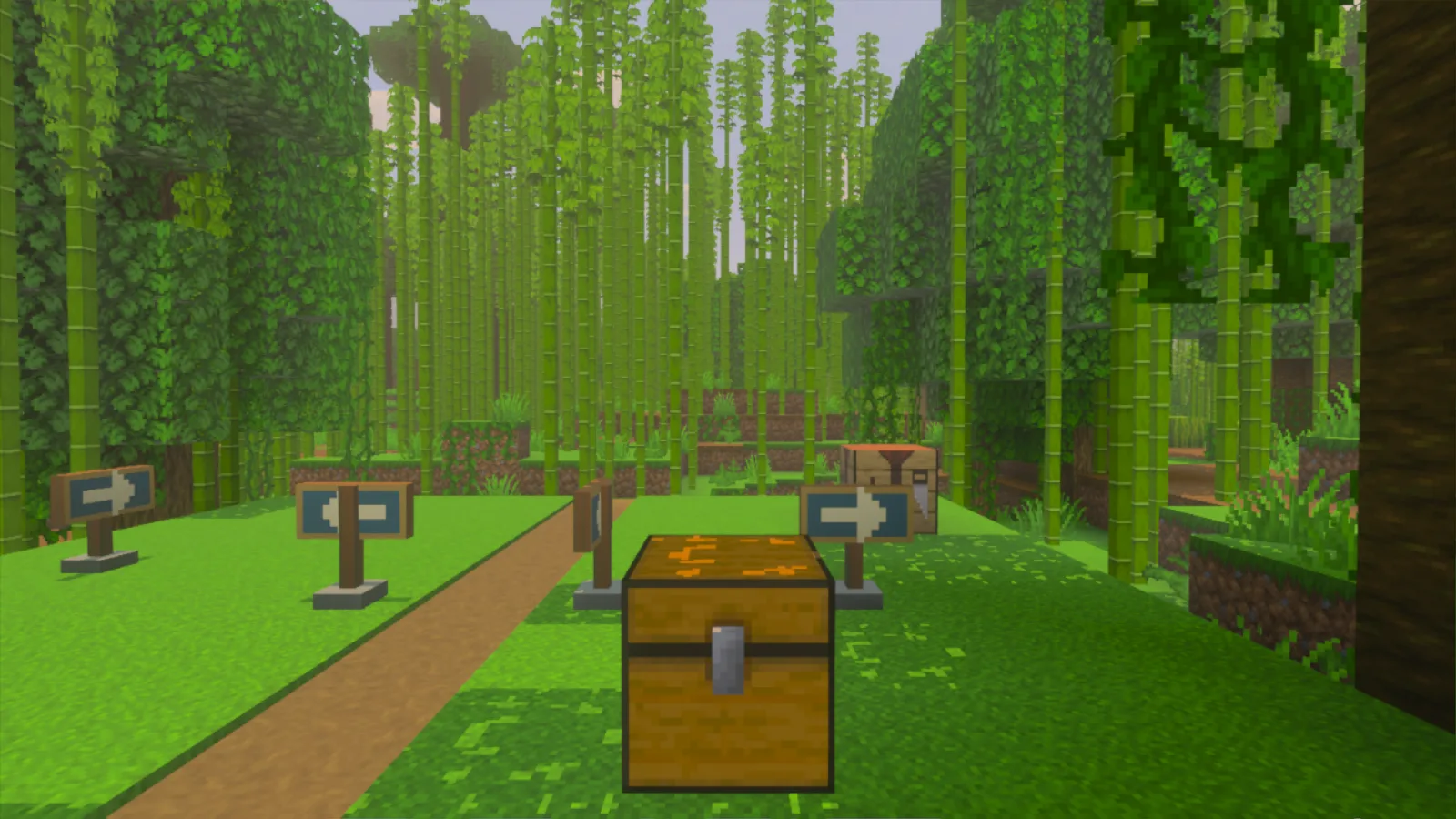
Keep a backup and name the comparison copy
If the world is open, use Save & Quit. Keep an independent world backup you can restore. On Windows, you can identify the correct save folder if you need the folder-copy route.
In Play → Worlds, select the pencil beside the world. Under General → File management, choose Duplicate world. Give the new entry a clear name such as Crash Comparison. Check that name whenever you return to its settings, and leave the original entry alone.
Find the smallest repeatable problem
Try a separate plain world with default resources and no add-ons. Use the same graphics settings. If that world also closes, the problem is broader than one save; stripping more packs from your main world is unlikely to be a useful next comparison.
For the affected copy, note when it closes: during loading, upon reaching a familiar building, when opening a particular container, or after entering another dimension. If you can still move around, choose a short route that reaches the problem. You do not need to break the building or empty its contents to describe where it happens.
Compare one optional resource pack
Choose a texture-only pack you added to the world. Keep behavior packs and the graphics mode unchanged while checking this one difference.
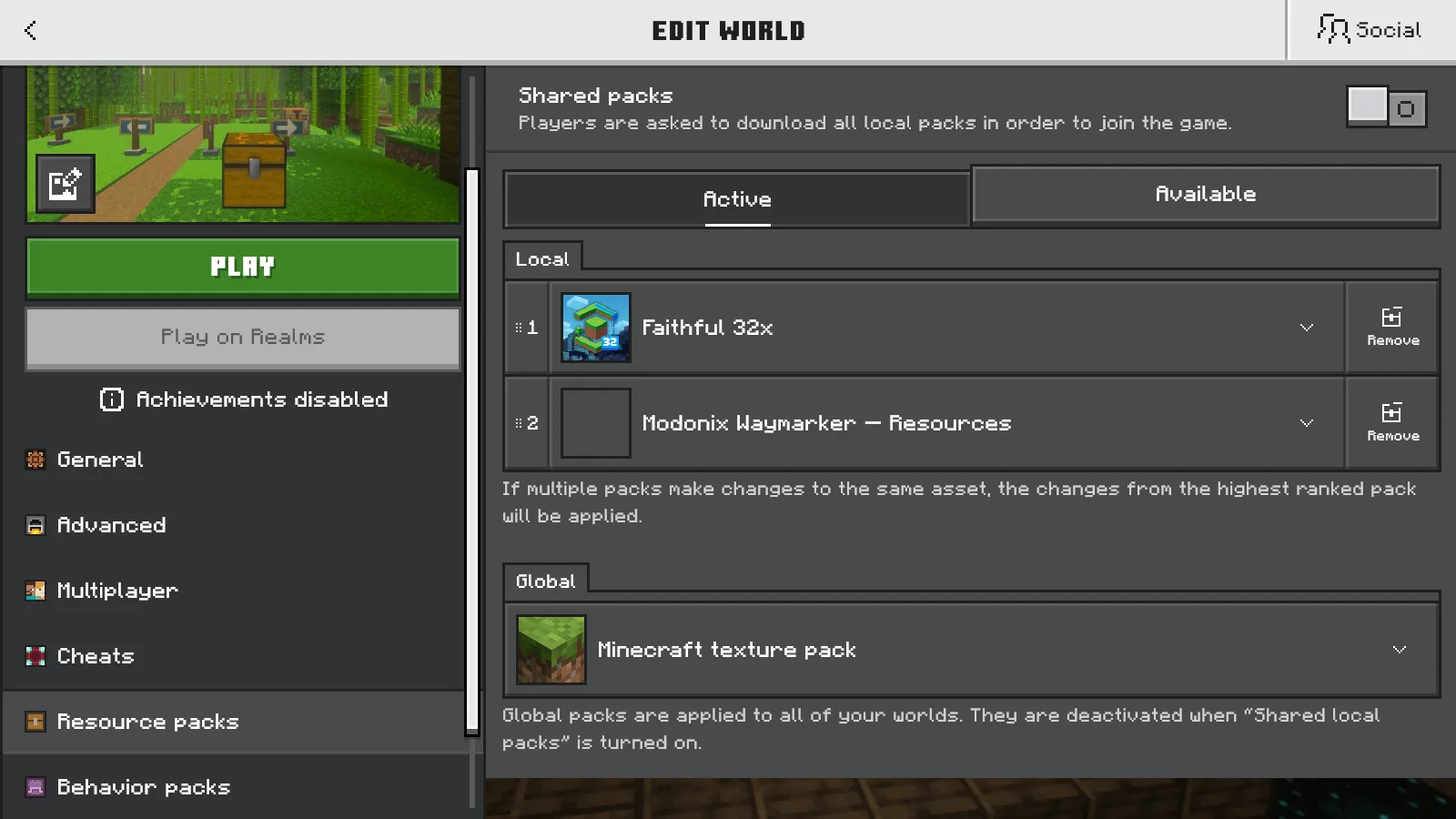
- Edit Crash Comparison and open Resource packs → Active. Note the pack name, version shown and its position in the list.
- Expand that optional pack and choose Remove. Keep its installed files available so you can return to the previous setup.
- Leave the editor and save changes if asked. Reopen the editor to confirm the pack is no longer active. Other world or global resource packs can still affect the view; check both lists before treating it as Minecraft's default textures.
- Open the copy and return to the same place or ordinary action. If it stays open, use Save & Quit, reopen it and check again. If it closes again, record that result before changing anything else.
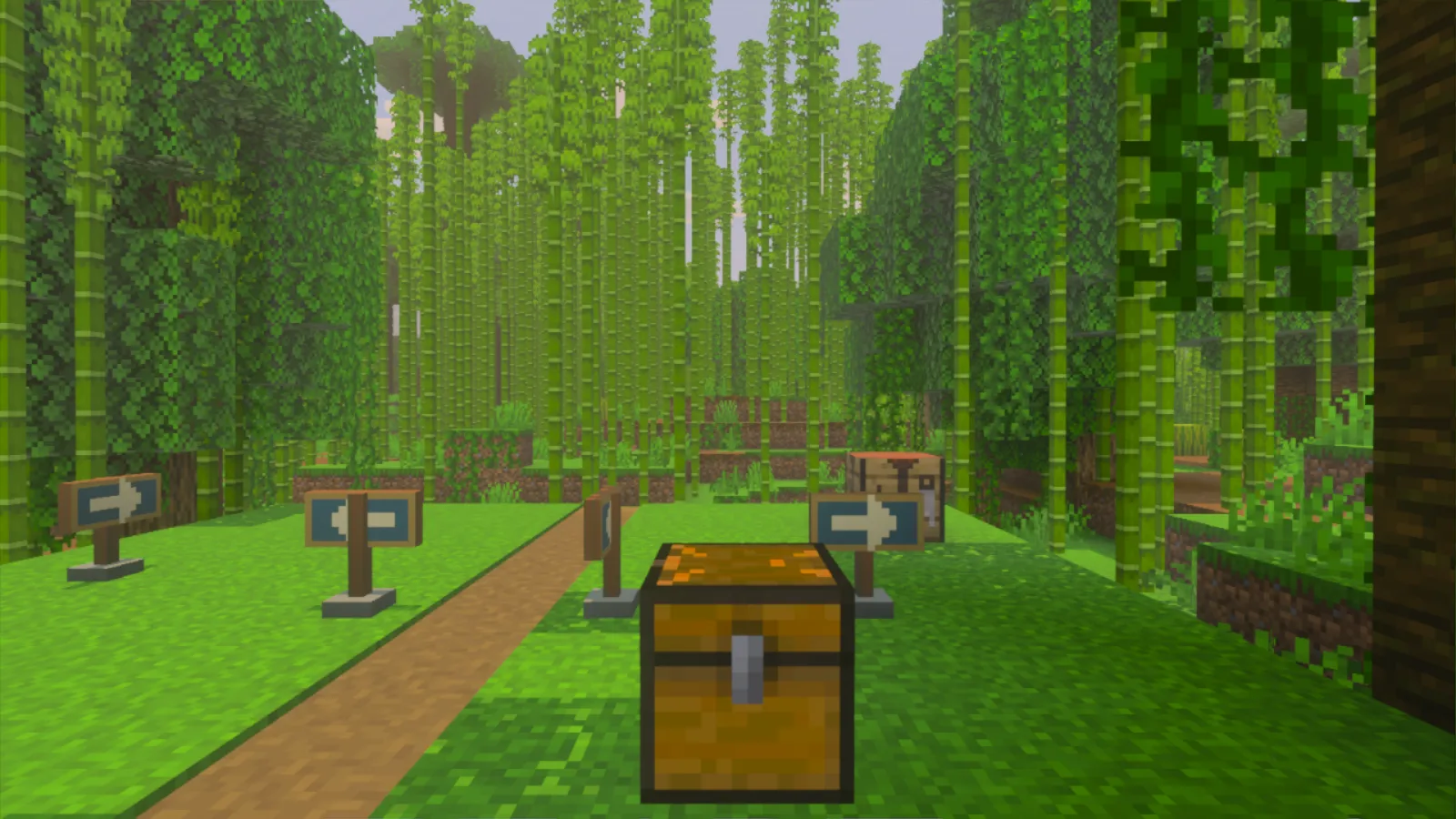
A different result makes that resource setup worth investigating. It does not establish that the pack alone caused the crash. If nothing changes, avoid stacking several more changes together: you will lose track of which comparison you made.
Graphics settings are another possible comparison, but keep that separate. Our Bedrock graphics guide shows where to find the available modes.
Stop before custom content disappears
If Minecraft says another active pack requires the resource pack, stop that comparison. Keep the matching pair together. Removing the behavior pack just to get past the warning can change the custom content in the world.
An add-on can supply blocks, carried items, container contents or creatures. A world opening successfully does not tell you that these survived. Before trying any broader removal, read what to check on a world copy. Keep using the protected original or a restored backup if the changed copy is missing content you need.
Give the creator a useful description
Record your Minecraft version, the active pack names and versions, which other world opens, and the shortest action that brings on the crash. Add the exact error wording if there is any, plus the result of your single resource-pack comparison.
Those details give the creator or support something concrete to investigate. Keep the backup while you wait; a copy that loads once is not a reason to replace your only original.
Comments 0
Share what worked, ask for help or reply to another player.
Use your Modonix account to join the discussion and manage your comments.
Sign in to commentNo comments yet. Share what worked for you.