
Bedrock's save-folder names do not necessarily look like the world names in your Worlds list. To find the right save on Windows, start in the current storage location, then read the name stored inside each candidate world folder.
Start with the name you know
If the world appears in Play → Worlds, select its pencil and look under General → World name. Note that name before searching in File Explorer. You do not need to change it.
The example here is called Bamboo Trail Folder Check. A name you recognize gives you something useful to match inside the save folders.
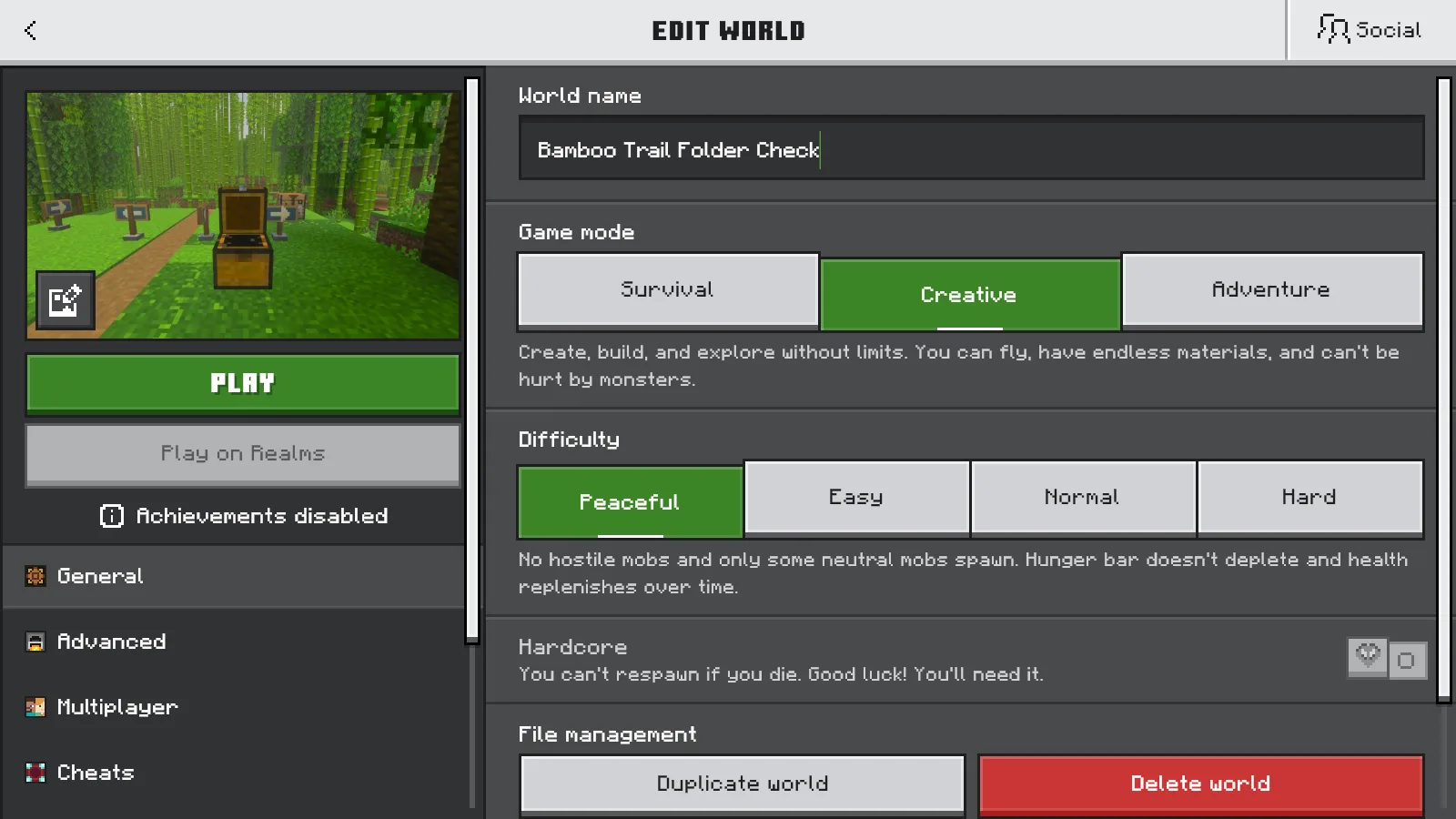
The world name in General is the name to look for inside levelname.txt.
If you are still playing in the world, use Save & Quit before working with a backup of its files.
Open the current Windows save location
- Open File Explorer.
- Click its address bar, paste the following path and press Enter:
%APPDATA%\Minecraft Bedrock\Users
- Open a folder that already exists inside Users, then follow games → com.mojang → minecraftWorlds.
- If that branch does not contain the world you want, check the other existing folders under Users.
The folder between Users and games varies. Do not assume that Shared is the only place to look. Use the folders already present on your PC.
Inside minecraftWorlds, you may see short, unfamiliar folder names. These are the individual save folders; their names alone are not a reliable way to recognize your build.
Read levelname.txt to identify the world
Open a candidate world folder and read levelname.txt in a text editor such as Notepad. Its text is the readable world name. Compare it with the name you noted in Minecraft, then close the file without changing it.
If Windows hides file extensions, it may appear simply as levelname.
For this example, the match is Bamboo Trail Folder Check. If several folders contain the same readable name, you still need to check which saved version has the progress you want. A matching name alone does not settle that.
Other locations you may need
If you used an older Windows installation of Bedrock, its former UWP save location was:
%LOCALAPPDATA%\Packages\Microsoft.MinecraftUWP_8wekyb3d8bbwe\LocalState\games\com.mojang\minecraftWorlds
For Minecraft Preview, the documented storage is separate. Start under:
%APPDATA%\Minecraft Bedrock Preview\Users
These are additional places to check when they match the edition you used. A missing folder at one address does not prove that your world was deleted. Check the other locations you actually used before deciding the save is gone.
Keep the found save and check a separate copy
Leave the identified save unchanged while you make an independent backup. The Bedrock backup and restore guide covers keeping a separate return point and opening a restored world entry.
Compare a place you recognize, your inventory and any add-ons the world uses. In this example, the bamboo path, Waymarker posts and nearby chest make the world easy to recognize after opening the copy.
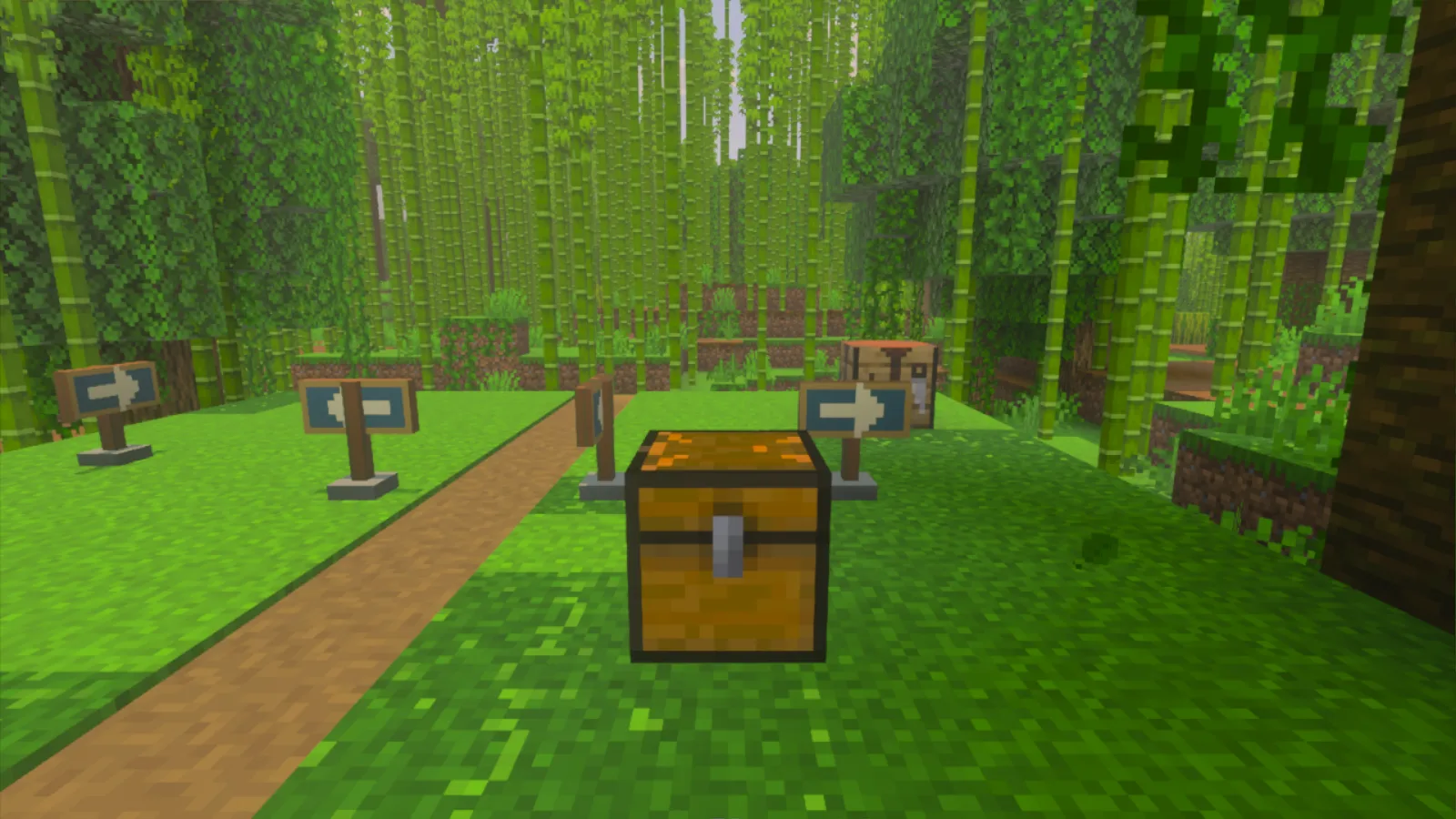
The bamboo path, arrow posts and chest provide recognizable landmarks to compare in a separate copy.
If an existing .mcworld file fails to open, continue with the world-import checks. Keep the original until you have opened the copy and confirmed that it contains the world you meant to preserve.
Comments 0
Share what worked, ask for help or reply to another player.
Use your Modonix account to join the discussion and manage your comments.
Sign in to commentNo comments yet. Share what worked for you.