
“There was an issue importing this world” does not identify the cause. An incomplete file and a complete world wrapped inside an extra folder can produce the same message. Keep the original download, then check the copy you are trying to import.
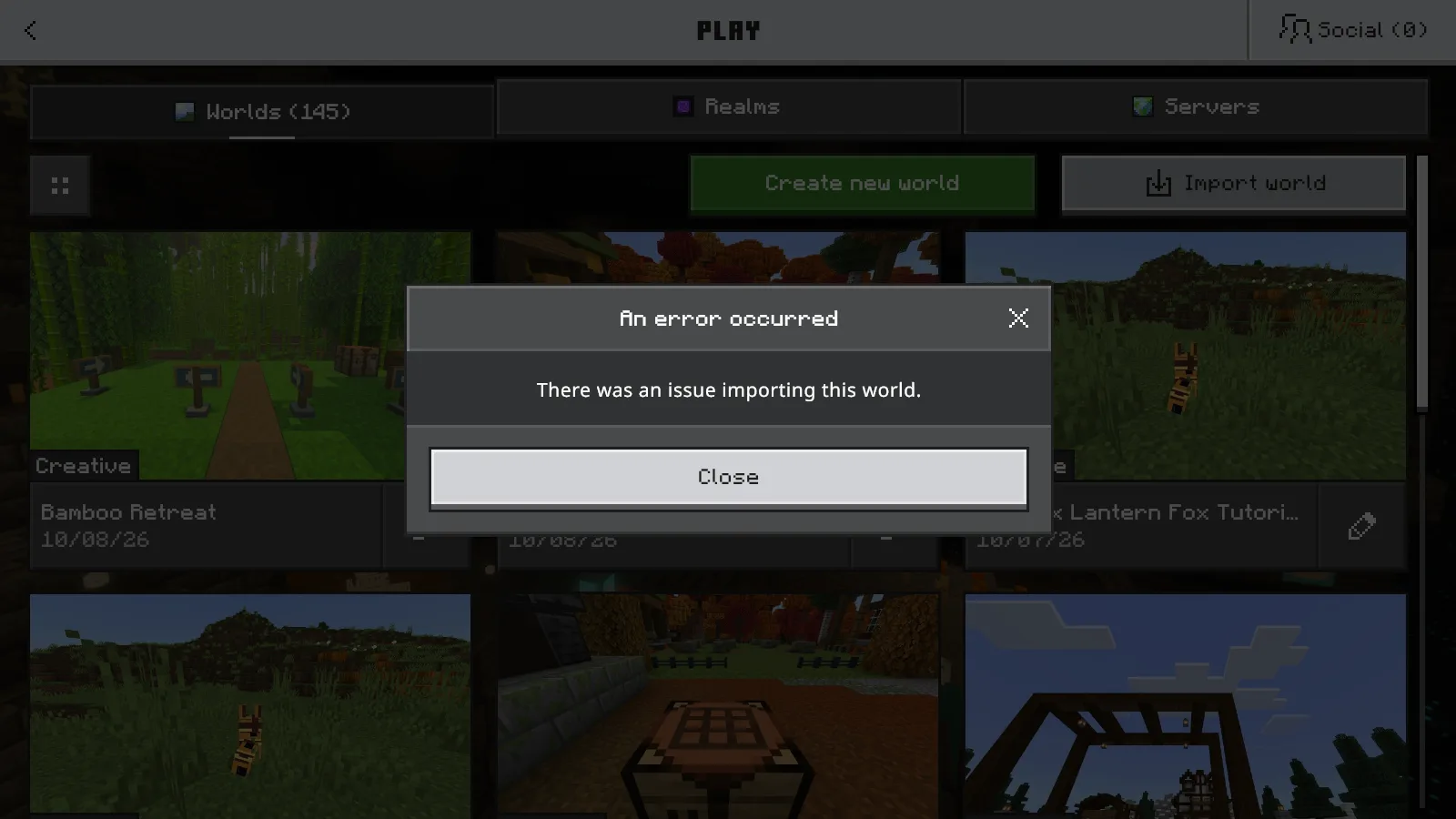
The useful distinction is whether Minecraft rejected the file or never received it. If opening a download does nothing, try the Import world button inside the game before changing the archive.
Keep an untouched copy
Copy the downloaded .mcworld into a separate folder in your file manager. Keep that original and use a second copy for troubleshooting. Give the working copy a recognizable filename so you can select it without guessing.
If you still have the playable source world, keep it too. Our backup and restore guide explains how to make another export without sacrificing that save.
Check the full extension before proceeding. An .mcpack or .mcaddon belongs in the pack import workflow; it is not a world to select here. Renaming a file does not change what it contains.
Select the file from inside Minecraft
On Windows, save and quit any world you are playing. Open Play → Worlds → Import world, choose the copied .mcworld in the file dialog, and open it. Wait for a result before choosing another file.
“World import started…” is only the beginning. An error can follow that message. Close the error and check the file before trying again. If a new entry appears in Worlds, open it to see whether the expected world actually loads.
Opening a world file from Windows can also launch Minecraft and import it. If Minecraft is already running and that route appears to do nothing, use the in-game button. Reaching the main menu alone does not establish that an import succeeded.
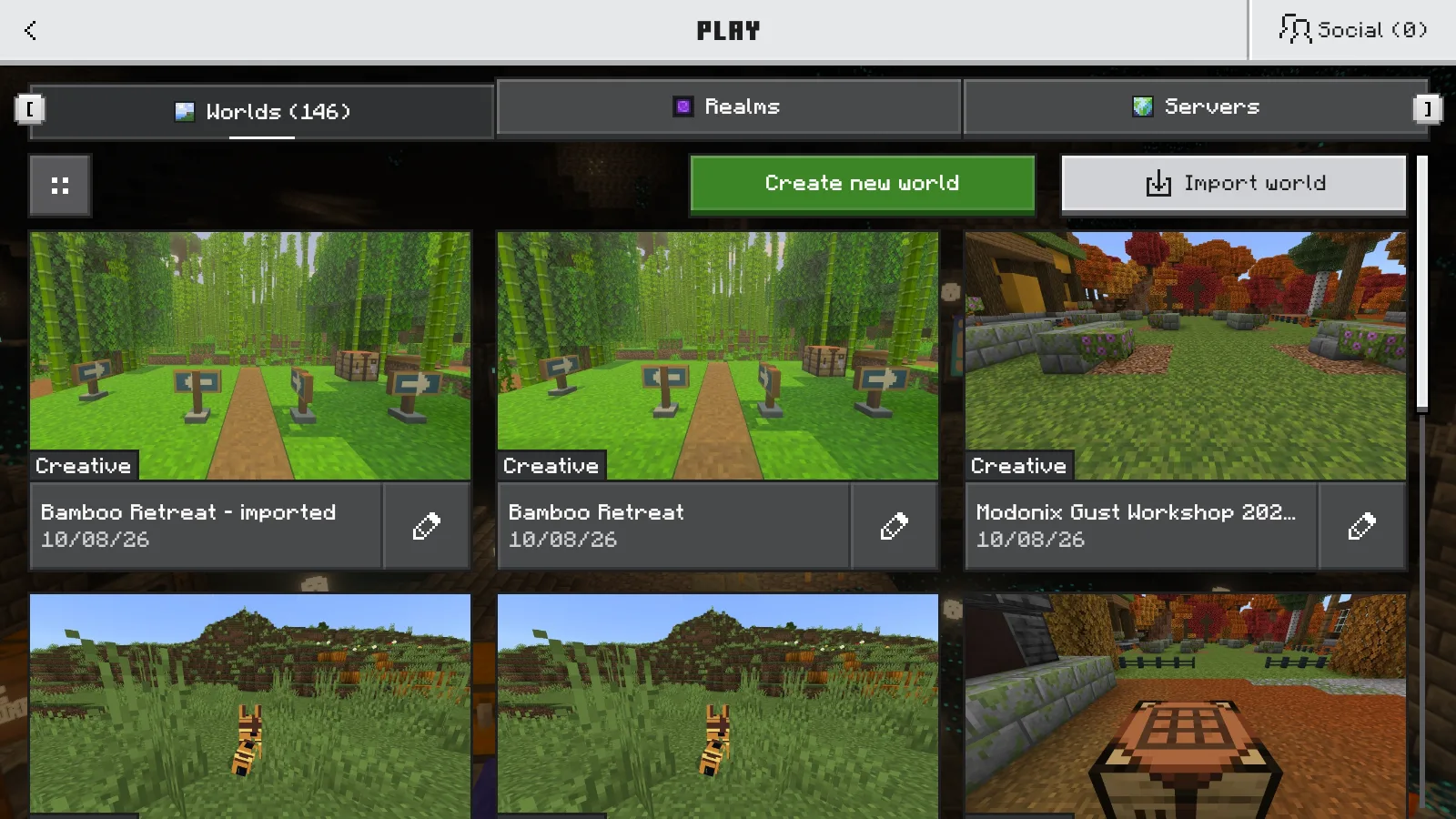
After importing, we renamed only the newly imported copy Bamboo Retreat - imported. That chosen name makes it easy to distinguish the new entry from Bamboo Retreat.
If the file is incomplete, get another copy
An incomplete archive reached the world importer but produced the general error above. Changing its filename could not supply the missing contents.
Download it again, or ask the sender for another copy of their complete Bedrock export. Keep the new attempt separate from the original while you compare them.
If an archive viewer reports an unexpected end of file or cannot open the copy, obtain a complete export before proceeding. A received file smaller than the sender's export needs checking; matching file sizes alone do not prove that every byte arrived.
Remove an extra enclosing folder
If the archive opens, look at its first level. The world's level.dat file and db folder should be directly inside the archive, together with its other files.
An extra folder can leave them one level deeper:
MyWorld.zip
└── MyWorld/
    ├── level.dat
    ├── db/
    └── …other world files
Make a new archive from the contents of that inner folder:
- Keep the original. If needed, rename a troubleshooting copy from
.mcworldto.zipso your archive tool can open it, then extract it. - Open the inner folder containing
level.datanddb. - Select all its contents, including any behavior packs, resource packs, and other files. Create a new ZIP from those selected contents.
- Rename the new file's final
.zipextension to.mcworldand select it through Import world.
The new layout should look like this:
MyWorld-fixed.mcworld
├── level.dat
├── db/
└── …other world files
Do not ZIP the enclosing folder again. In this example, removing that extra layer let the same world contents import successfully. The operation changes the packaging; it does not replace missing files or change the world's blocks.
Open the result before putting the backup away
Open the newly imported entry, look for a familiar landmark, walk a short distance, and open your inventory. For a world with add-on content, check the expected blocks and items too.
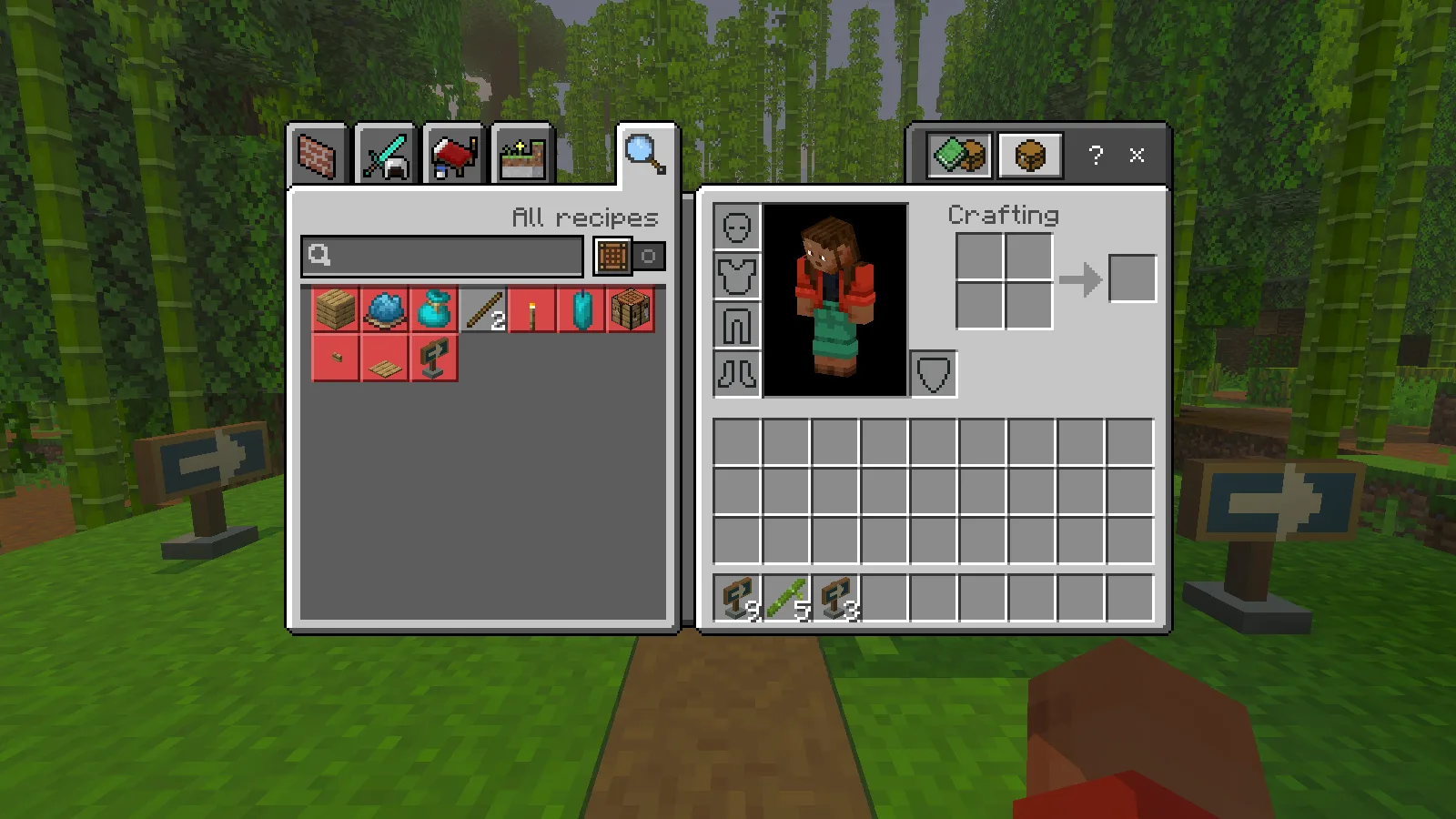
The directional posts, marker items, and bamboo are recognizable parts of this world. Seeing them after import is more useful than relying on its thumbnail.
Use Save & Quit when you finish checking. Keep the original archive until you are satisfied that the new entry is the save you wanted.
Comments 0
Share what worked, ask for help or reply to another player.
Use your Modonix account to join the discussion and manage your comments.
Sign in to commentNo comments yet. Share what worked for you.