A Bedrock download has two destinations: a pack goes into the packs available to your worlds, while a world becomes an entry in the Worlds list. Identify the file first and the rest of the installation is much easier to follow.
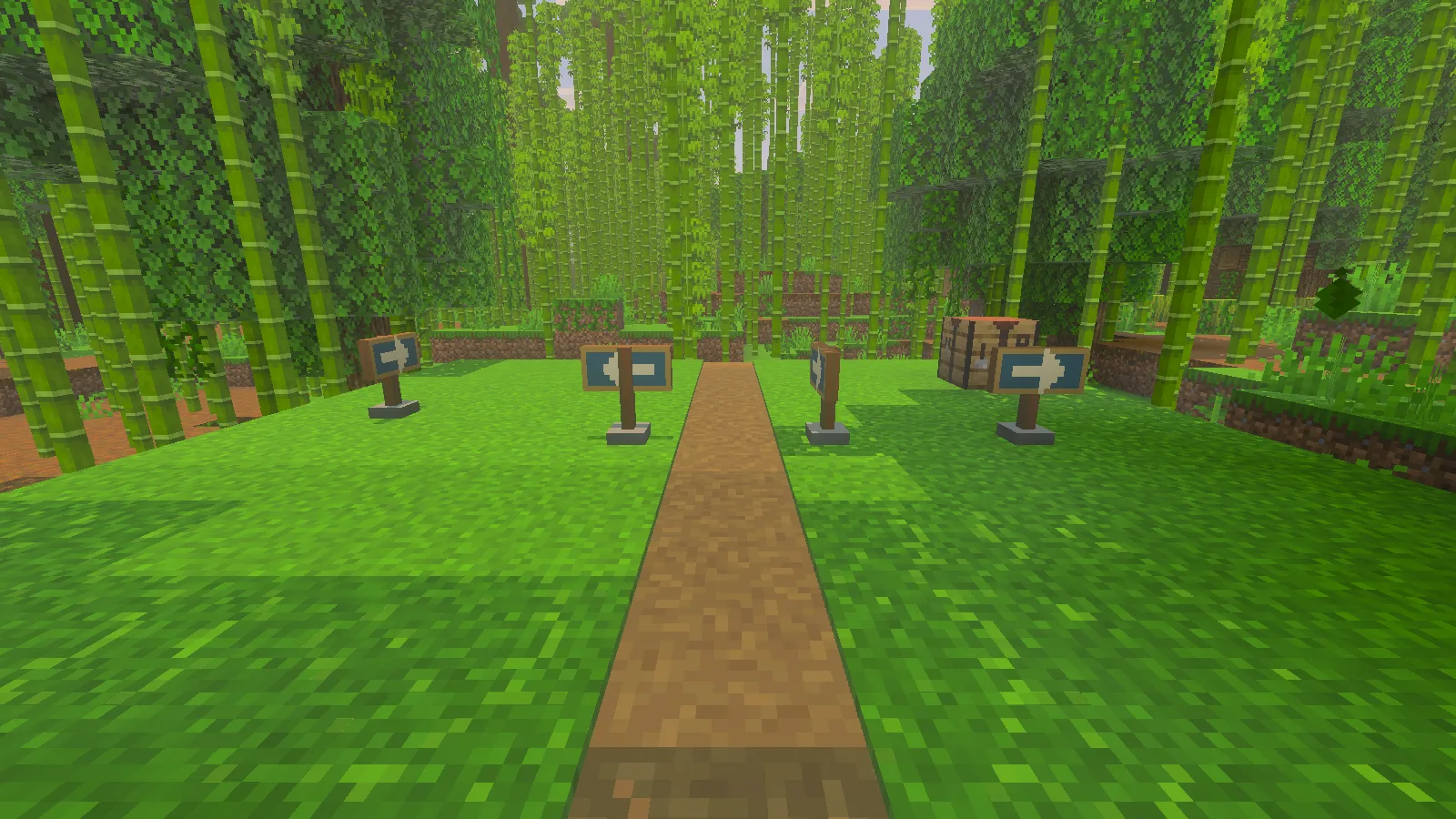
The example add-on supplies these Waymarker blocks in a Bedrock world.
Choose the route by the file ending
| File | What to do on Windows |
|---|---|
.mcpack |
Open the file with Minecraft, then activate the imported resource or behavior pack in a world. |
.mcaddon |
Open the file with Minecraft; check each included pack afterward. |
.mcworld |
Open it with Minecraft or use Play → Import world; select the resulting world in Worlds. |
Import world is for a world file. Selecting an .mcaddon there can produce an error about importing a world even though the add-on itself is valid. Do not rename the add-on to .mcworld to get past that message. A Java .jar mod also cannot be installed as a Bedrock add-on.
Open a pack with Minecraft
Find the downloaded .mcpack or .mcaddon in File Explorer. Open it, or use Open with → Minecraft if Windows asks which app should handle it. Wait for Minecraft to finish importing. A pack still needs activation afterward; landing on the main menu does not show which world will use it.
If opening the file while Minecraft is already running seems to do nothing, save and quit your world, close Minecraft normally, then open the file again from Windows. This is a useful retry before unpacking files or moving folders by hand. In our Windows Bedrock 26.52 example, opening the Waymarker add-on from a closed game installed both matching packs.
Activate the parts in one world
Open Worlds and edit the world you intend to use. Look in Behavior Packs and Resource Packs for the imported entries. Activate the required parts. A simple texture replacement normally needs only its resource pack; an add-on with custom blocks may need both behavior and resources.
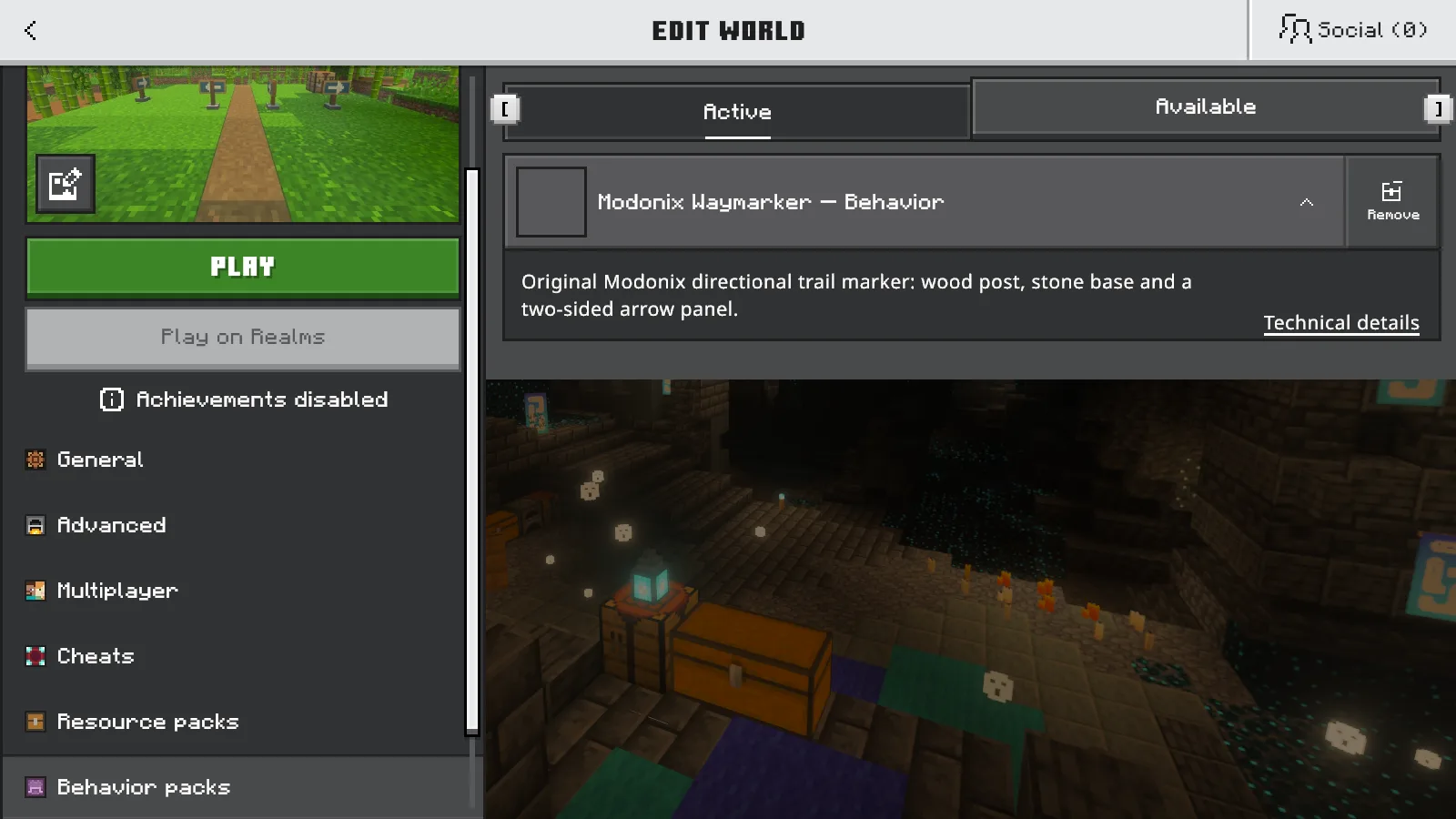
The Waymarker behavior pack is in the example world’s Active list.
For Waymarker, the pair is Modonix Waymarker — Behavior and Modonix Waymarker — Resources, both 0.1.1. Matching names alone are not enough when you have downloaded several versions. Read the version where the interface provides it and keep the pair together.
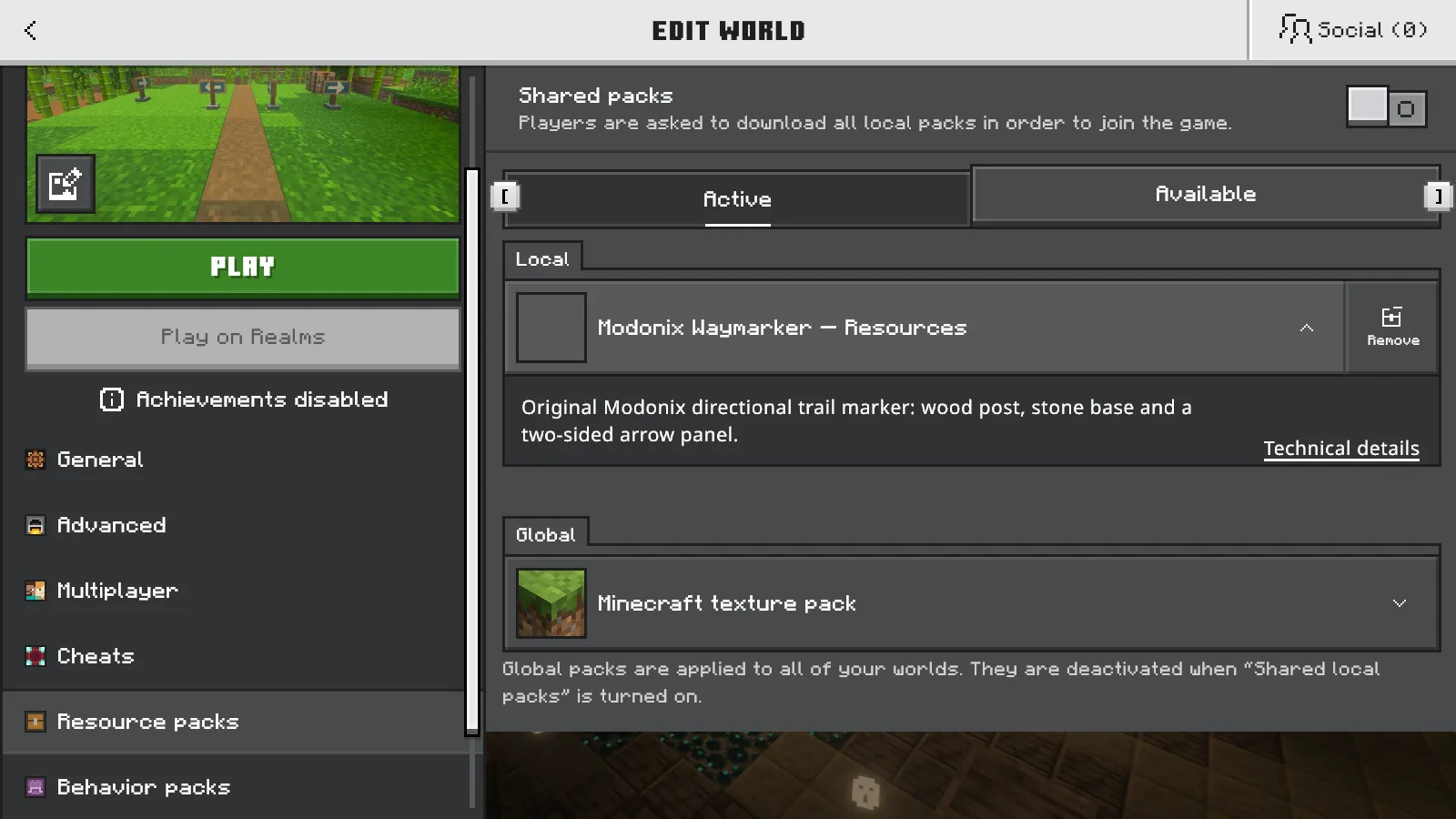
The matching Waymarker resource pack is active locally for this world.
Use Back to return to the Worlds list before opening the world. This saves the selection through the route used in our example. Inside the world, try the feature you installed: look at the changed texture, find the new block or use the add-on's documented action.
Keep world packs and global resources separate
Activate a resource pack in a world when that world needs the style. Settings → Global Resources is a wider choice for the client, useful when you deliberately want a pack across your play sessions. Begin with one added pack so another resource pack does not hide the change you are looking for.
A downloaded world may already contain embedded packs. Installing a newer shared copy does not guarantee that this existing world selects it. Keep a backup, inspect that world's active packs and follow the creator's update instructions. For a first try, a new spare world avoids confusing a fresh installation with an update to an older embedded copy.
Use only the settings the add-on needs
Turn on an experiment only when the chosen release explicitly requires it. Beta APIs is not a universal installation switch: the Waymarker example works without scripts or that experiment. When something is missing, check the edition, exact file, active pack pair and world first. Those checks usually give you a clearer next step than changing several unrelated settings at once.
Comments & questions
Share what worked, ask for help or reply to another player.
No comments yet. Share what worked for you.