A useful world backup is a file you can find and a copy you can open. Exporting a Bedrock world to .mcworld keeps it separate from the entry you normally play, so you have a clear return point before adding packs, changing a large build or trying a new version.
Save a recognizable moment
Choose a place you will recognize when you restore the world. Stand beside a familiar build, note your inventory and use Save & Quit. A quick screenshot of the place and hotbar makes it easier to tell whether the restored copy contains the progress you expected.
For a world with custom blocks, keep its active behavior and resource packs together. Our Waymarker example has four markers beside a bamboo path and matching version 0.1.1 packs. Those are useful details to compare after restoration; a world name alone cannot tell you which version of a build was saved.
Export the saved world
From the Worlds list, choose Edit beside the world you want to back up. Open General, scroll to File management and choose Export world.
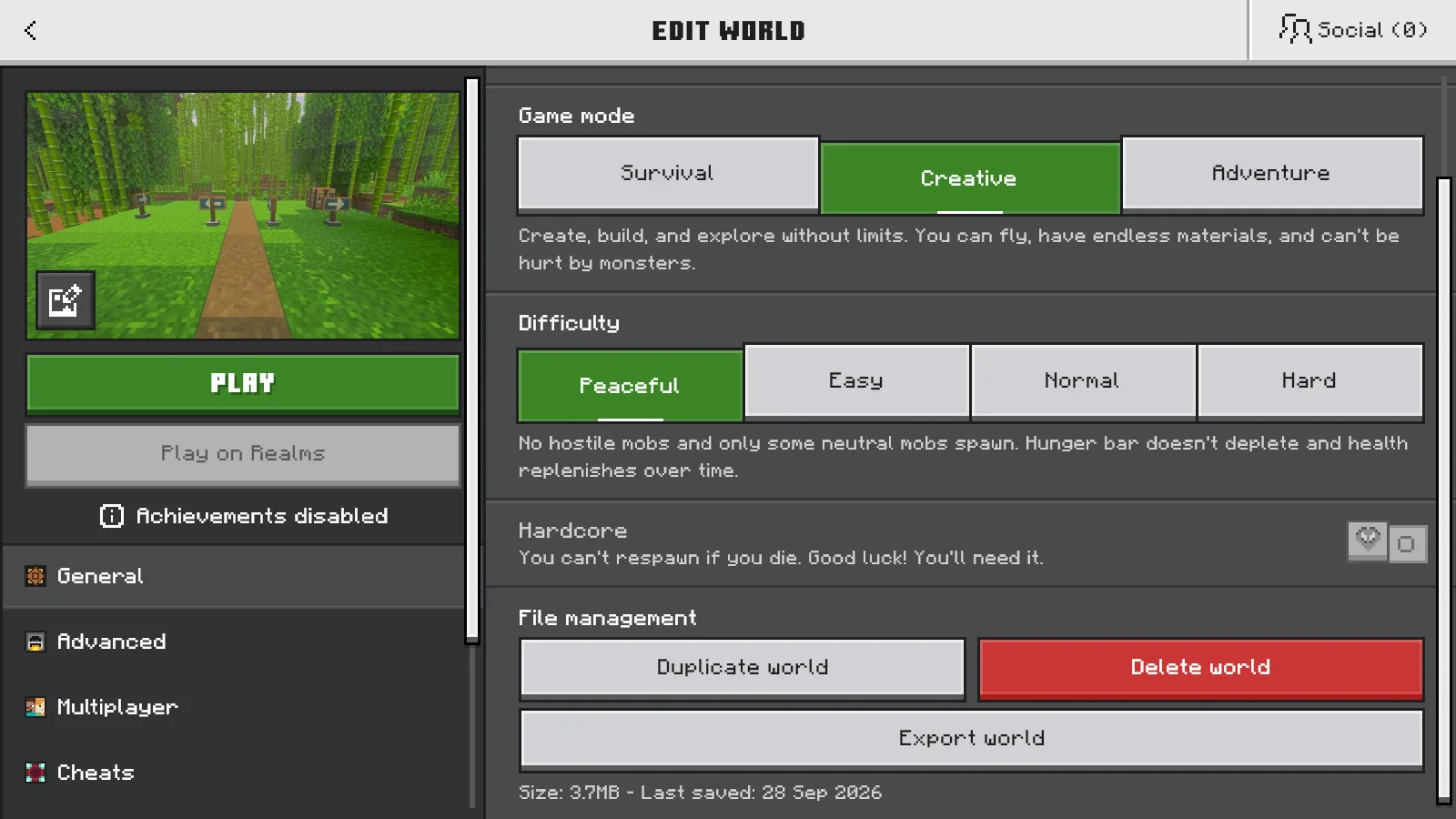
Export world is under File management in the world’s General settings.
In Exportation Settings, leave Clear player data off when you want to keep your existing player state. Choose Export world to open the Windows save dialog.
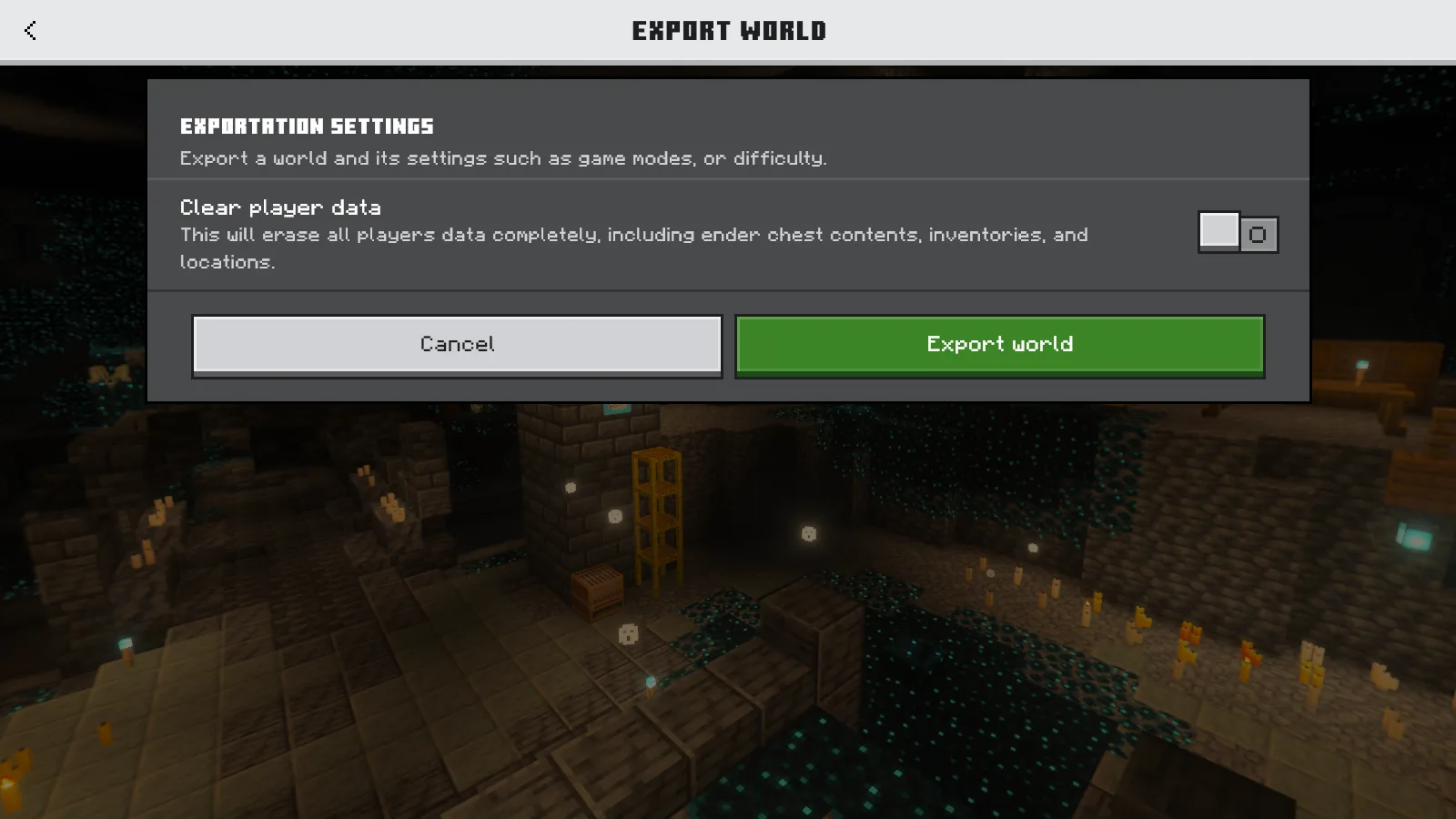
Clear player data remains off before exporting this backup.
Choose a folder and a name you will recognize later, including the world and date, such as Waymarker-2026-09-28.mcworld. Save the file. After the export finishes, find the actual .mcworld in File Explorer and check its name and folder. Keep this known-good file separate from new exports instead of repeatedly overwriting it.
A copy on the same drive helps you recover an earlier world state. For protection against losing that drive, keep another copy on a separate storage device or your chosen backup service. The in-game Duplicate world option is also handy for experiments, but it is not the same as keeping an exported file elsewhere.
Restore into a separate world entry
Use Play → Import world and select the saved .mcworld. You can also open the file with Minecraft from Windows. The imported world appears as a separate entry; keep the original in place while you check it.
Choose Edit beside the newly imported copy, then General → World name. Give this copy a distinct name, such as Waymarker restored 2026-09-28. Use Back to leave the edit screen. If the game asks whether to save your changes, choose Save changes. Confirm that the new name actually appears in Worlds before opening it.
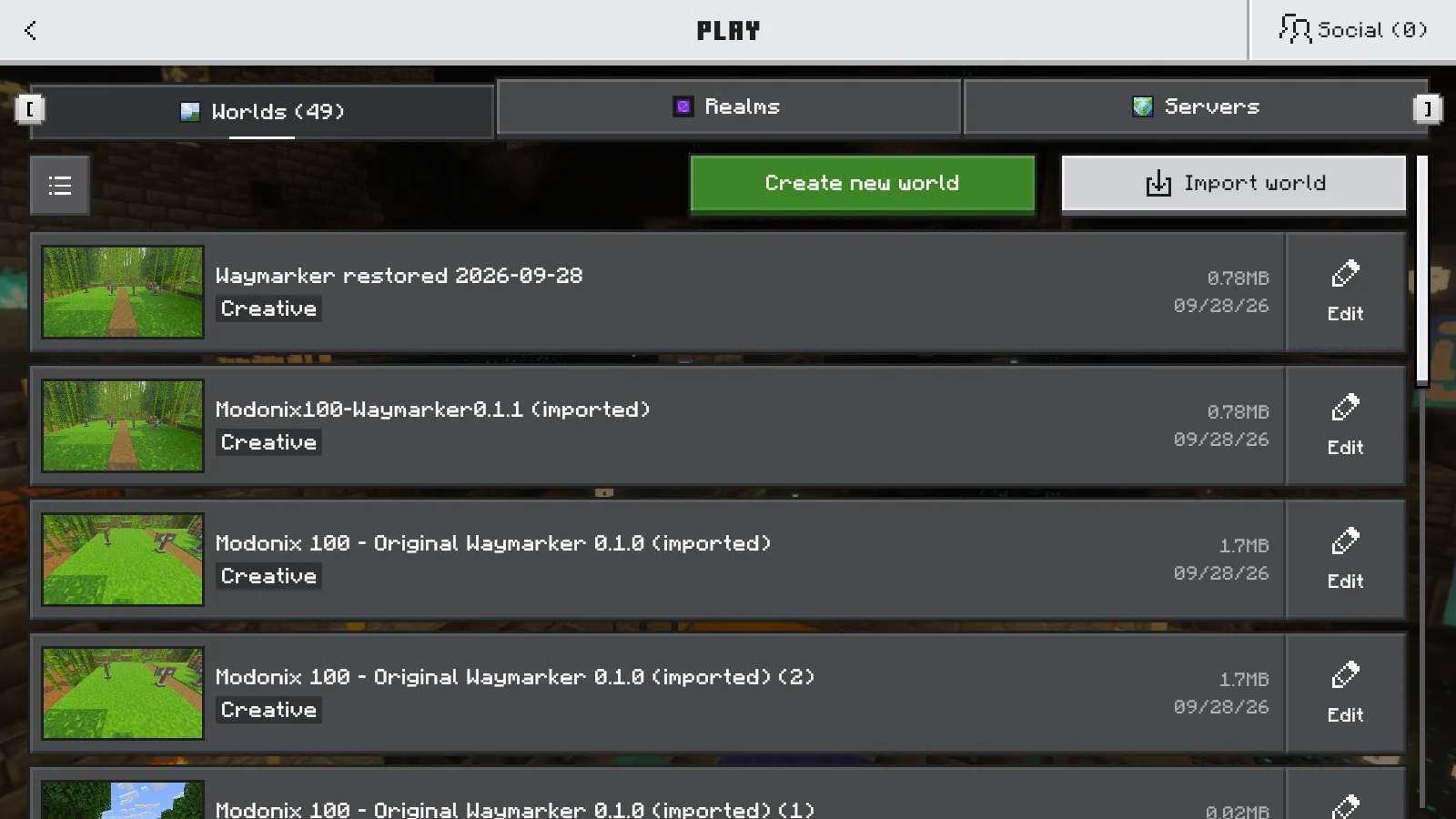
The renamed restored copy and the original 0.1.1 world appear as separate entries.
Check the place and the player
Open the restored copy and look for the familiar scene you recorded. Compare the build, your location and the items in your hotbar. Open the inventory when you need a closer look. If the world uses an add-on, check that its custom blocks have their expected appearance and its behavior and resource packs remain active.
In our Windows Bedrock 26.52 example, the restored copy opened beside the same four markers. The hotbar retained the stacks of nine and three Waymarkers and five bamboo. The original world remained a separate entry in the list.
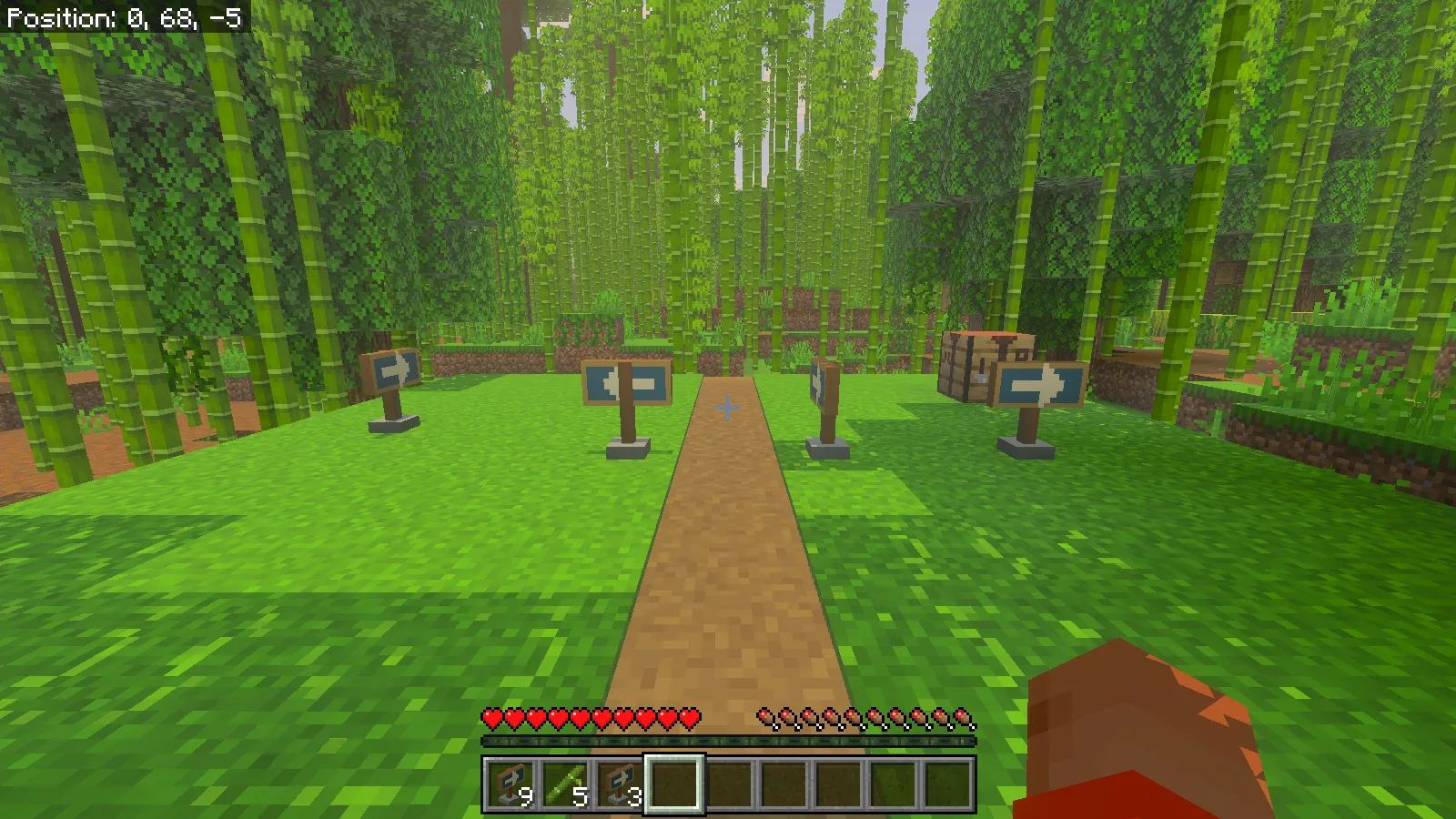
The restored world retains all four markers and the hotbar’s nine and three markers plus five bamboo.
Keep the right version of the backup
Once the restored copy is useful to you, keep the original export unchanged. If you continue building in the restored world, export that progress under a new name. A small set of clearly dated return points is easier to use than a folder full of files all called “latest.”
Treat game upgrades separately from ordinary recovery. A backup made before an upgrade retains that earlier state; exporting an already upgraded world does not turn it back into an older version. Choose the client and add-ons appropriate to the backup you intend to open.
Comments & questions
Share what worked, ask for help or reply to another player.
No comments yet. Share what worked for you.