You can try Minecraft's built-in Vibrant Visuals without downloading a shader or resource pack. Start with the graphics modes your device offers, compare a place you know, and add a visual pack only if you want a different treatment of its materials and lighting.
Find the graphics mode
On Minecraft for Windows, save and quit your world. From the main menu, open Settings, choose Video, and scroll to Graphics, performance and layout. Under Mode, select Fancy or Vibrant Visuals if available.
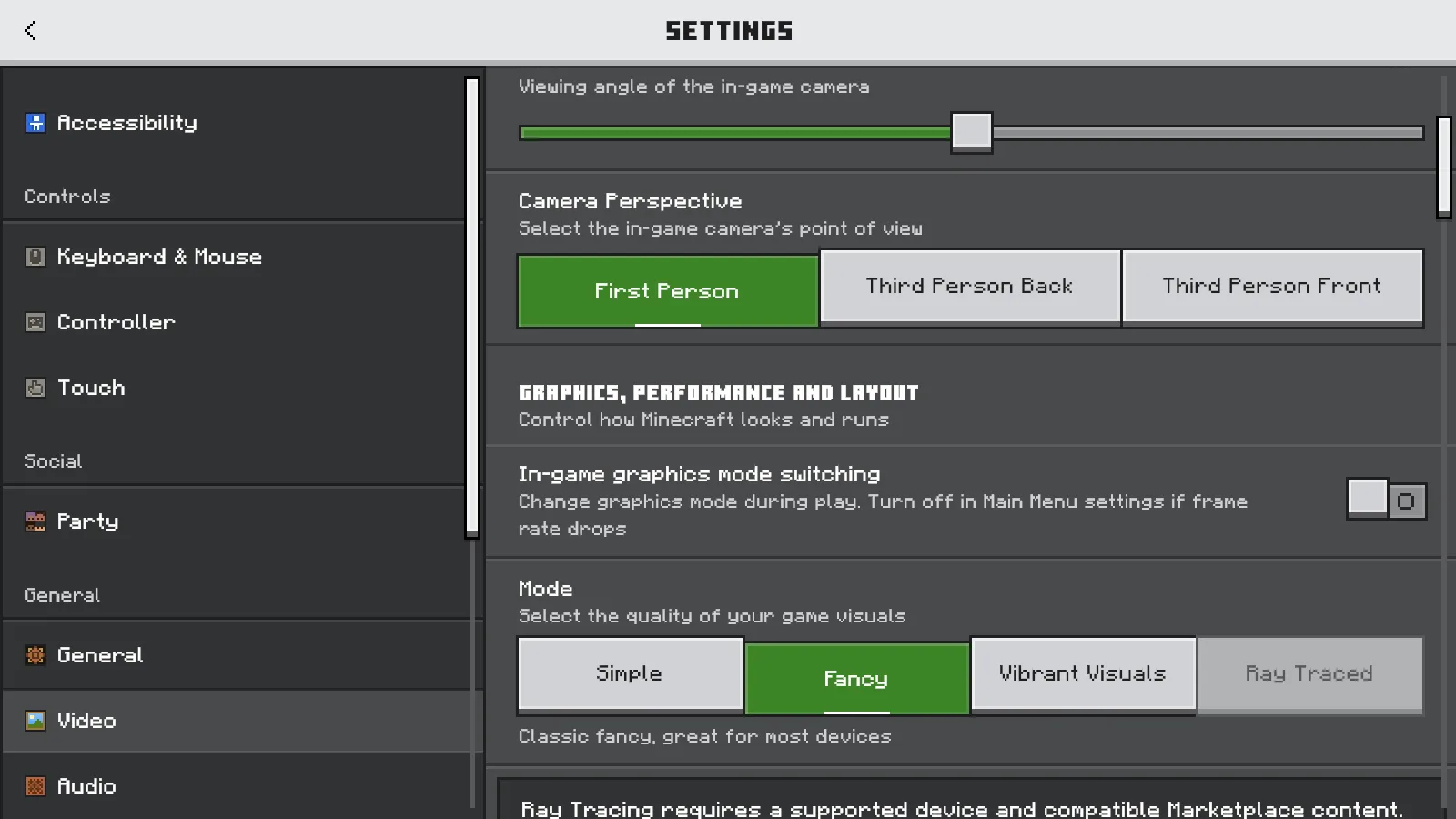
Windows Bedrock's Video settings: Fancy selected, Vibrant Visuals available and Ray Traced gray on this setup.
Use Back to leave Settings, choose Play, and reopen the same world. You can return to the menu and select your previous mode whenever you prefer. This setting belongs to your Minecraft client: opening another world does not give you a separate graphics-mode choice for that save.
Keep your field of view and resource packs unchanged for the first comparison. In our Windows Bedrock 26.52 example, the camera remained in first person at FOV 70.
See what the built-in mode changes
Here is our riverside warehouse in Fancy:
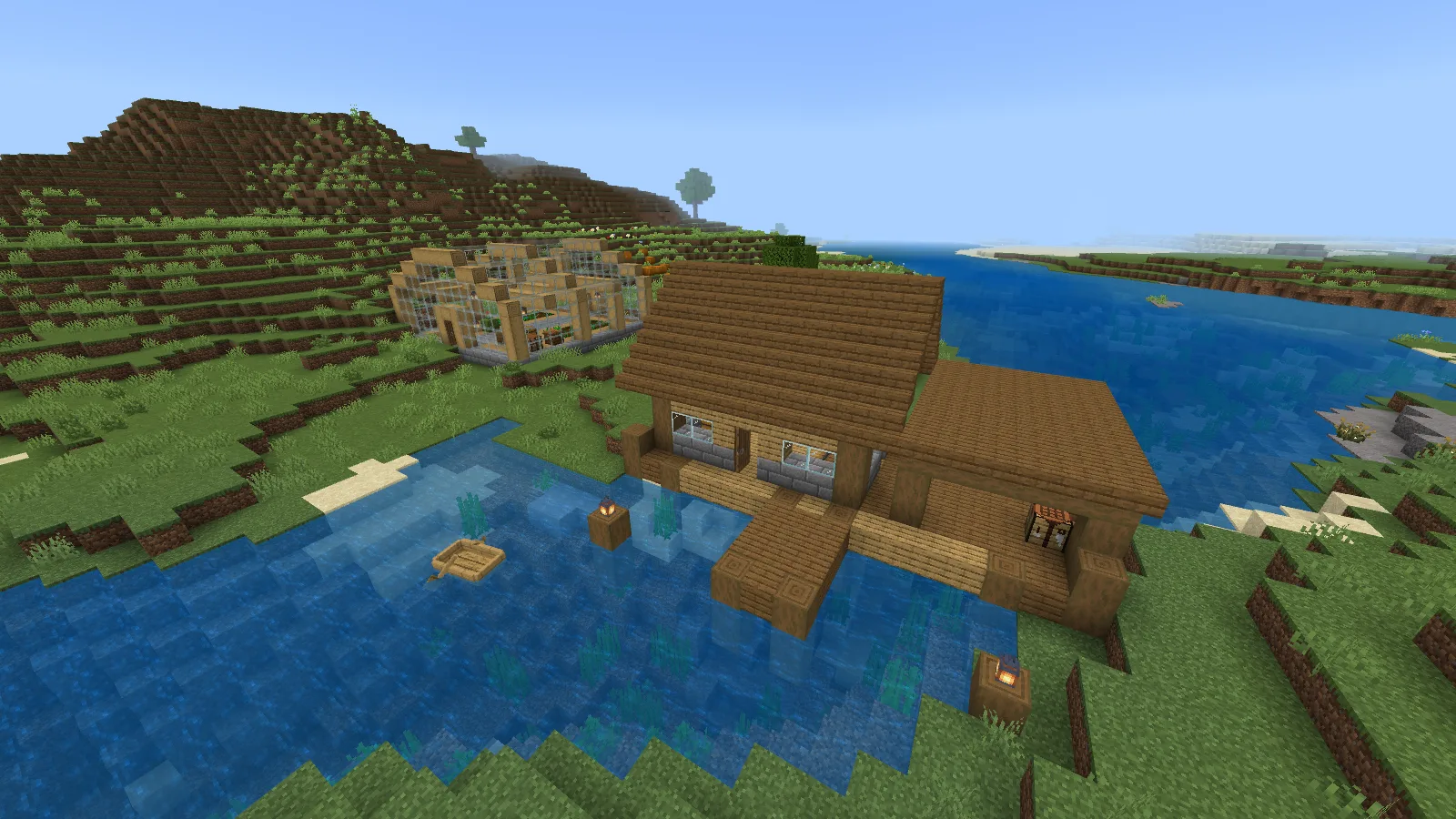
Fancy, default resources, midday: the warehouse and river from the comparison viewpoint.
And here is the same view with built-in Vibrant Visuals:
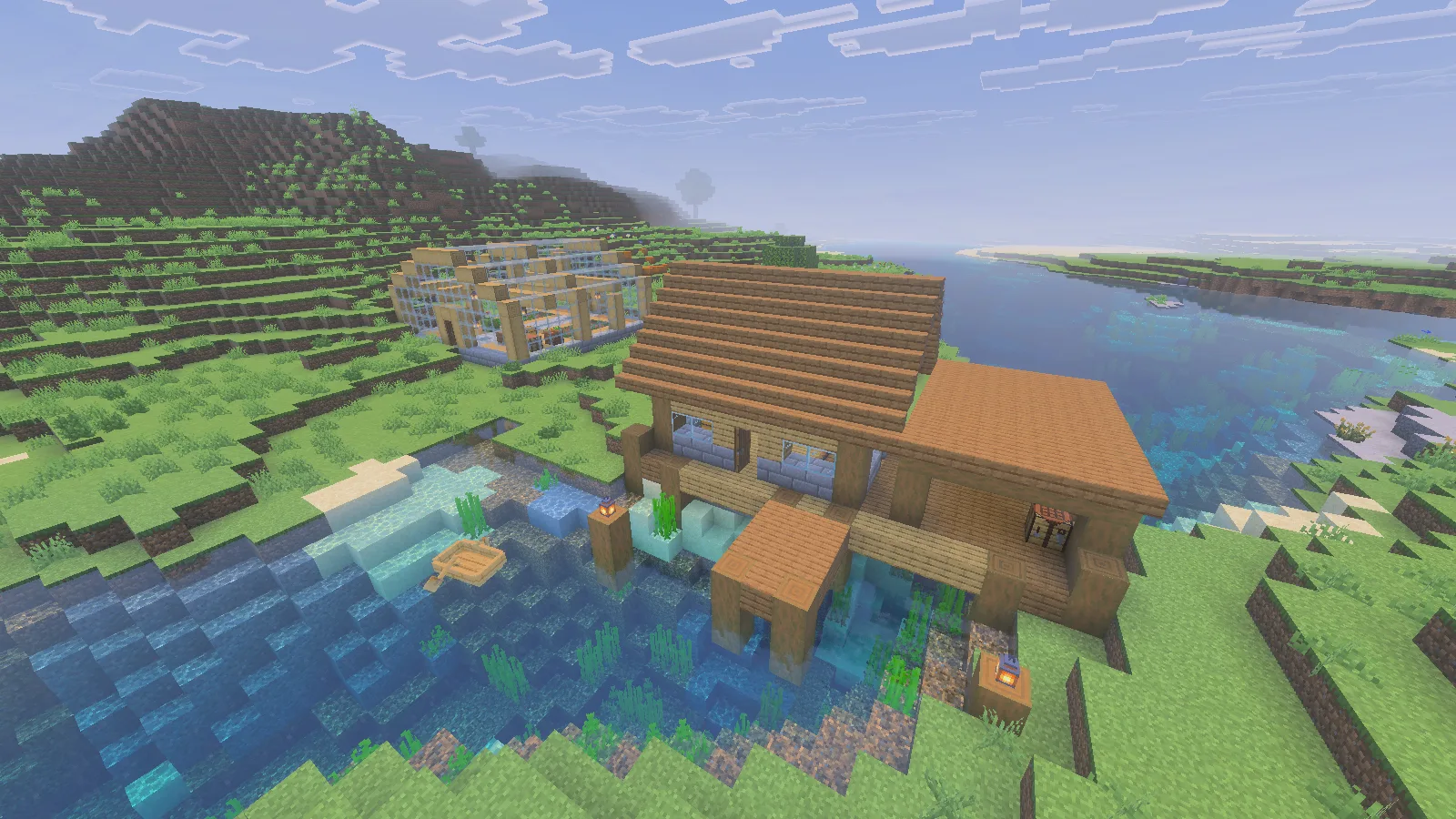
Built-in Vibrant Visuals at the same viewpoint and midday, without an added visual pack.
Both views use midday and the default Minecraft resources. Look at the water around the posts, the roof and the distant hillside. In this scene, Vibrant Visuals makes the water brighter and adds a hazier distance while the block arrangement stays the same. No author visual pack is responsible for this pair.
Check a familiar interior too. You want to be able to see the doorway, storage and walking route comfortably during ordinary play, including at night. Pick the look you prefer from those everyday views.
Choose a resource pack separately
A conventional texture pack can change block artwork or lettering while you use Fancy. A pack made for Vibrant Visuals can add its own material and lighting settings to that built-in mode.
The similar names can be confusing: Vibrant Visuals is Minecraft's graphics mode; Vanilla Vibrant Visuals is Cubeir's optional resource pack. Activate such a pack through your world's Resource Packs settings after choosing the mode. Compare it against built-in Vibrant Visuals to see the pack's contribution.
Ray Traced is a separate option that needs supported hardware and compatible content. It was gray on our GTX 1060 setup even though Vibrant Visuals was available. A Vanilla RTX download cannot supply missing hardware support.
Check a download's required graphics mode before installing it. The word shader alone is not enough to choose the right Bedrock file.
Comments & questions
Share what worked, ask for help or reply to another player.
No comments yet. Share what worked for you.