
A warning about space is a poor moment to start deleting worlds. First record the exact message and whether it appeared while playing, saving, importing or downloading. Those are different situations. If the warning interrupts an open world, stop adding to the build while you work out what has actually been saved.
Protect the checkpoint you already have
Keep any existing backup. Once the world is closed, make an independent backup that you can restore as a separate world. If Export is unavailable on Windows, the guide includes a folder-copy route; finding the correct save folder helps you avoid copying a different world.
A backup protects the saved checkpoint it contains. It cannot promise to recover the building you did after a save failed. Keep the original too, and check the restored copy before treating the backup as usable. Making several duplicates on a nearly full drive is not a useful first move.
Check the drive, then check Minecraft
In Windows, open File Explorer → This PC and read the available space under Devices and drives. Record the drive label as well as the number. Check the Windows drive and any separate drive where you deliberately store your Minecraft saves or backups. Space on a roomy backup drive does not tell you how much room is available where the active world is saved.
For a breakdown of what occupies a drive, open Windows Settings → System → Storage. Read the selected drive and its categories before choosing any cleanup action. This is a place to gather information; you do not need to change Windows storage settings to compare the numbers.
Next, open Minecraft's Settings → Storage. Look at the categories and sizes shown there, and note the affected world's size if it is listed. A world's size describes saved data; it is not the same number as free space on a drive. Keep the two readings separate when explaining the problem.
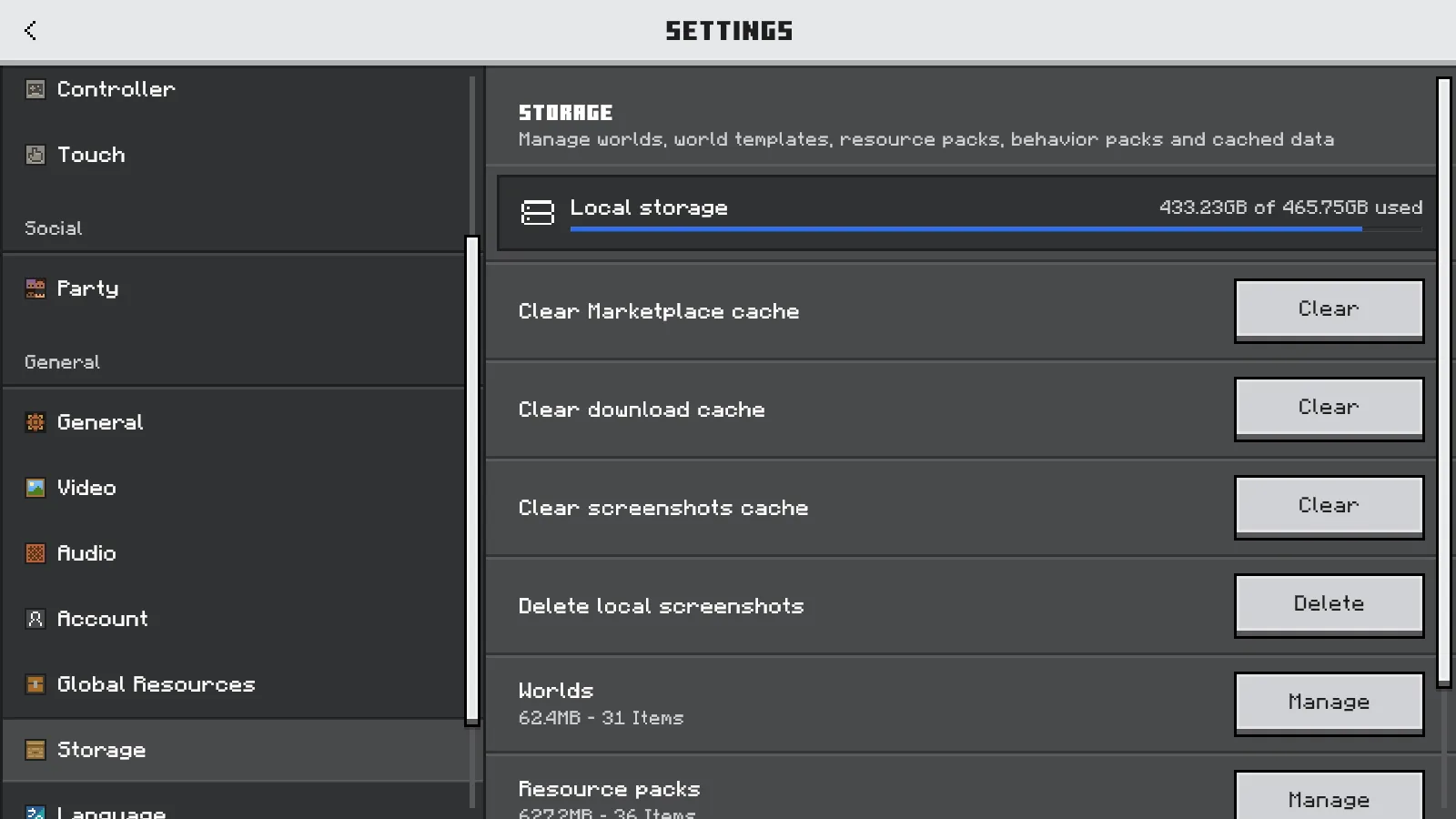
The Worlds category shows saved world data. Check free space on the drive that holds your active save.
Leave world content out of the cleanup experiment
If the relevant drive really is short of space, start with files you recognize and can safely store elsewhere. Keep Minecraft's world folders and your verified backup out of a bulk cleanup selection. If the drive has plenty of space, deleting more worlds without another clue is unlikely to explain the warning.
Installed add-ons also deserve care. Removing a pack can affect blocks, items or creatures used by a save. Read what can change when an add-on is removed before choosing a pack just because its name appears in Storage.
If the message specifically mentions a cloud copy or syncing, record that wording separately. The local drive checks here do not establish whether a cloud operation succeeded.
Check a small save before returning to the main build
Once you have protected the checkpoint and confirmed available space, use a small spare world for a simple comparison. Place one ordinary block somewhere easy to recognize, or plant bamboo on grass beside a familiar chest. Use Save & Quit, then reopen that same world and check the spot.
If the block or bamboo is still there, that small change survived saving and reopening. It does not prove the original warning has been fixed. If the spare world also fails to save, keep its exact message alongside the original one instead of making repeated changes to your main world.
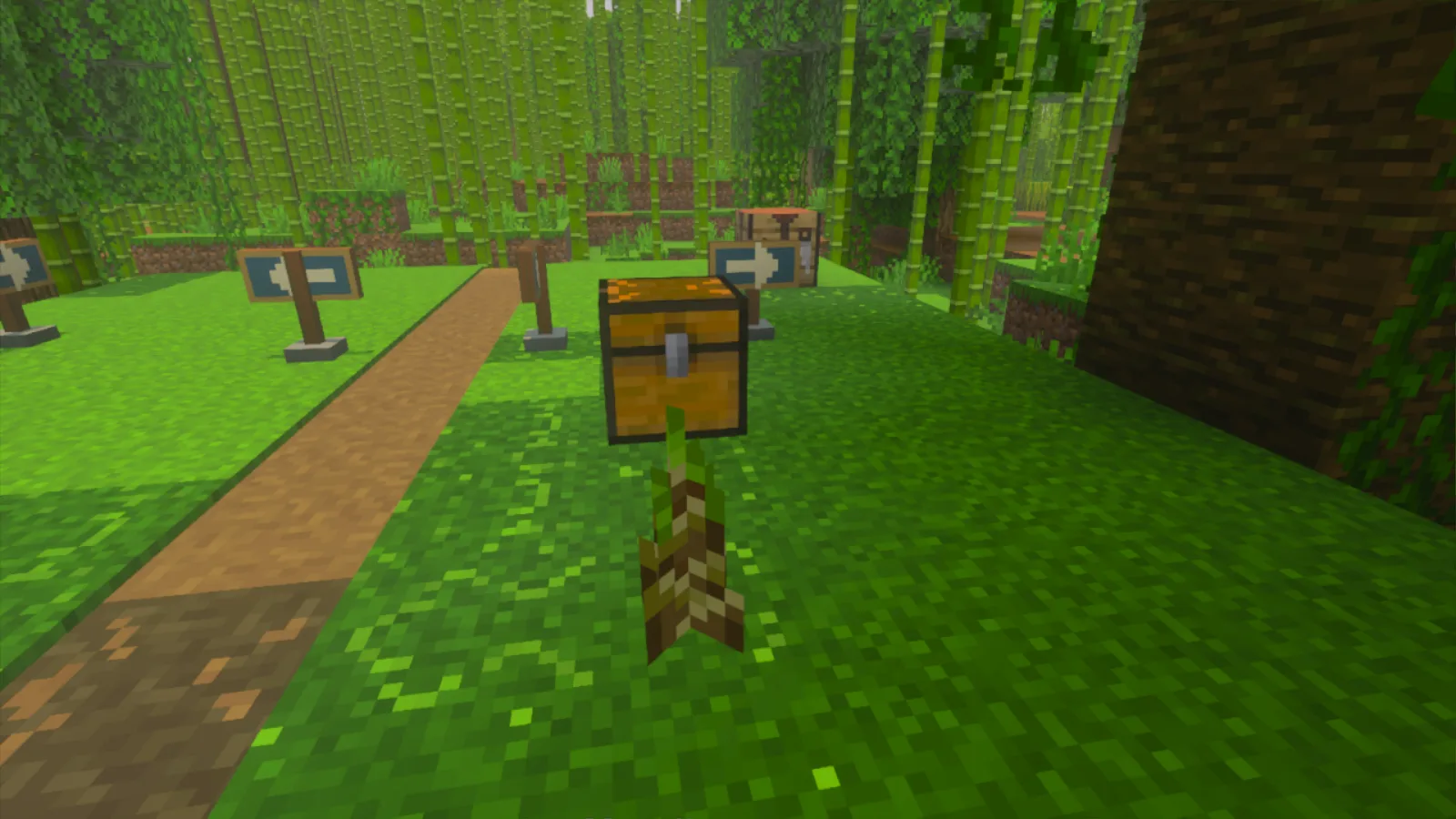
The bamboo planted beside this chest was still present after Save & Quit and reopening the same spare world.
For support, collect the Minecraft version, the warning text, the affected world's displayed size, free space on the relevant drive, and the spare world's save-and-reopen result. Add whether you have a separate backup that opens. This gives the next person a clear starting point while you keep the build you still have.
Comments 0
Share what worked, ask for help or reply to another player.
Use your Modonix account to join the discussion and manage your comments.
Sign in to commentNo comments yet. Share what worked for you.