
Your oak walls still look wrong after you turn on a second texture pack. Before downloading either pack again, check Resource Packs → Active in that world's settings. Both can be enabled while only one supplies the texture you are looking at.
Put the pack whose overlapping textures you want above the other. This chooses which design appears; it does not blend two plank textures into a new one.
The same doorway, two different results
I used Faithful 32x and Devamped Legacy on a riverside house. The oak wall, stone-brick base and glass windows give you several easy details to compare without moving around.
With Devamped above Faithful, the planks kept Devamped's broad, bold pattern. Faithful was still active underneath.
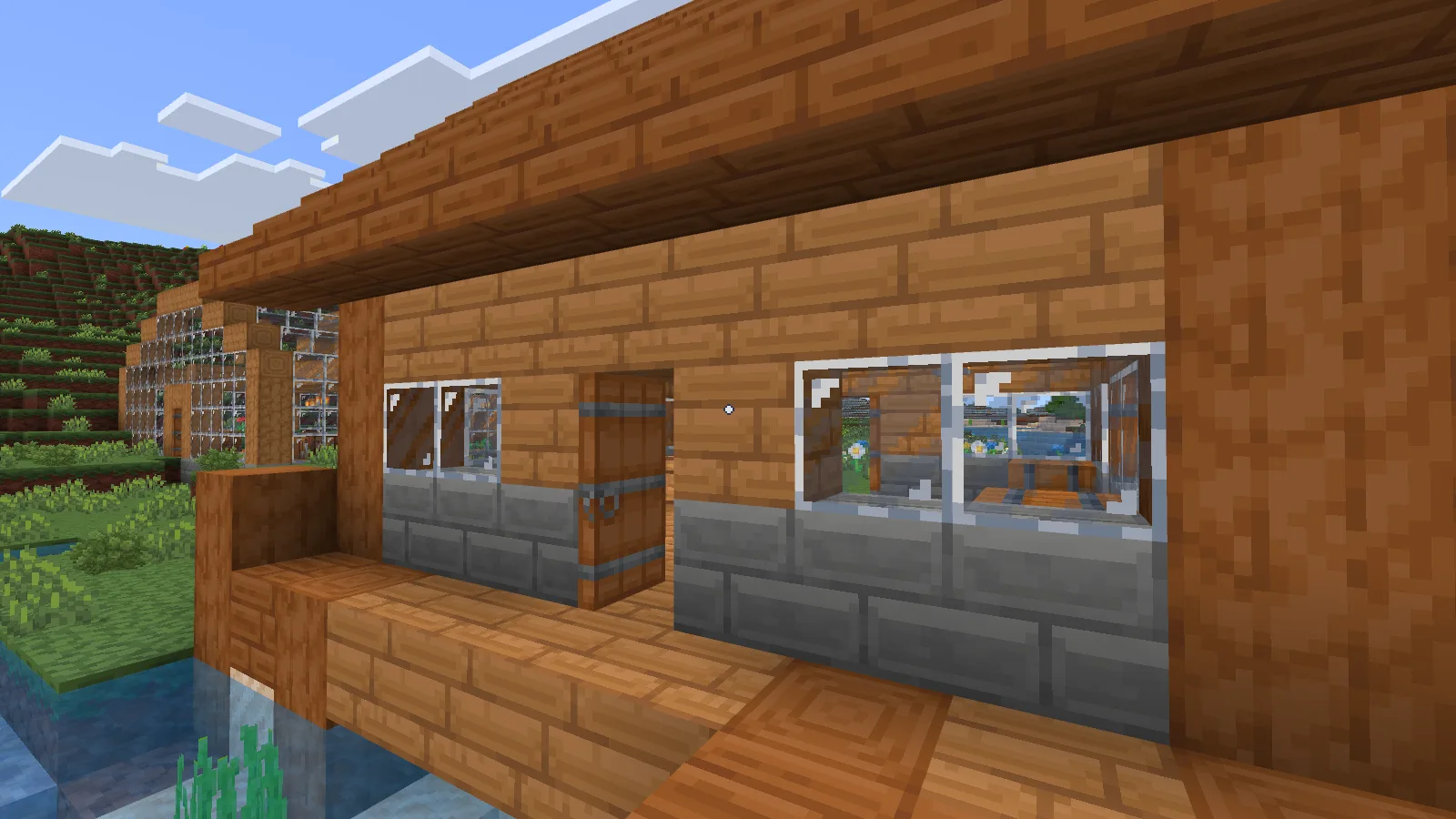
After moving Faithful above Devamped, the same wall showed Faithful's finer grain, and the stone bricks and glass changed with it. I left the viewpoint and lighting alone so the difference would be easy to spot.
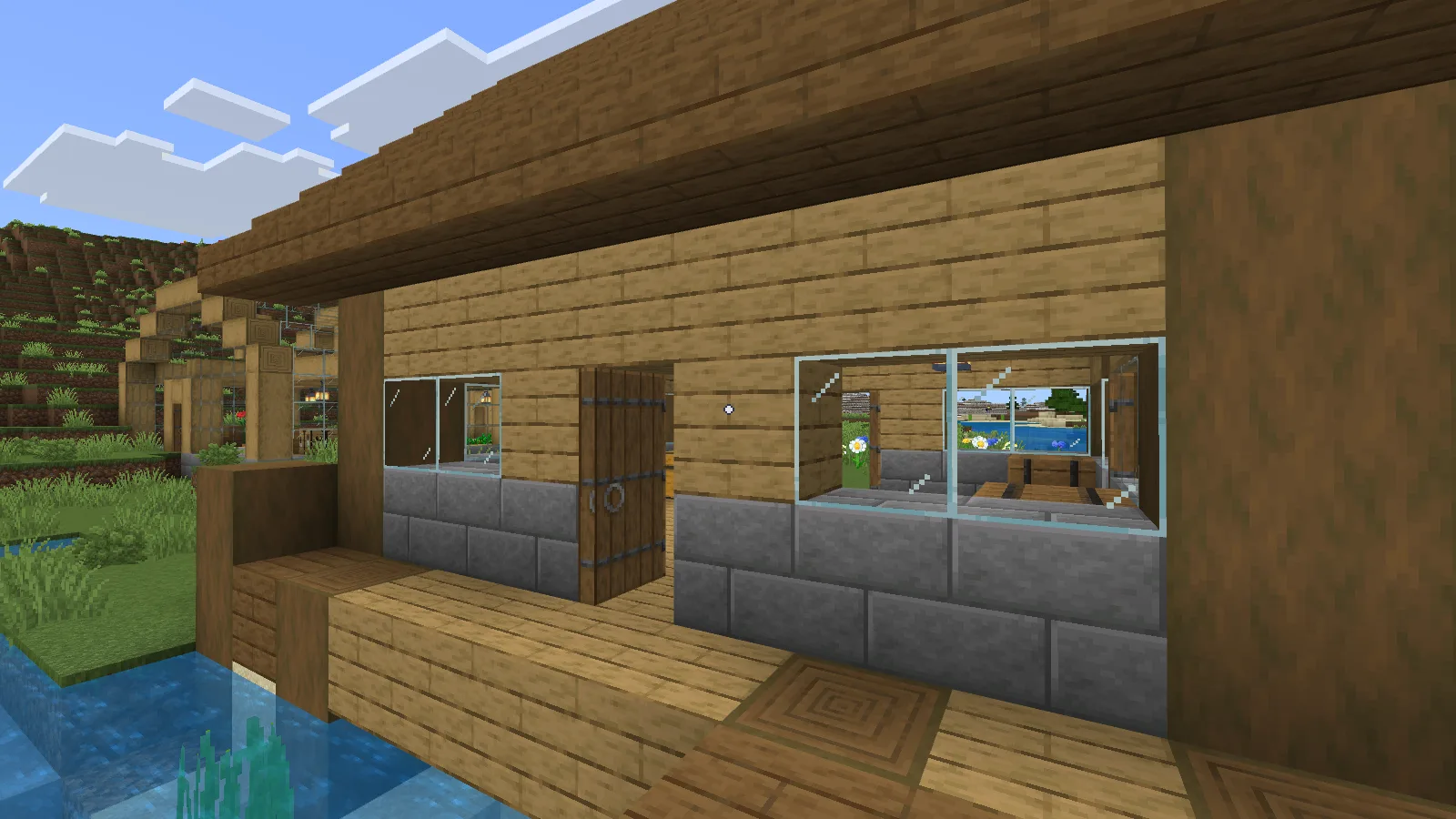
For your own combination, first look at each pack on its own. That gives you a reference: you can recognize the texture you want instead of guessing whether the second pack loaded.
Move the pack you want to the top
Leave the world, choose its edit button, then open Resource Packs → Active. Available is the list of packs you could enable; it is not proof that a pack is already in use.
In the menu below, the numbered handle sits at the left of each active pack. With a mouse, drag that handle upward to move the pack above the other one. Check the list after releasing it, then reopen the world.
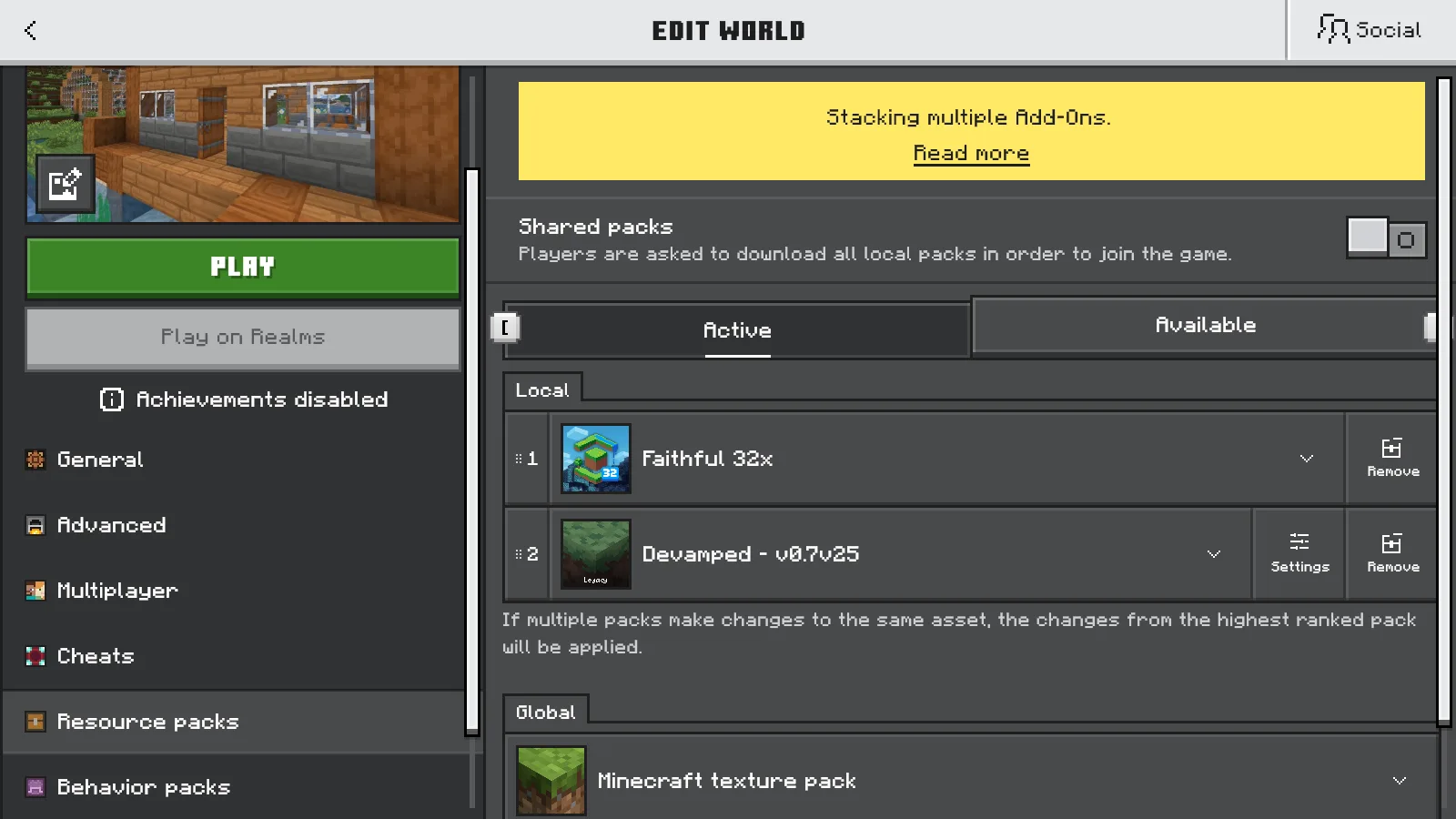
Keep the same subpack option while comparing. Some packs offer several variants through their Settings button. When I removed and enabled Devamped again, its option returned to Modified UI, so I checked it before continuing. Reordering the same active pair avoids adding that extra change.
A familiar corner of your base works well for this:
| Check | Why it helps |
|---|---|
| An oak wall beside stone bricks | You can recognize more than one overlapping texture. |
| Windows beside the wall | Glass may change differently from the surrounding blocks. |
| Your inventory | Menus and item icons can reveal a problem the building does not show. |
| The same spot after reopening | You can confirm that the arrangement still gives the result you chose. |
A good-looking wall does not settle the whole combination
Here is the catch I would check before keeping this pair: with Faithful above Devamped, the inventory's All items label became pale against the light panel. In the Faithful-only view it was dark and easier to read. The building looked right, but that part of the mixed interface did not.
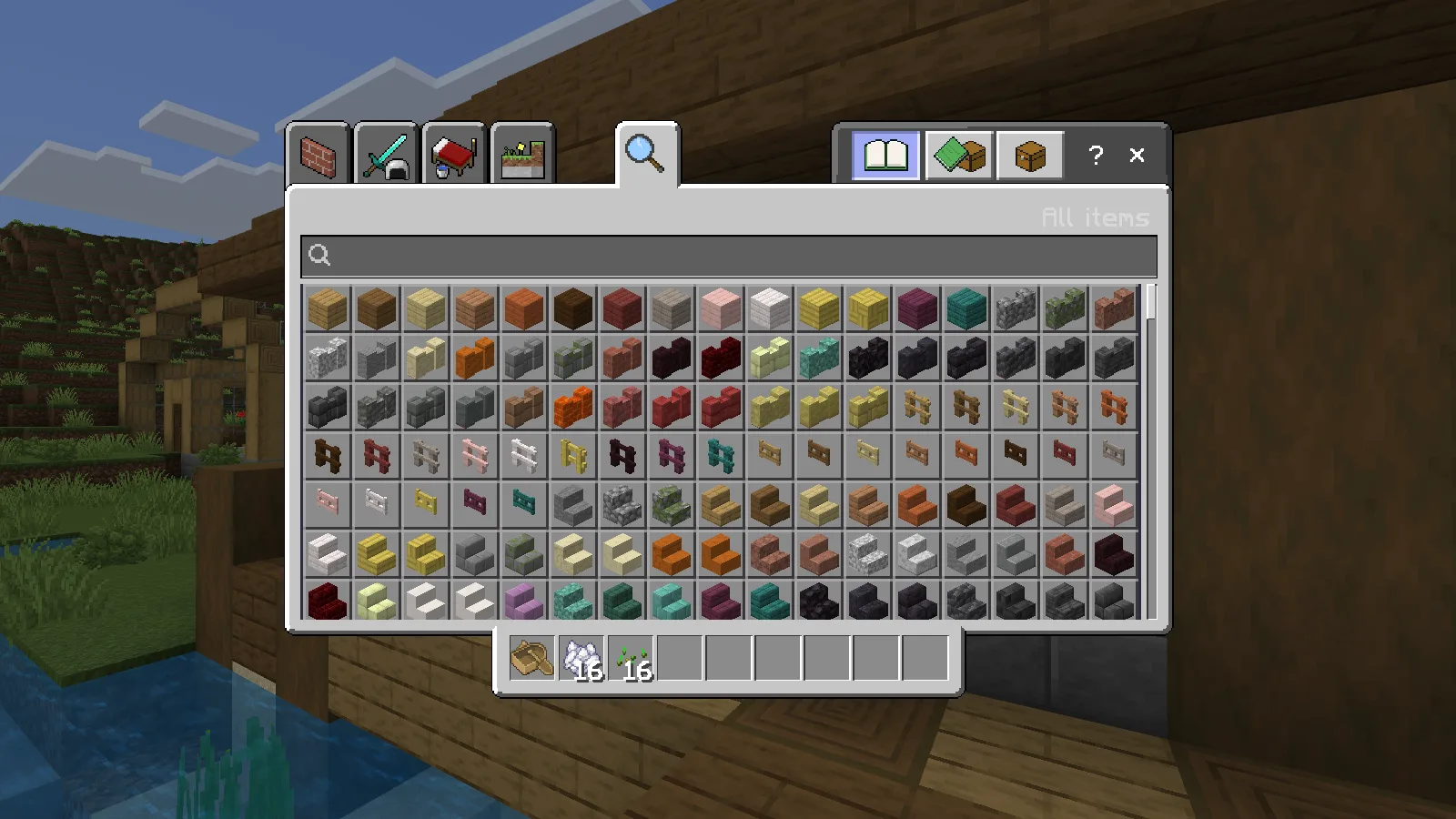
If you encounter something similar, try the affected pack on its own again. Check its available variants, then decide which matters more to you: the preferred block textures or a consistent, readable interface. Keeping just one pack is a perfectly useful outcome.
A mixed look can also be intentional. For example, you might want a small window pack above a broader pack for walls and paths. The higher pack only needs to supply the changes you want from it. Inspect the actual windows and nearby blocks; do not assume that putting one pack first hides every part of the pack below.
When changing the order does nothing
If neither pack changes your chosen block on its own, swapping them will not answer the question. Try a block the pack actually replaces, and check any selected variant. Also make sure you edited the world you reopened.
If the pack is installed but missing from Active, follow the import and activation guide. If an unexpected look remains, check Settings → Global Resources for another active pack. Note your starting setup before changing it so you can restore your usual arrangement.
Missing mob behavior or an item that does nothing needs a different check. Look for the add-on's required Behavior Pack. Moving texture packs cannot combine conflicting gameplay features, so try those add-ons separately and check their compatibility guidance.
Use a separate copy of your save while experimenting, especially if an add-on adds blocks, items or creatures. The world backup guide explains how to make and check that copy. Once you have a combination you like, reopen it once more and look at the wall, inventory and features you actually use before applying the same setup to your main world.
Comments 0
Share what worked, ask for help or reply to another player.
Use your Modonix account to join the discussion and manage your comments.
Sign in to commentNo comments yet. Share what worked for you.