
If you have to lean toward the screen to read a stack count, start with UI scale modifier. In Bedrock for Windows, this setting changes the size of the interface, including the hotbar and inventory. Increasing it makes items and numbers easier to pick out; decreasing it gives the interface less space on the screen.
First check what looks wrong. A small but complete inventory calls for a size adjustment. A missing edge, a partly hidden button or a heart disappearing beyond the display needs a separate check of the screen boundary. Making everything larger is not automatically the right answer to both problems.
Find UI scale modifier
- Open Settings and select Video.
- Scroll to the Accessibility: Video section.
- Find UI scale modifier and select a larger percentage if the interface is too small.
- Return to your world and open your inventory. Check both the item counts and the buttons around the edge before choosing a size.
The example here offers 67% and 100%. Choose from the percentages your own game displays. These two options are the values shown in this example, not a required range for every screen.
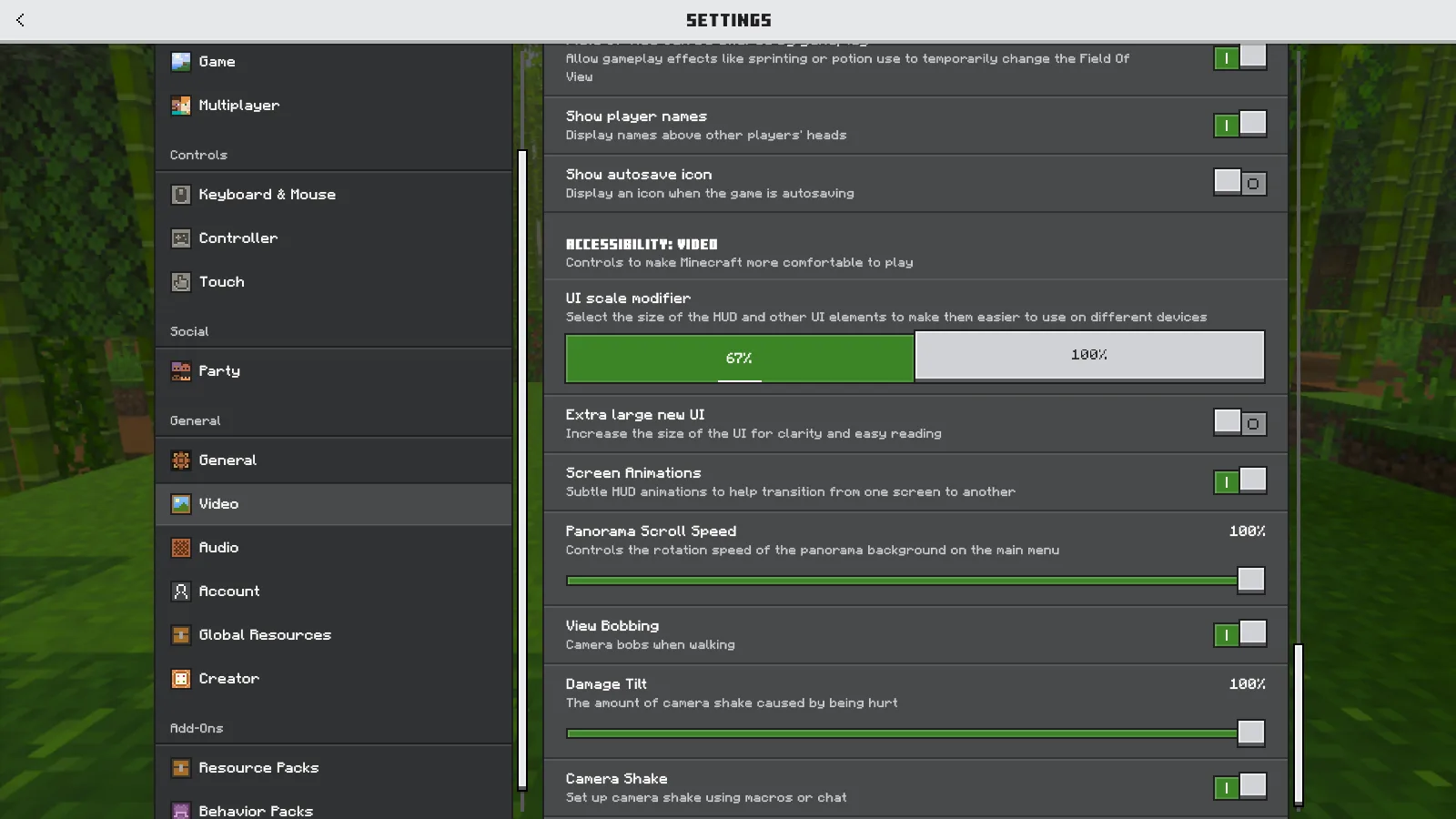
Choose the available percentage under UI scale modifier. This example offers 67% and 100%.
Compare the inventory, not just the Settings menu
At 67%, the inventory and recipe panel occupy a smaller part of the picture. There is more room around them, but item icons, stack counts and the crafting grid are smaller too. At 100%, the same inventory fills more of the screen and those details are noticeably larger.
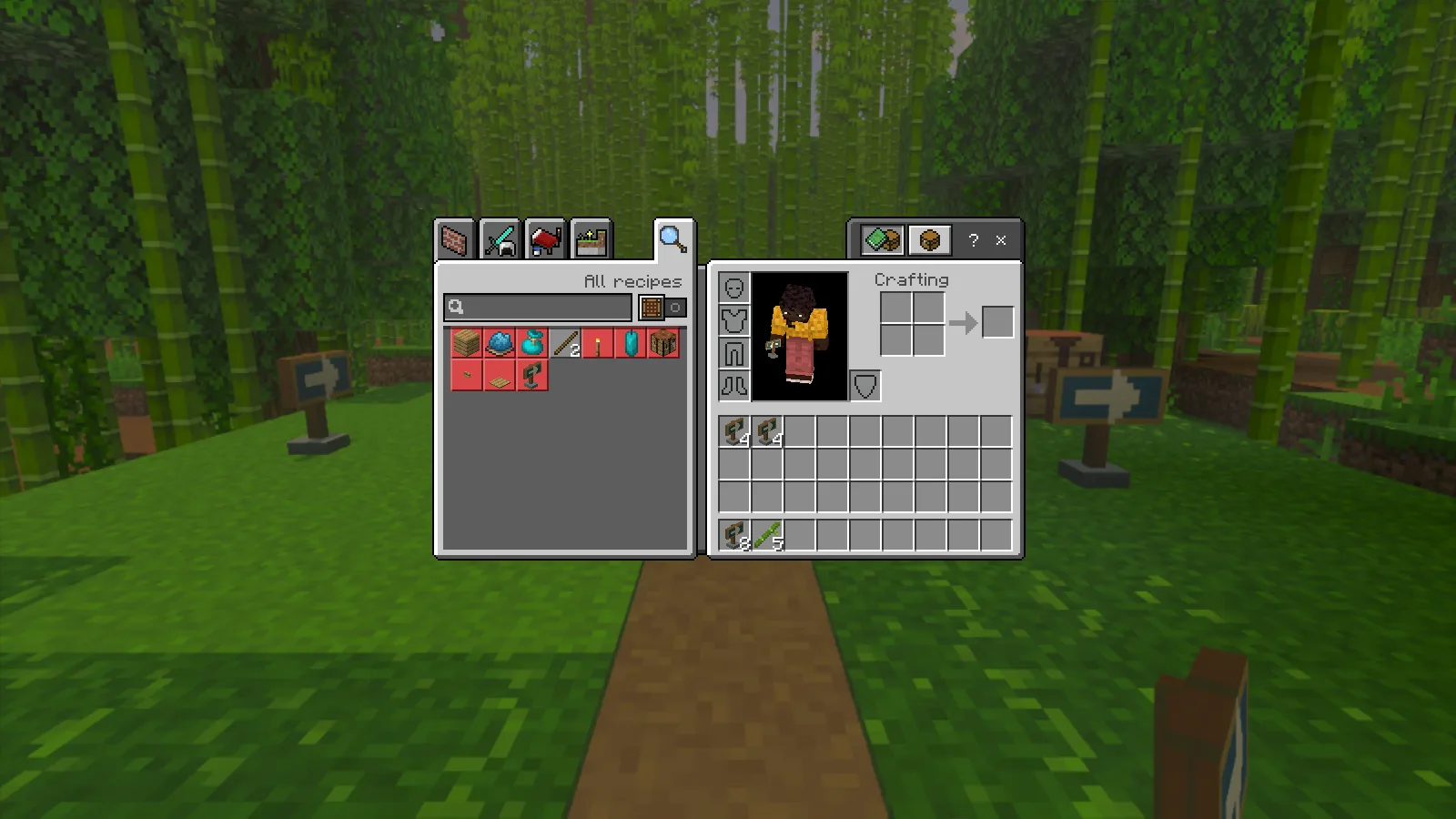
At 67%, the inventory takes up less of the screen, with smaller icons and stack counts.
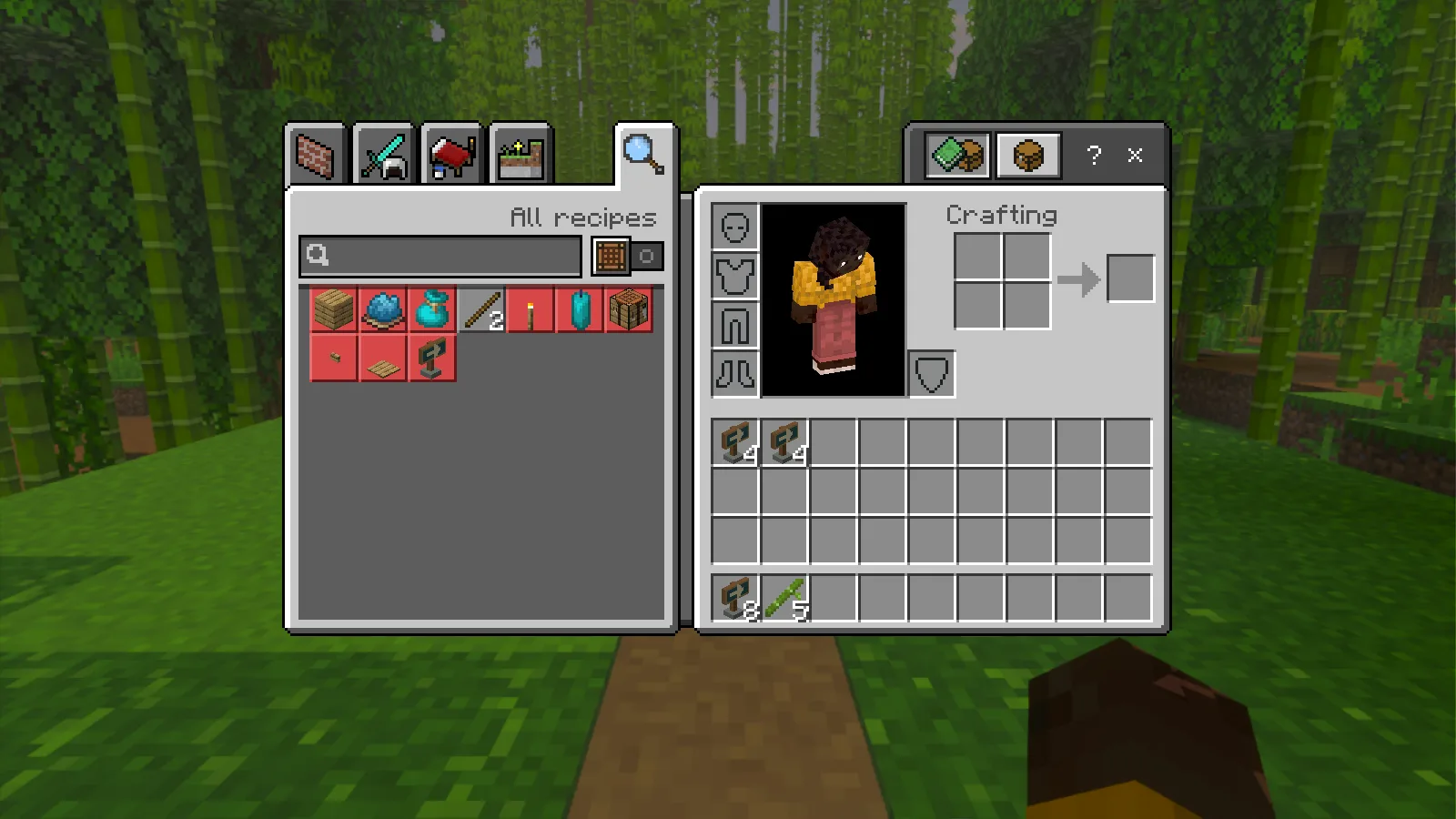
At 100%, the same inventory slots, icons and stack counts are larger.
The hotbar follows the same tradeoff. At 100%, its slots, hearts and hunger icons are larger. At 67%, the bar takes up less space along the bottom. Pick a size that lets you read your supplies and health at a glance while leaving a comfortable view of what is ahead.
Leave Extra large new UI unchanged while making this comparison. Start with one setting, return to the world, and decide whether the result helps. Changing several controls together makes it harder to tell which adjustment you want to keep.
Find Safe Area from the title screen
If the size is comfortable but interface elements are too close to an edge, check Change Screen Safe Area. The desktop route starts from the title screen, so looking only in the settings opened during play can leave you searching in the wrong place.
- Use Save & Quit to leave your world.
- From the title screen, open Settings → Video.
- Scroll to View Customization. Choose Change Screen Safe Area, below HUD Opacity.
- Move the Safe Area slider a little and use the four corner markers to judge the boundary. Keep the markers visible inside your display.
- Select Confirm. This returns you to the title screen; open your world again to check the result during play.
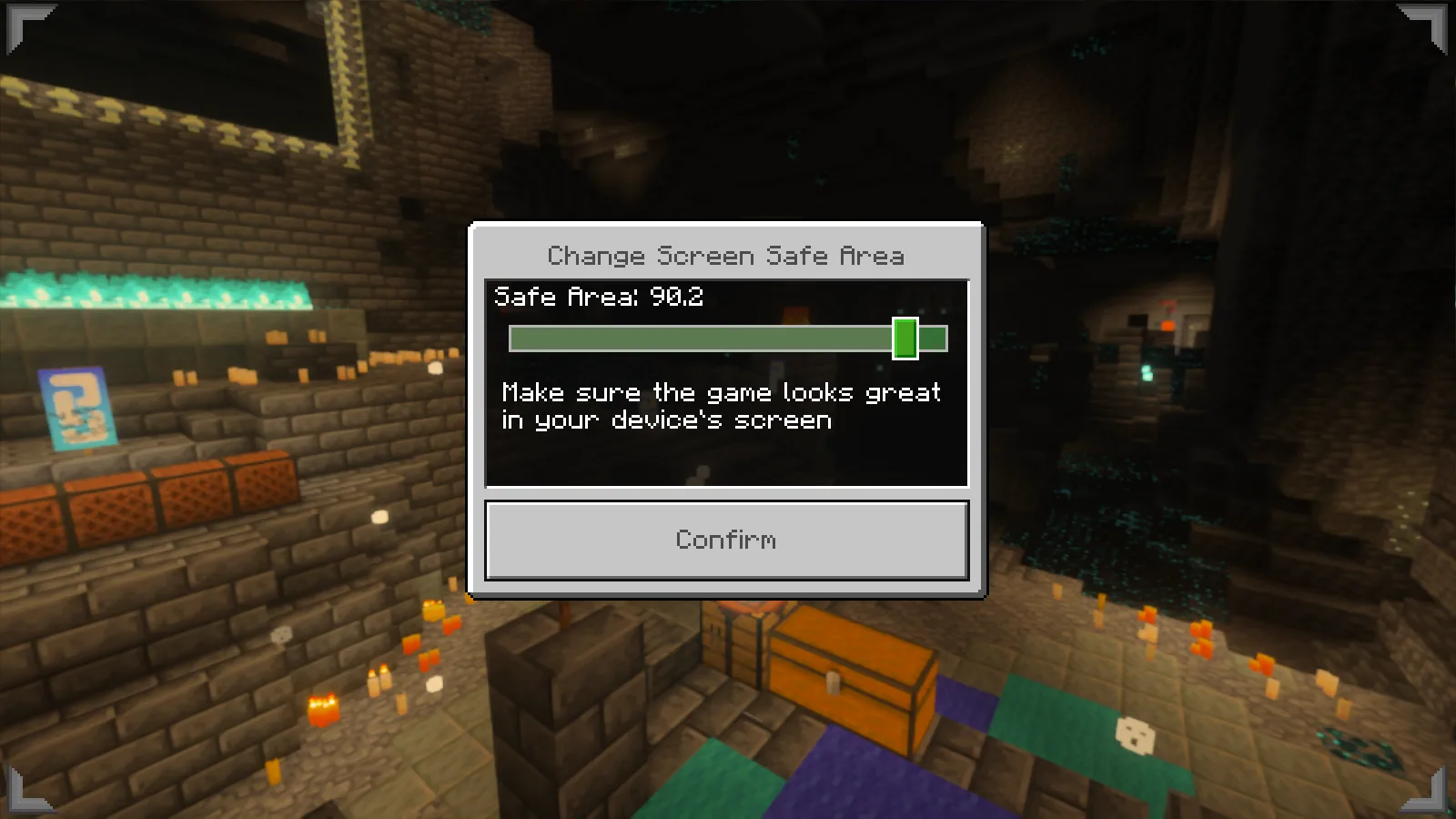
Adjust the boundary with the corner markers. Safe Area 90.2 is an example, not a target for every display.
The dialog shown here has one Safe Area slider and a Confirm button. You can reach it while Minecraft is in a window. There is no need to turn on Fullscreen to follow this route.
Keep UI scale modifier unchanged while you adjust the boundary. In this example, lowering Safe Area slightly moved the hotbar and status bars inward while keeping their size. Use a small change, then check the hotbar, health, hunger and inventory edges. A value such as 90.2 is an example of a slider position, not a target every screen should use.
If 100% crowds your view, choose 67% where it is offered. From your normal sitting distance, check that you can read stack counts, see the full inventory edges and distinguish your health.
Comments 0
Share what worked, ask for help or reply to another player.
Use your Modonix account to join the discussion and manage your comments.
Sign in to commentNo comments yet. Share what worked for you.