An MCSTRUCTURE download is a saved piece of a world: perhaps a house, a room or a decorative feature. To use it, you place that structure inside a world you already have. It is different from an MCWORLD, which imports a whole world into the Play list.
This walkthrough uses Bedrock for Windows 26.52 and house1 from our three-house collection. Start in a spare Creative world so the first placement cannot cut through a build you care about.
Get a structure block
Enable cheats in that practice world's settings, open chat and enter:
/give @s structure_block
Place the block next to a clear patch of ground. Leave enough space for the whole building and a little extra room to walk around it. Open the block and change Mode from Save to Load.
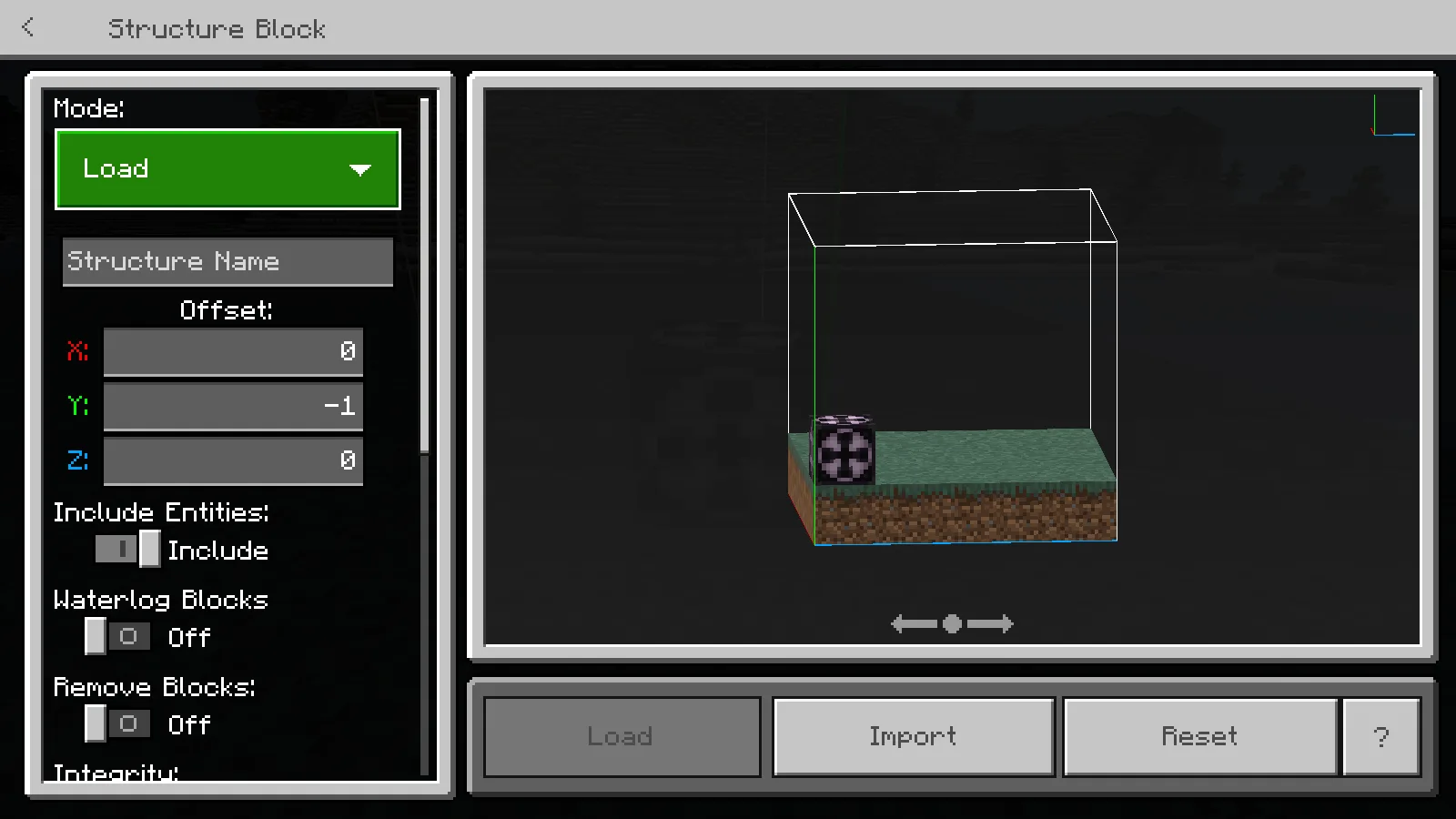
Windows already provides this Import button without an extra resource pack.
On Windows, Import is already part of this screen. You do not need Structure Porter just to reveal a button that is present. This particular file-picker walkthrough is for Windows; phone and console file access can differ.
Choose the downloaded file
Click Import, select house1.mcstructure and return to the game. Keep the original extension. Renaming a Java schematic to MCSTRUCTURE does not convert it into a Bedrock building.
Use the name populated by the import rather than guessing a new one. A structure name typed into the box only works if that structure is actually available to the world or its active packs.
Put the building beside the block
The Offset fields move the placement relative to the structure block:
- X moves it along the world's X direction.
- Y changes its height.
- Z moves it along the world's Z direction.
For the house1 scene below, the structure block stands on the grass and the offsets are X 4, Y -1, Z 0. The saved file's bottom layer then lines up with the ground, four blocks to the side. Those numbers describe this example, not a universal setting for every download.
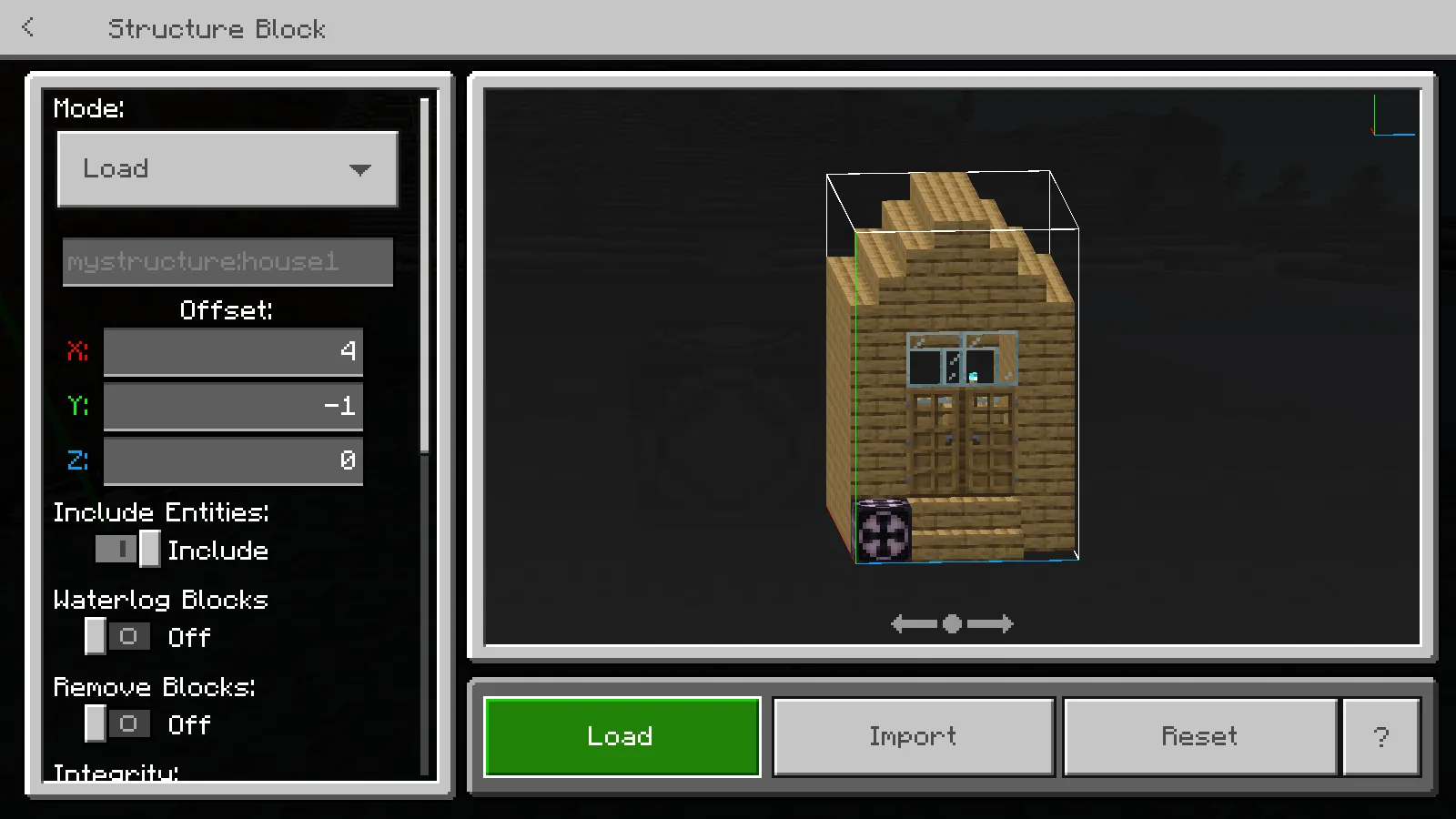
Check the name and the placement before using a structure in a valuable build.
Check the highlighted area, leave Remove Blocks off and press Load. Do this on an empty trial plot first: loading can replace blocks in the destination. The house1 file also contains a helper structure block, which you can remove afterward when finishing the ground.
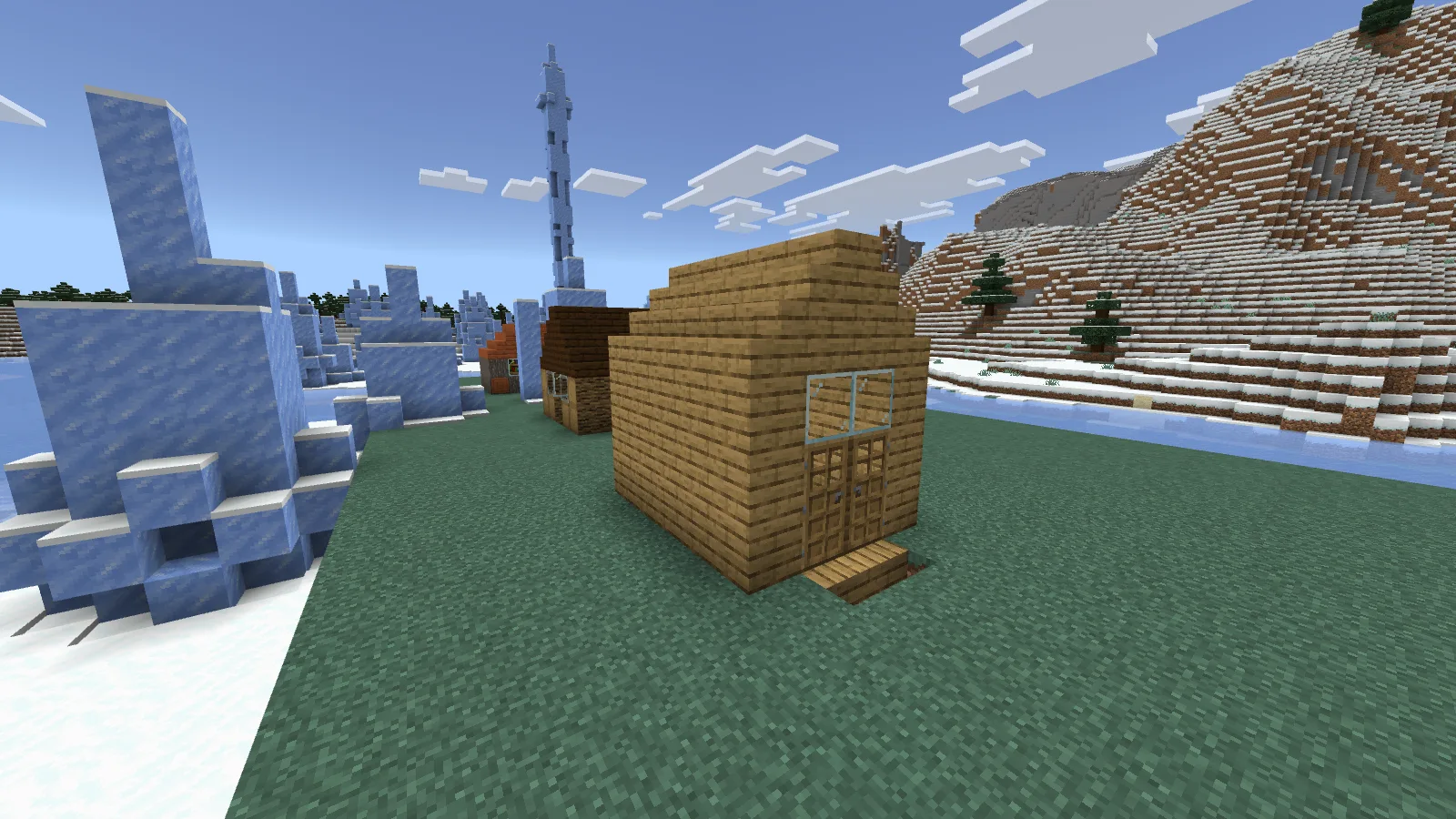
The result is a placed building, not a new world in the world list.
Our finished display is simply the imported house with the helper removed and the plot tidied. We did not need to install a mod loader or create a new world from the building file.
Move your own build to another world
Use a structure block in Save mode to frame the build, give it a name and choose Export. Keep the resulting MCSTRUCTURE file somewhere you can find it. In the destination world, use Load → Import and choose that file.
Our Structure Porter walkthrough shows a house after that trip between two worlds. Saving a named structure inside one world and exporting a file to your computer are different actions; a name alone is not a file you can send to a friend.
Common wrong turns
| What happened | What to try |
|---|---|
| Nothing appears in the Play list | Use a structure block; this is a building file, not a world download |
| The building is buried or floating | Adjust Y for the saved structure's bottom layer and your ground level |
| A previous structure appears | Import the intended file again and check its displayed name |
| The command is rejected | Check cheats and your permissions in this particular world |
| Import is missing on another device | Check that platform's supported file workflow; the Windows picker is not universal |
| Part of an existing build was replaced | Return to your untouched world copy; do trial placements separately |
Modonix made the game screenshots and the walkthrough. The example house belongs to Microsoft's sample collection; your own buildings use the same basic placement controls.
Comments & questions
Share what worked, ask for help or reply to another player.
No comments yet. Share what worked for you.