
When a newer add-on is installed but an existing world still lists the older release, check the packs selected for that world. For an add-on with both behavior and resource packs, the two parts need to form the intended pair. Here is the route we used to switch a played Waymarker world from 0.1.0 to 0.1.1.
Start with a separate world copy
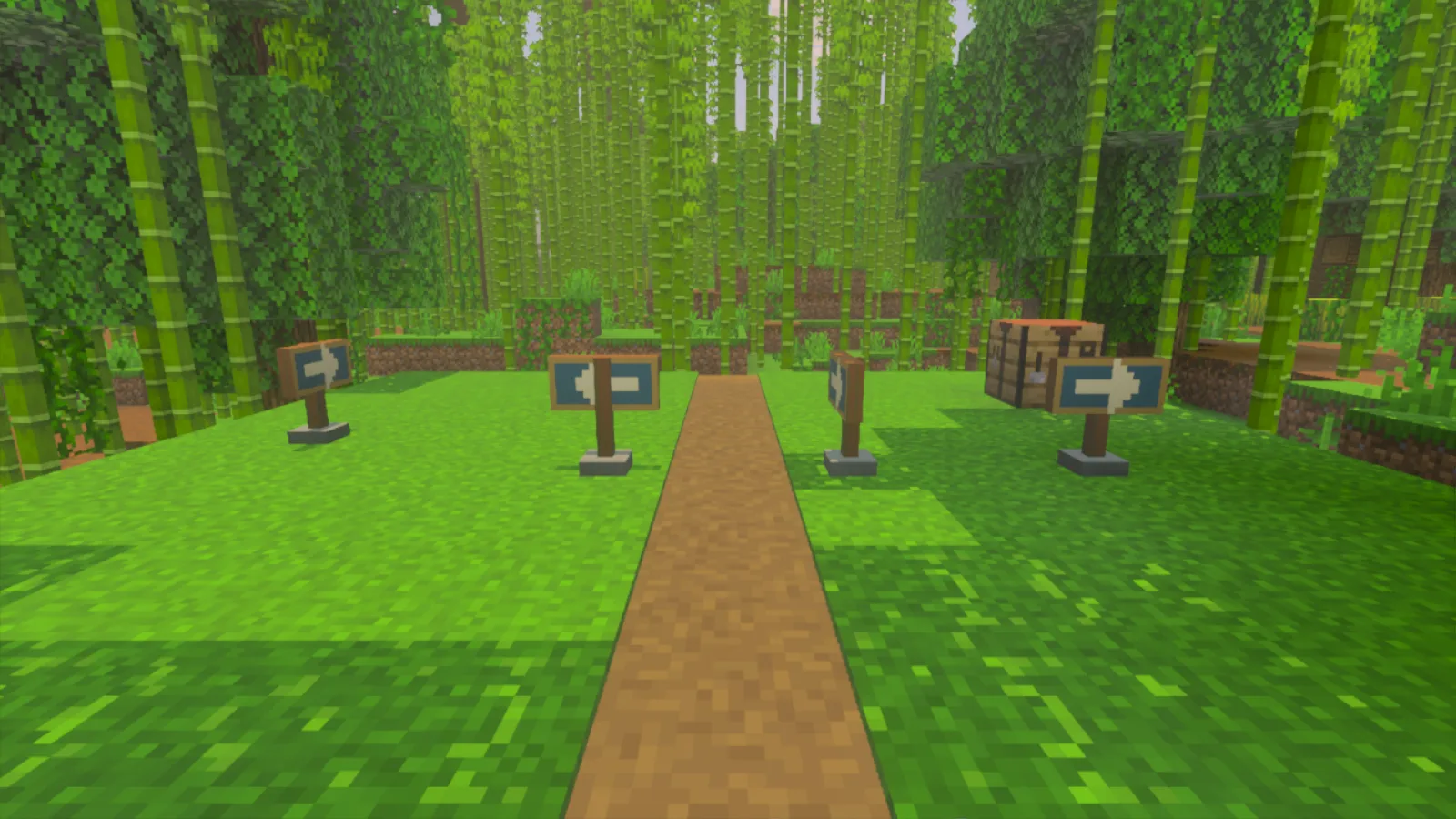
Keep a backup of your world and give the copy a clear name, such as Waymarker Update. Leave the original aside while you try the newer release. Pick a few existing add-on blocks and inventory stacks to check afterward; for Waymarker, the useful landmarks were the arrow posts beside a bamboo trail.
Have the newer release installed before editing the copy. If you need the initial import steps, follow our guide to importing an add-on and checking both packs.
Switch the pair in the world settings
-
Open Play and choose the pencil beside the named copy. Under Behavior Packs, expand Waymarker in Active and inspect its version. Do the same under Resource Packs. Our world still showed 0.1.0 in both places while 0.1.1 was installed.
-
In Behavior Packs → Available, find the newer Waymarker entry and select Activate. Read the update warning and confirm that you are editing the copy before choosing Add pack anyway.
-
Check both Active lists. Waymarker's matching resource pack was added automatically, but the older entries remained too. We removed the old behavior entry, then the old resource entry, leaving the new pair selected. The descriptions distinguished the entries in this case; do not choose by list position. If you cannot identify the releases, follow the creator's update instructions before removing anything.
-
Return to the Worlds list, then reopen the same world's settings. Check the saved selection in both Active lists. In our example, both now showed 0.1.1.
-
Enter that world only after the intended pair is selected. Try the add-on's practical feature, then save and quit and reopen the world once more.
Check the trail you already built
The Waymarker recipe uses two oak planks side by side, a stick beneath the left plank and cyan dye beneath the right. It produced four markers both before and after the switch.
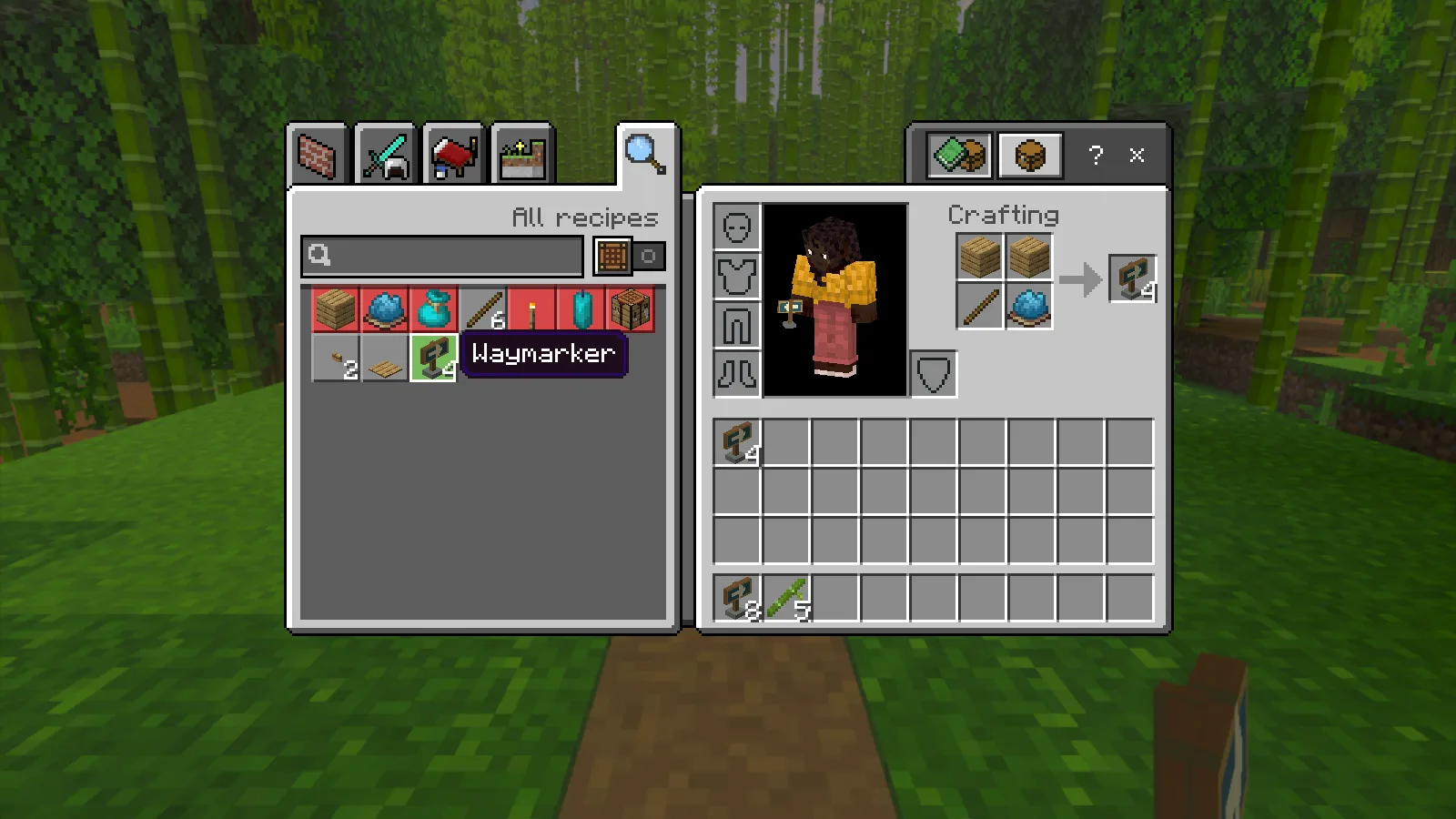
After reopening the updated world, all four posts were still beside the bamboo trail and pointed the same way. The markers we already owned remained in the hotbar, separate from the two stacks crafted before and after the update.
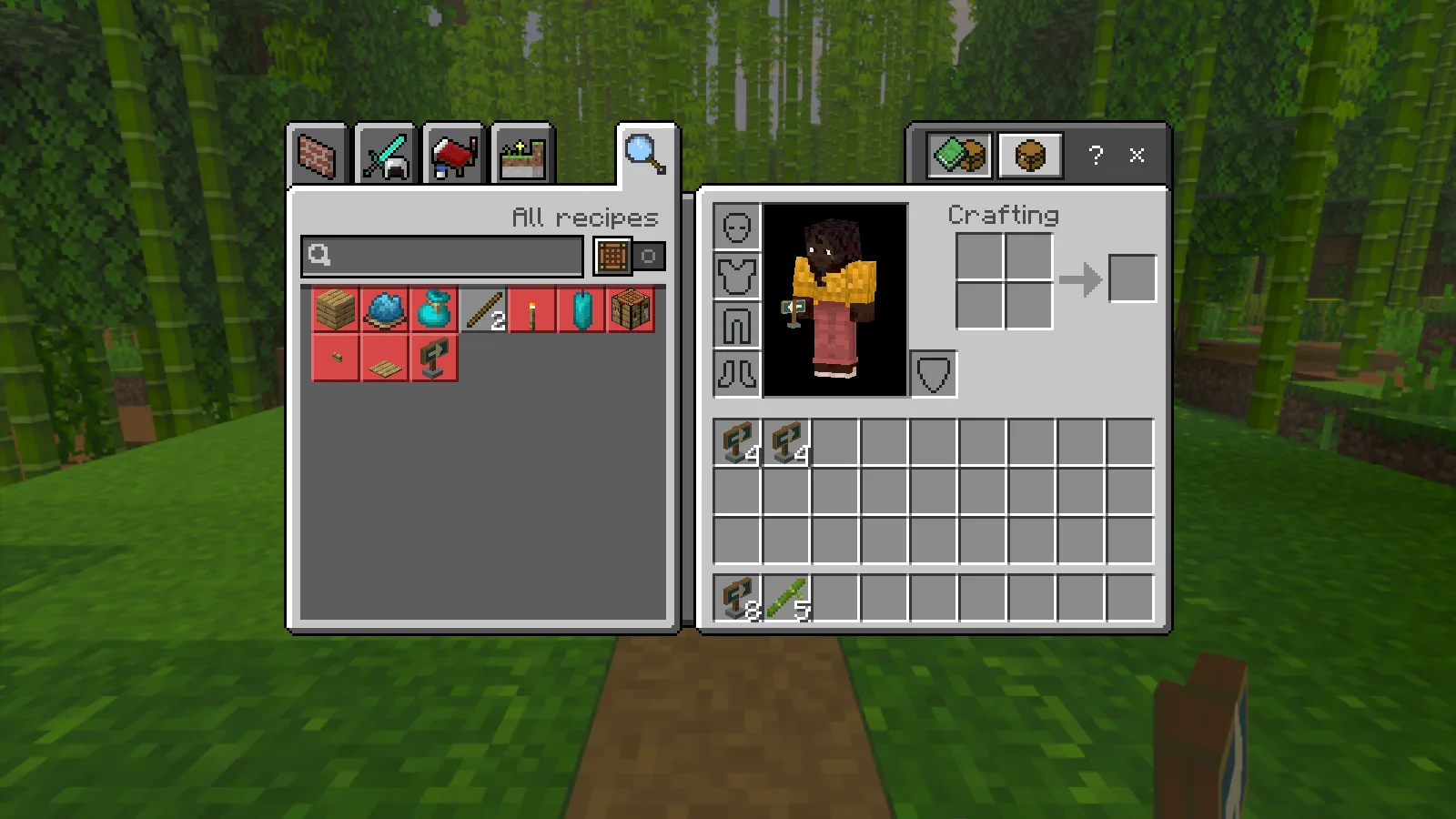
Use the same idea for your world: visit an existing build, check an item you already owned, and try the feature you wanted from the release. Keep newly crafted items separate while comparing your old stacks. If something is missing, looks wrong or stops working, stop using that copy and keep the earlier backup. Tell the creator which release you selected and the specific block, item or action affected.
Comments 0
Share what worked, ask for help or reply to another player.
Use your Modonix account to join the discussion and manage your comments.
Sign in to commentNo comments yet. Share what worked for you.