Vanilla RTX adds ray-tracing materials to Minecraft’s familiar blocks. The pack supplies the surface information; Minecraft’s Ray Traced graphics mode supplies the renderer. Getting both parts in place matters more than stacking several visual packs on the same world.
This version is for Minecraft: Bedrock Edition on Windows 10 or 11, with Bedrock 26.40 or newer and a GPU that supports hardware DirectX ray tracing. Microsoft gives NVIDIA GeForce RTX 20-series or newer and AMD Radeon RX 6000-series or newer as examples. A resource pack cannot add that hardware support to a computer.
Install the pack in one world
Download Vanilla RTX 1.26.22 from Files. That number is the resource-pack version, not the required Minecraft version.
- Save and close any open world, then close Minecraft.
- Open the downloaded
.mcpackwith Minecraft. Leave the file intact; there is no need to unpack it or put folders into the game’s storage directory. - In Play → Worlds, edit the world you want to use. A spare world or a copy of a familiar build makes a useful starting point.
- Open Resource packs → Available, select Vanilla RTX and activate it.
- Check Active. Vanilla RTX should appear under Local. Return to the Worlds list before opening the world.
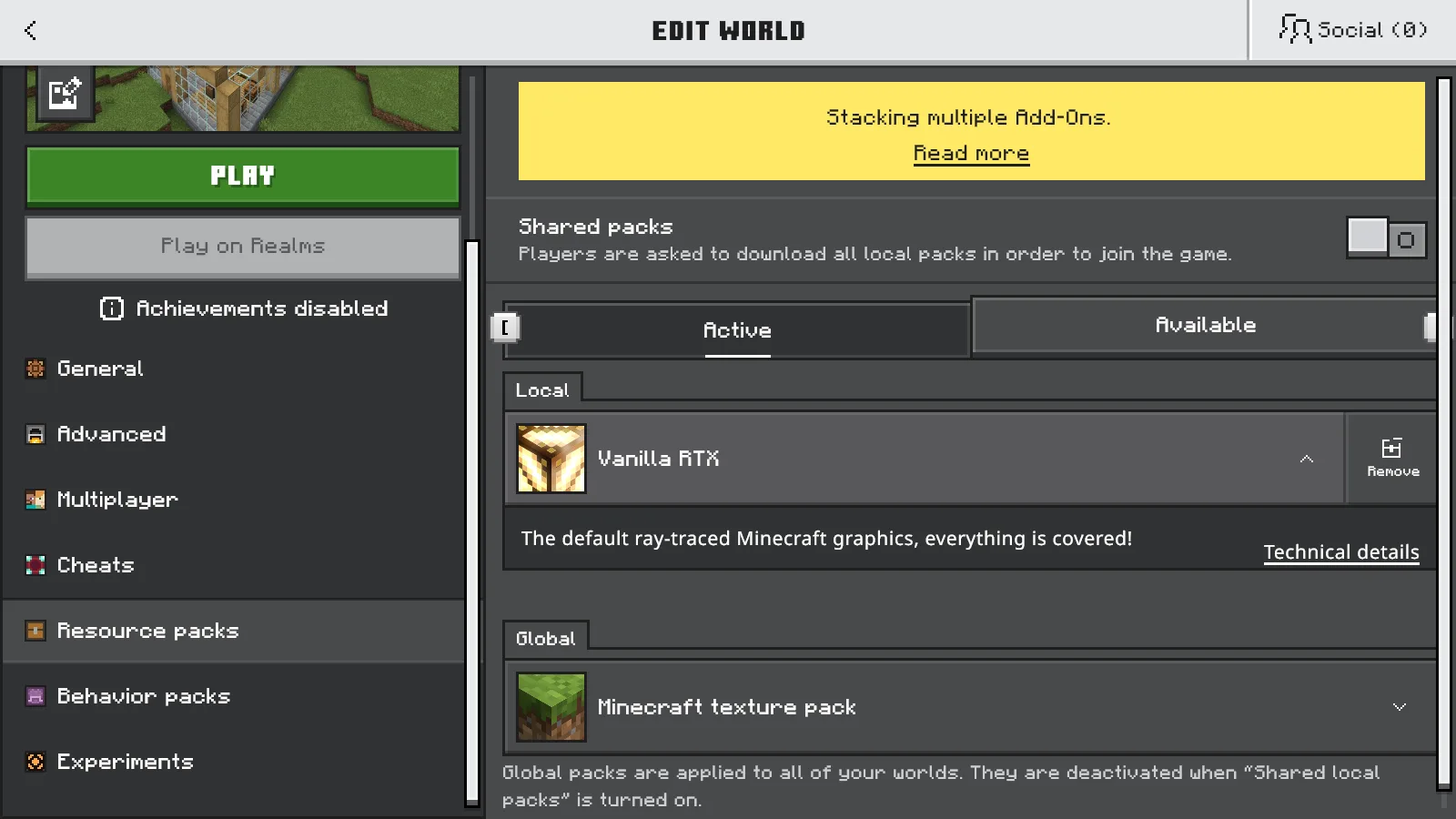
Vanilla RTX appears under Local in the world’s Active resource packs. The global pack is Minecraft’s default.
Activating it here applies the pack to that world. You do not need to add it to Global resources. For a clear starting point, keep other optional resource packs out of this world’s stack; overlapping packs can replace the materials you expect Vanilla RTX to provide.
Check the graphics mode
Before entering the world, open Settings → Video from the main menu. Turn on In-game graphics mode switching, then open the world and return to Settings → Video from the pause menu.
Under Mode, look for Ray Traced. If it is available, select it. Cubeir’s activation instructions also call for saving, leaving to the main menu and rejoining after this initial switch, so the pack loads with ray tracing already enabled.
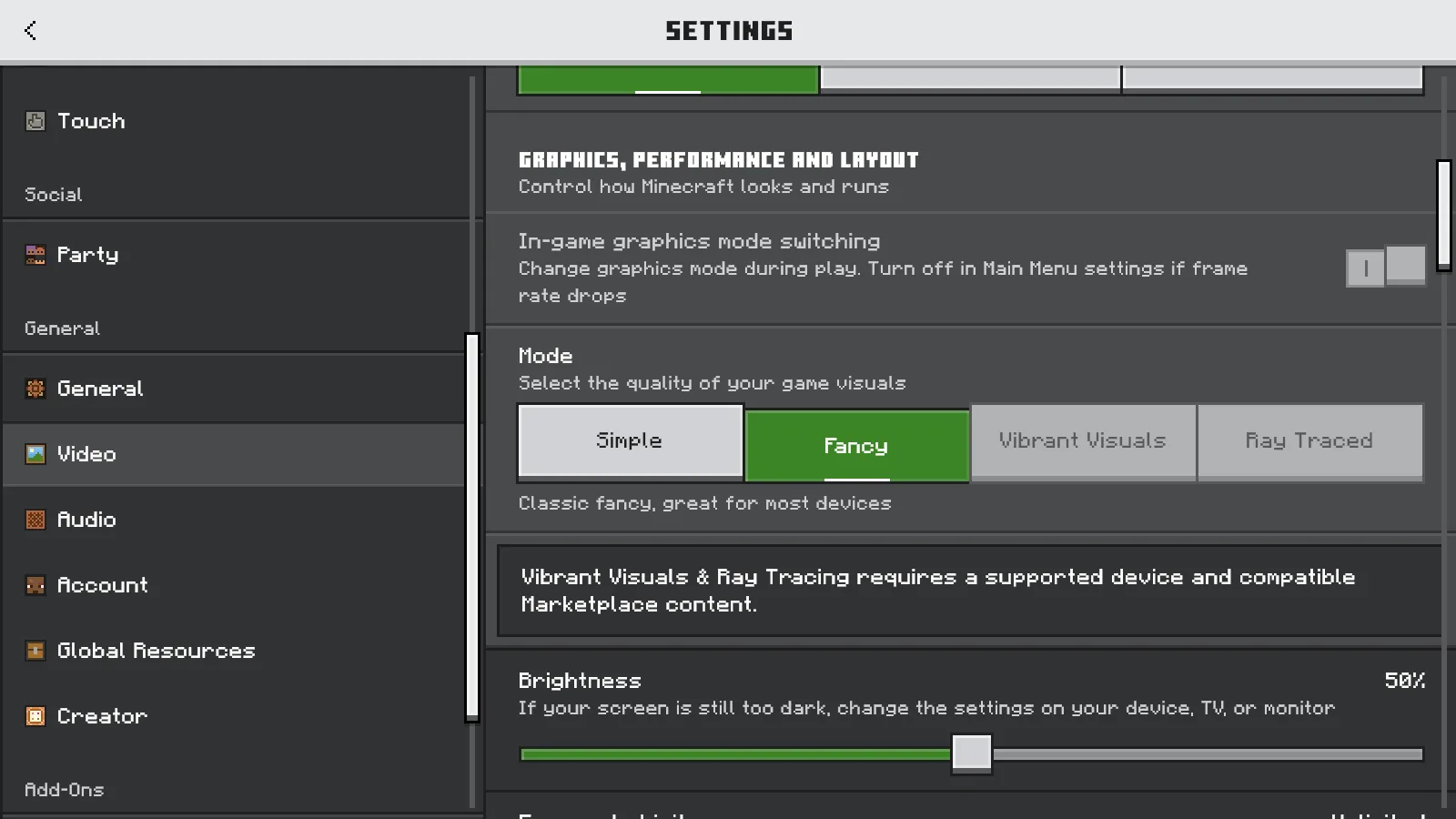
In-game graphics mode switching is on. Fancy is selected and Ray Traced is unavailable on this GeForce GTX 1060 setup.
On our Windows Bedrock 26.52 setup with a GeForce GTX 1060, Vanilla RTX was active and in-game switching was enabled, but Ray Traced remained unavailable. Fancy was selected.
An entirely disabled in-world mode selector can simply mean that in-game switching is off. Check that setting before treating a gray option as a hardware diagnosis.
If Ray Traced remains unavailable, check the Windows edition, game version, active pack and supported GPU first. Reimporting the same materials does not change the computer’s graphics capabilities. Fancy and Vibrant Visuals are separate graphics modes; selecting either does not turn this pack into an RTX demonstration.
Make your first comparison easy
When Ray Traced is available, begin with a small build you already know: a window, a few wood and stone surfaces, and a lantern. Keep the same viewpoint and time of day when comparing settings, so moving sunlight does not become the apparent difference between packs.
Prefer Vibrant Visuals on your setup? Use a pack intended for that mode, such as Cubeir’s separate Vanilla Vibrant Visuals release. The similar names describe different renderer targets.
To remove Vanilla RTX, leave the world, edit it and open Resource packs → Active. Remove the pack, return to the Worlds list, then reopen the world. Restore your preferred graphics mode in Video settings as well; removing a world’s resource pack and changing the client’s graphics mode are separate actions.
Comments & questions
Share what worked, ask for help or reply to another player.
No comments yet. Share what worked for you.