
Build Ridgeway Field Kit from three items: an awning tool, a stone deck tool and trail food. Create the project, draw the icons, configure the tools and add their recipes, then save the editable source and export the add-on. Open the add-on constructor and the texture editor in the same browser on the same site.
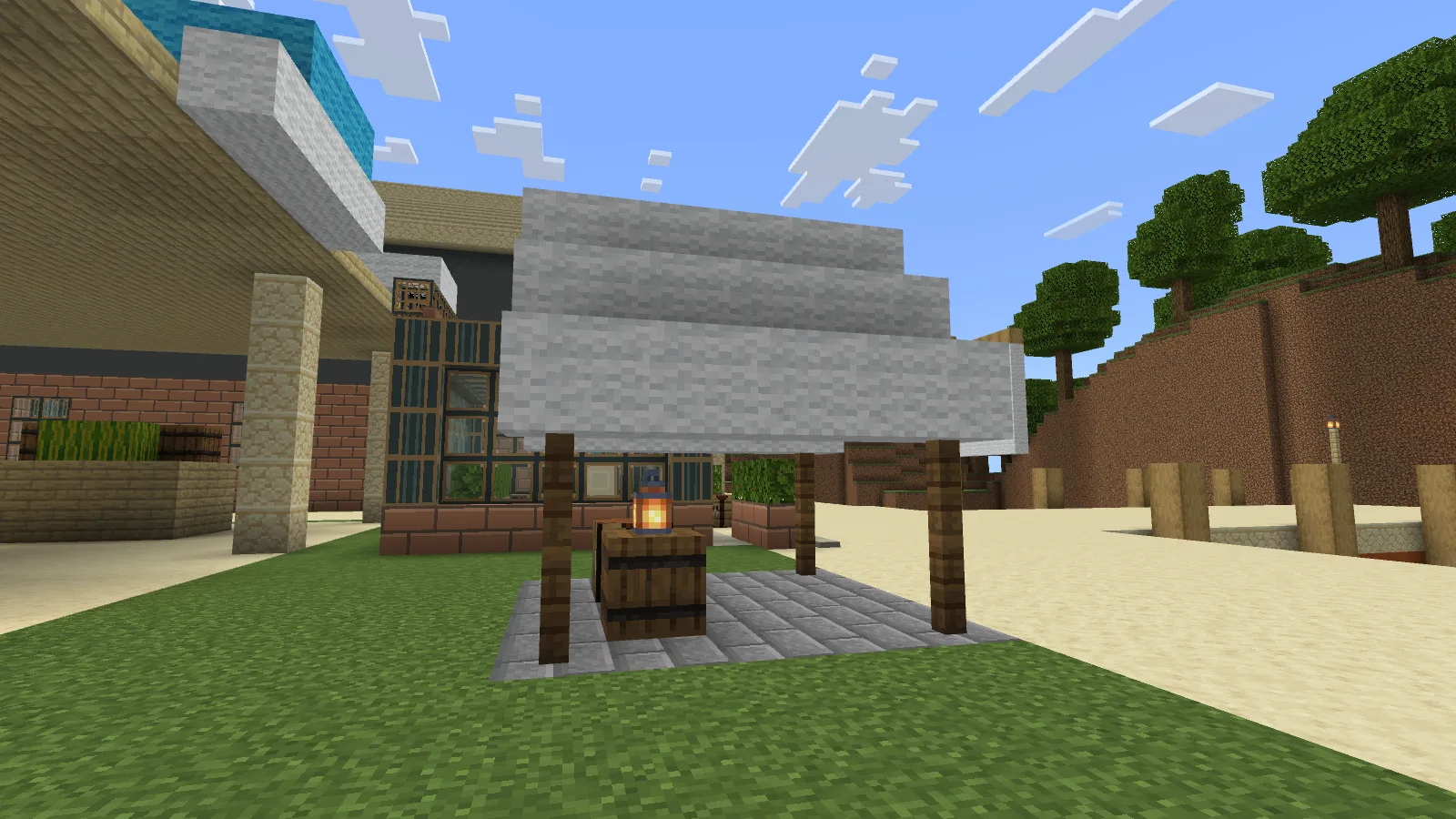
The awning and Stone Deck form a camp stop. The greenhouse, market and surrounding scenery are separate builds and are not included.
Start a project you can return to
Choose Project → New project. Set Creation task to Mod / addon, choose Bedrock · 26.52 as Game target, then select Create project. The reference is Ridgeway Field Kit, Project ID (the namespace) ridgeway_field_kit, version 0.1.0, author Modonix Studio, license All Rights Reserved. For your own creation, choose your own name, namespace, author and appropriate license. Keep the generated project UUID for later revisions of that project. It is its identity, not a version number.
Our item IDs are ridgeway_awning, stone_deck and trail_ration; the first complete identifier is ridgeway_field_kit:ridgeway_awning. Display names can contain spaces; identifiers cannot. Use the add-on output for the finished behavior/resource package.
Give each item readable artwork
Paint separate 32×32 PNG icons for the awning, deck and ration. Use layers for a silhouette, shading and small details if that helps. In the texture editor, Download editable project preserves the artwork document and its layers; Download PNG exports its finished image. These files serve different purposes.
In the constructor, Copy saved texture copies a saved texture from the same browser origin into the selected item. It is a snapshot: later painting changes need another copy. Keep the artwork document as well as the constructor's Project → Save project JSON backup. Importing an artwork project into the constructor is not the same operation as importing a constructor project.
The source kit contains the constructor project JSON and three flattened 32×32 PNG icons. It does not include the texture editor’s layered drawing documents. To keep your own layers, choose Download editable project in the texture editor. Reopen that drawing in the texture editor; reopen the constructor JSON through Project → Import project JSON.
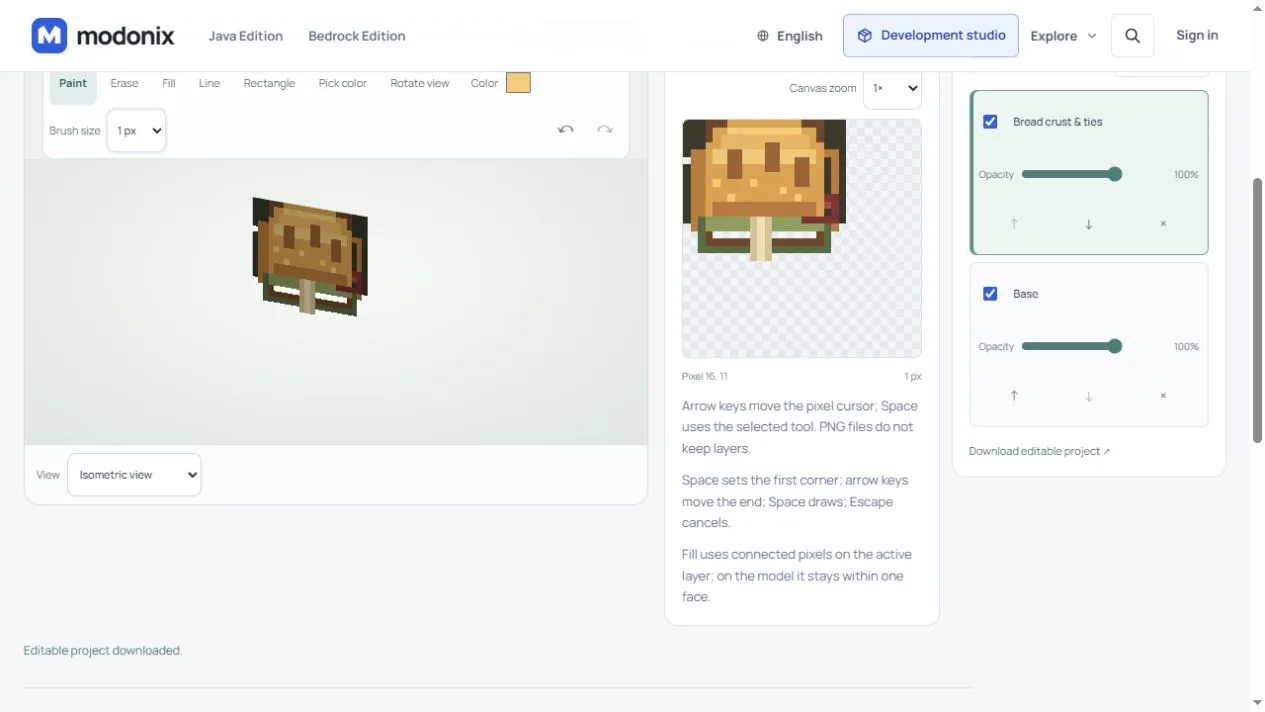
The ration artwork has separate base and bread-detail layers. Use Download editable project to keep your own layers.
Configure the two ability items
Add Ridgeway Awning as an ability item, stack size 1, with the Pocket Camp ability and Trail awning template. Set Building material to Spruce planks, Canvas color to White and Direction to Look direction. Set Blocks per step to 2, Activation cost to 0 and Cooldown to 5.
The rate means two blocks per construction step, not two seconds. The cooldown is a separate delay in seconds. Zero activation cost does not supply the building blocks. The source plan calls for 8 spruce fences and 25 white wool on solid ground, plus one spruce plank for each empty floor cell, up to 25. Keep the entire intended roof space clear.
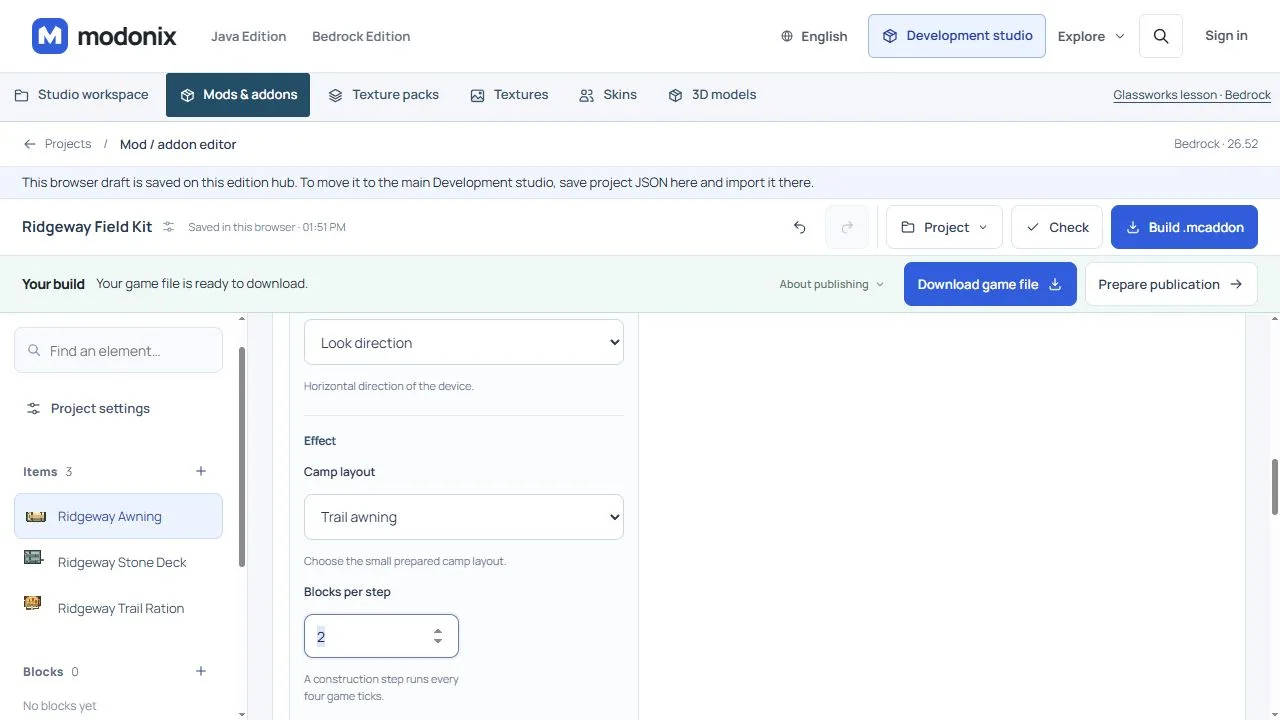
Choose Trail awning in Camp layout and set Blocks per step to 2.
Face the area you want to cover and use the tool while aiming into open air. Aiming at a chest opens its inventory. Activation costs nothing, but you still supply the building blocks. If you drop needed wool after the job starts, the awning can wait; picking it up lets construction continue.
To pack, use Sneak + Use with the same tool and owner, in the same dimension near the original placement point. Recoverable blocks drop as ordinary items in the world: walk over to collect them. Blocks replaced with a different material stay in place. Do not assume an edited camp returns every original material.
Add Ridgeway Stone Deck as another stack-1 ability item. Choose Pocket Camp and set Camp layout to Raised platform, Building material to Stone bricks, Direction to Look direction, Blocks per step to 2, Activation cost to 0 and Cooldown to 5. Use it where floor cells are empty, such as a shallow dry gap. A wholly empty 5×5 floor calls for 25 stone bricks; this template does not build a raised platform on solid level ground.
Add food and crafting
Set Ridgeway Trail Ration to Food, Nutrition 6, Saturation modifier 0.6 and stack size 64. No potion effect is configured.
Eat it when the hunger bar has empty slots: on this Bedrock build a ration can still be consumed with a full bar.
For shaped recipes, number the crafting grid left to right: 1–3 on top, 4–6 in the middle, 7–9 below. For the awning, put white wool in 2, string in 4 and 6, leather in 5 and a stick in 8. Leave the other slots empty; result ridgeway_field_kit:ridgeway_awning, count 1.
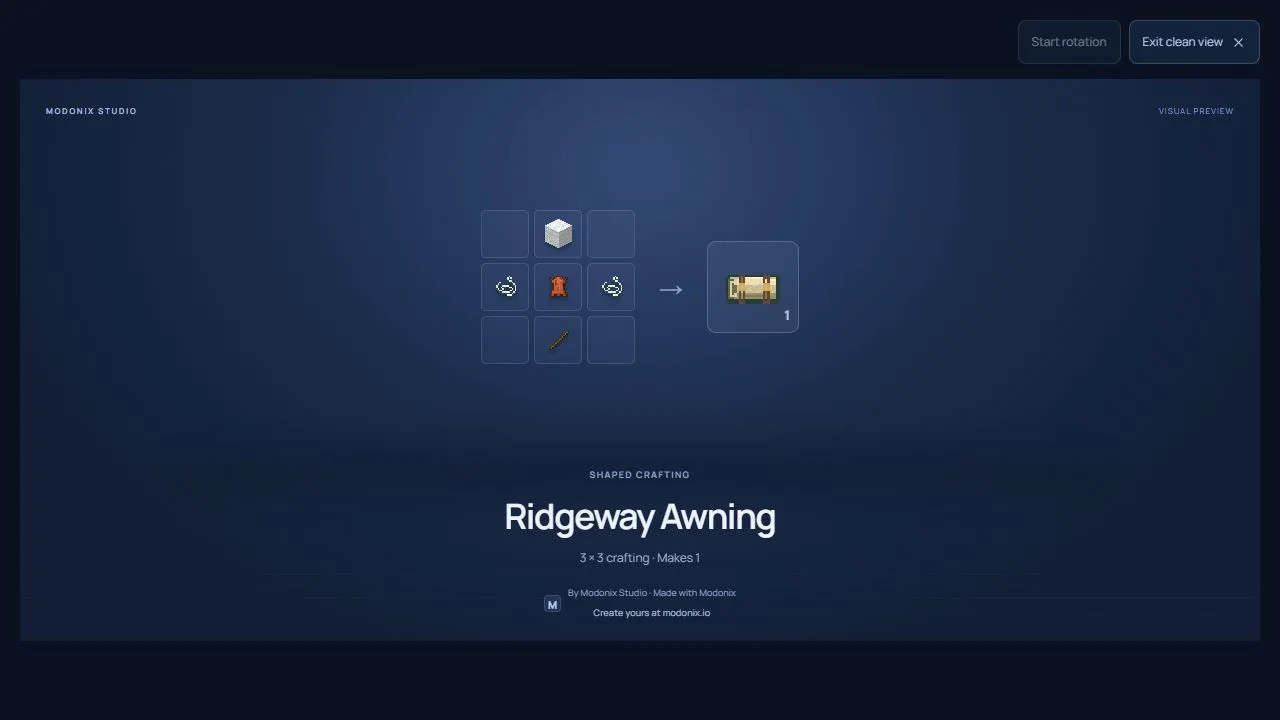
White wool, two pieces of string, leather and a stick craft one Ridgeway Awning.
For the deck, put stone bricks in 2 and 8, sticks in 4 and 6 and leather in 5. Result ridgeway_field_kit:stone_deck, count 1.
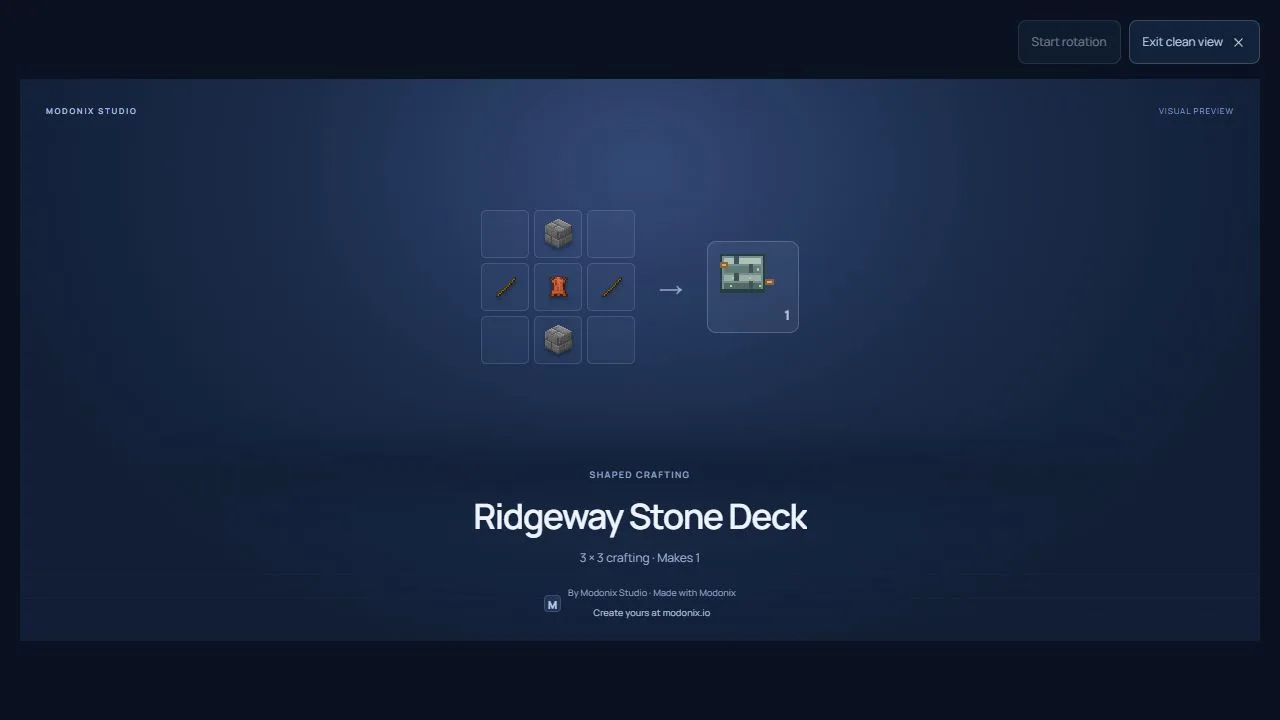
Two stone bricks, two sticks and leather craft one Ridgeway Stone Deck. Its building blocks are supplied separately.
Add a shapeless recipe with bread, apple and sweet berries; result ridgeway_field_kit:trail_ration, count 2. These recipes craft the items, not their construction materials.
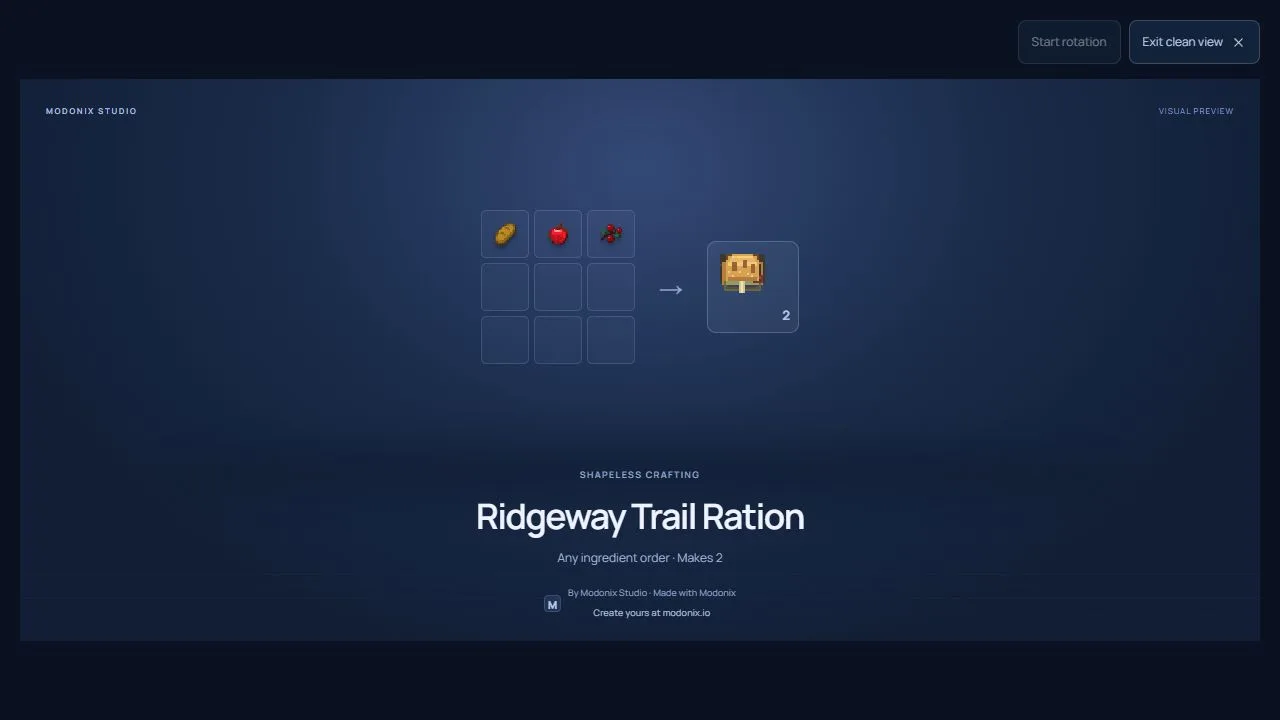
Bread, apple and sweet berries produce two Trail Rations. Set the recipe result count to 2.
Save, export and continue carefully
Save project JSON, then build and download the MCADDON. The JSON reopens in the constructor; the finished pack folders go into Minecraft. For your own namespace, use the corresponding BP/RP folder names from your export; the names below belong to this example.
Use the Windows development-pack folders for the steps below. Keep a backup of the world you want to use and follow the requirements beside the download.
- In File Explorer, show file name extensions. Make a copy of the downloaded MCADDON, change the copy's extension to
.zipand extract it. Keep the original download. - Press Win+R and open
%APPDATA%\Minecraft Bedrock\users\shared\games\com.mojang. This is the standard folder for current Windows Bedrock releases; if you moved game content, use its actualcom.mojangfolder. - Copy the whole
ridgeway_field_kit_BPfolder intodevelopment_behavior_packs, andridgeway_field_kit_RPintodevelopment_resource_packs. Each copied pack folder must containmanifest.jsondirectly inside it, without an extra outer folder. Keep the pack files unchanged. - Edit a copy of your world. In Behavior Packs and Resource Packs, select the Ridgeway packs under My Packs and check that both are active. Enter that world, check the item icons and gather the building materials.
If a pack is missing from the list, check the game folder and the position of manifest.json before copying it again.
For an update, reopen the saved constructor project, preserve its UUID and namespace, revise the version and export again. Back up the destination world before replacing its packs. For an independent creation, start a new project with a new generated identity and your own namespace; keep the reference JSON separately so opening or importing another copy cannot erase your changes.
Comments 0
Share what worked, ask for help or reply to another player.
Use your Modonix account to join the discussion and manage your comments.
Sign in to commentNo comments yet. Share what worked for you.