Nudge lets you reposition part of a Bedrock build while keeping its shape together. A gate can move along a path, a porch can shift away from a wall, or a decorative section can find a better place before you build around it. Choose a rectangular area, position its outline, then commit the move. Undo and Redo let you compare the two arrangements.
Our example uses a small arch with six oak logs, two oak planks and a gold corner. We moved it five blocks sideways, returned it to its starting place and reapplied the move. The gold makes the corner easy to follow; the emerald marks the destination.
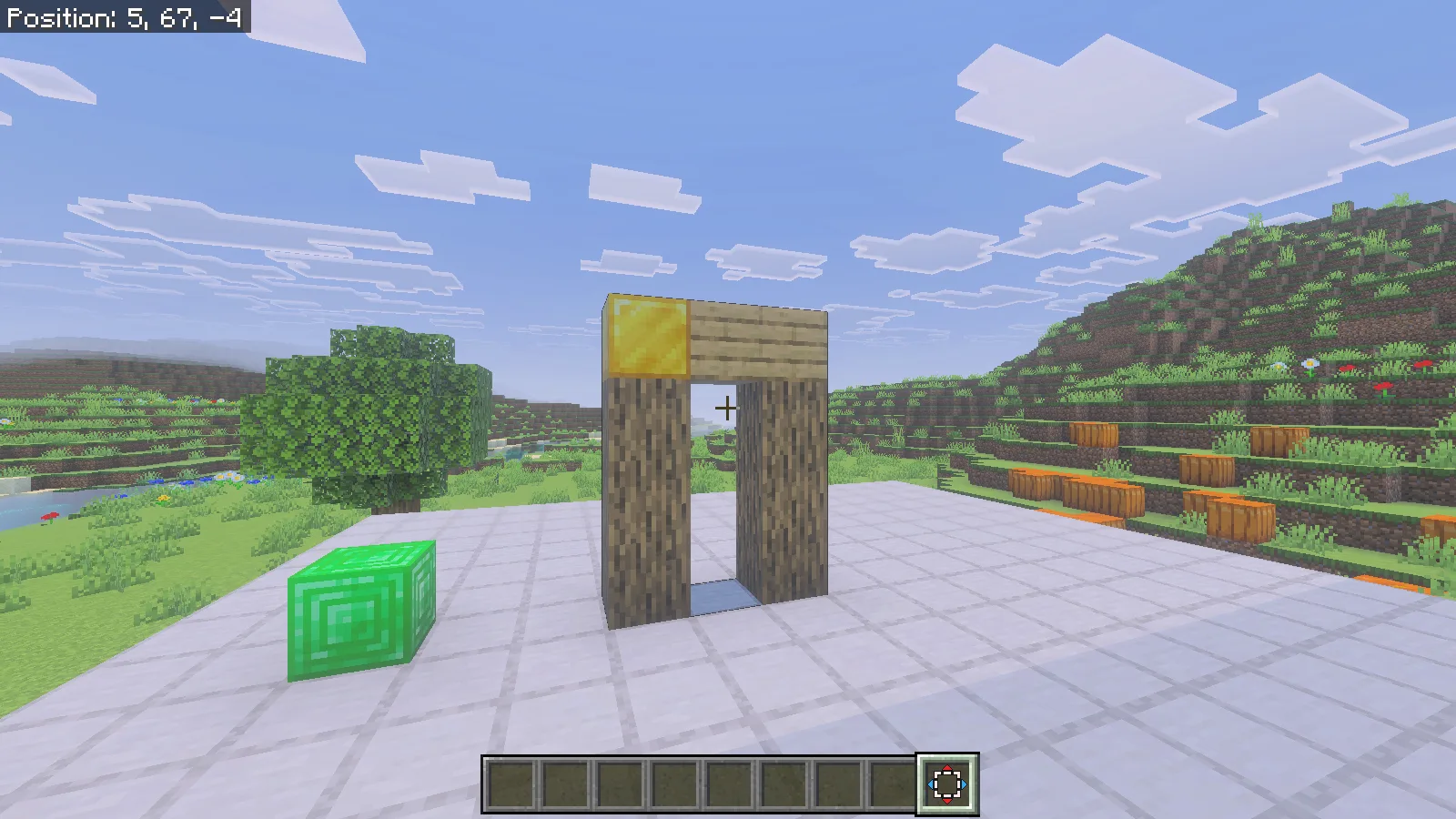
Set up a copied Creative world
Use Nudge 1.0.5 with Minecraft Bedrock. The example here ran on Windows Bedrock 26.52 in Creative with Beta APIs enabled. Open the author's .mcaddon file with Minecraft and wait for the pack imports to finish. Edit a copy of your world, activate Nudge's behavior pack and its matching resource pack, then enable Beta APIs in that world's Experiments settings. Enter in Creative. This release is intended for the ordinary game client; the author lists Realms and Editor Mode as unsupported.
Get the tool and choose Move
Run /nudge:nudge to receive the editing item. In our world it appeared in the ninth hotbar slot, selected with the 9 key. With the item held and no selection active, right-click to open the editing modes and choose Move. Check that you are holding the tool before clicking the build.
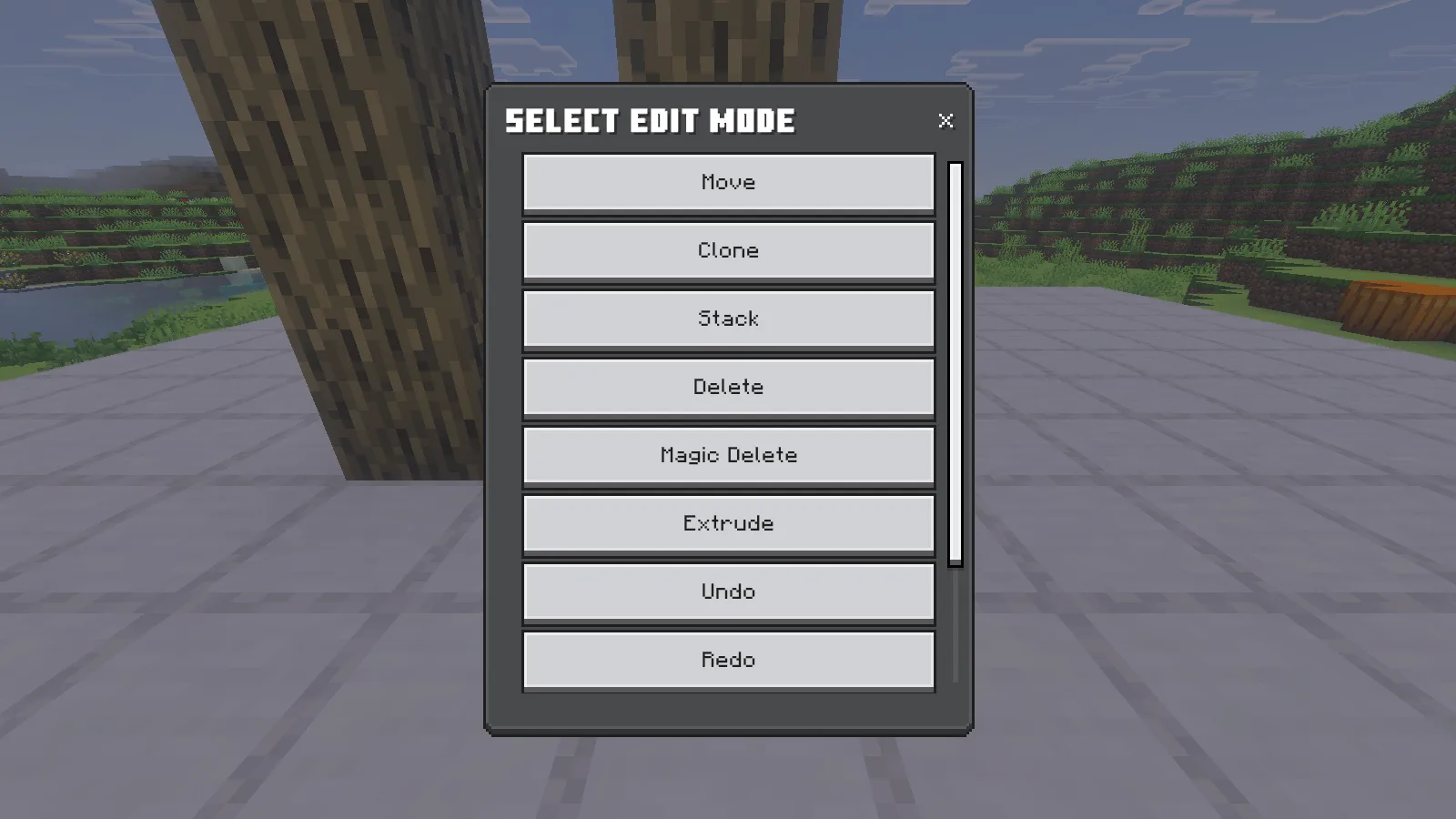
On the first opening of our imported world, the command failed to give the item. Save & Quit, reopening the same world and running /nudge:nudge again restored the normal workflow. If you see that failure, try this ordinary reopen before changing packs. Use the addon's command to obtain its tool.
Select the complete section
Select two opposite corners with left-click. For this arch, the first corner was the bottom log at 2,66,2 and the opposite corner was the gold block at 4,69,2. That creates a box three blocks wide, four high and one deep. Include the full section you want to move, including its opening. Check the box does not also contain nearby decorations, floor blocks or part of another wall. Keep the Nudge item selected; switching hotbar slots cancels a selection.
Preview the destination, then commit
Right-click once to enter the movement preview. The outline represents the proposed location while the original arch remains standing. Your movement controls now operate the selection. For a precise destination, place a temporary marker at the position intended for the box's minimum corner, then left-click that marker during the preview. We used an emerald block at 7,66,2, putting the arch five blocks along X.
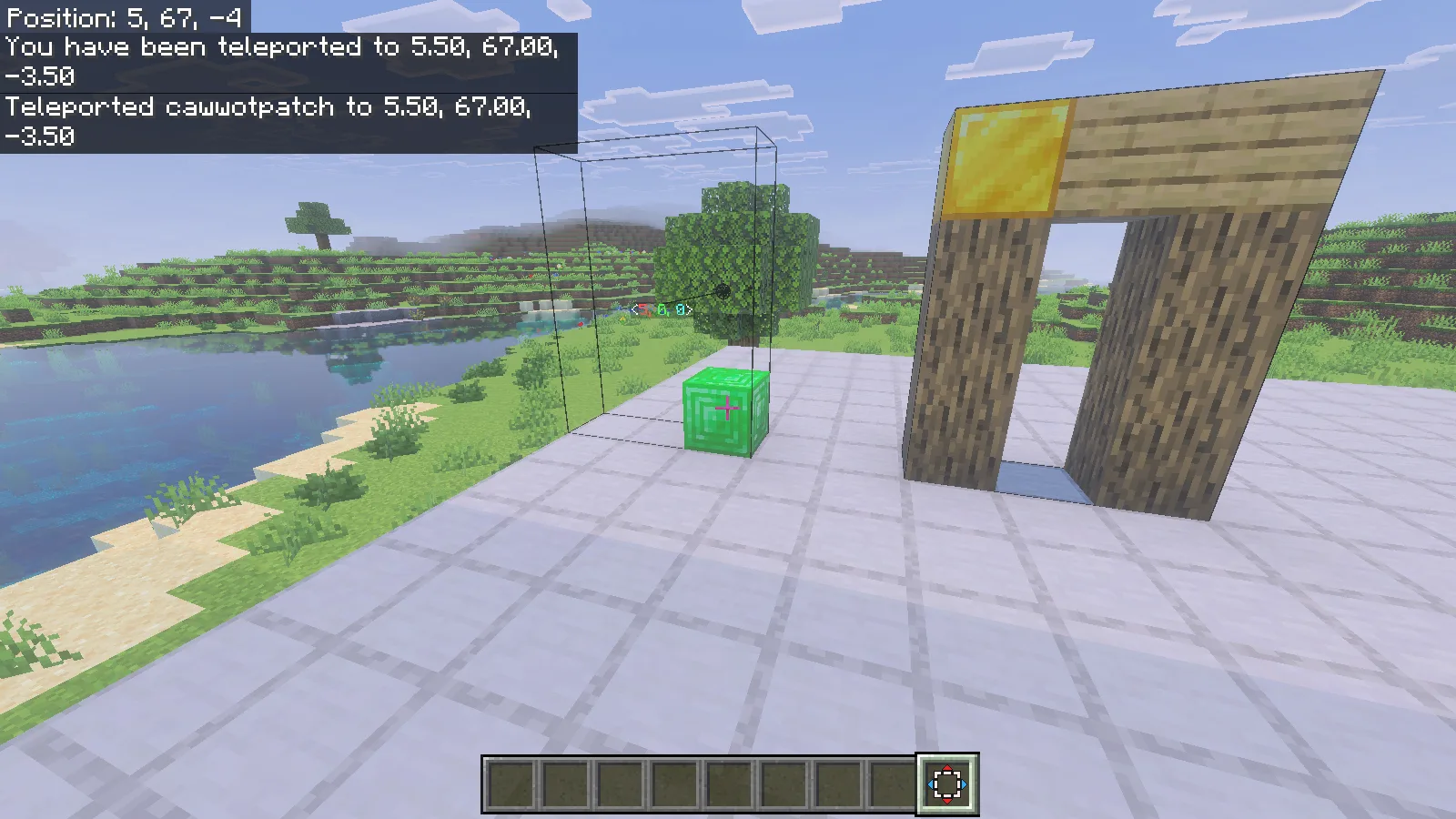
Inspect the whole destination, including the space inside the outline. The move replaces blocks there: our emerald was replaced by the arch's bottom log. Release movement keys, Jump and Sneak, then use a plain right-click to commit. Avoid holding Sneak while confirming because it changes the tool's action. After the move, walk around the real blocks and check the opening, both feet and the marked corner.
Compare the move with Undo and Redo
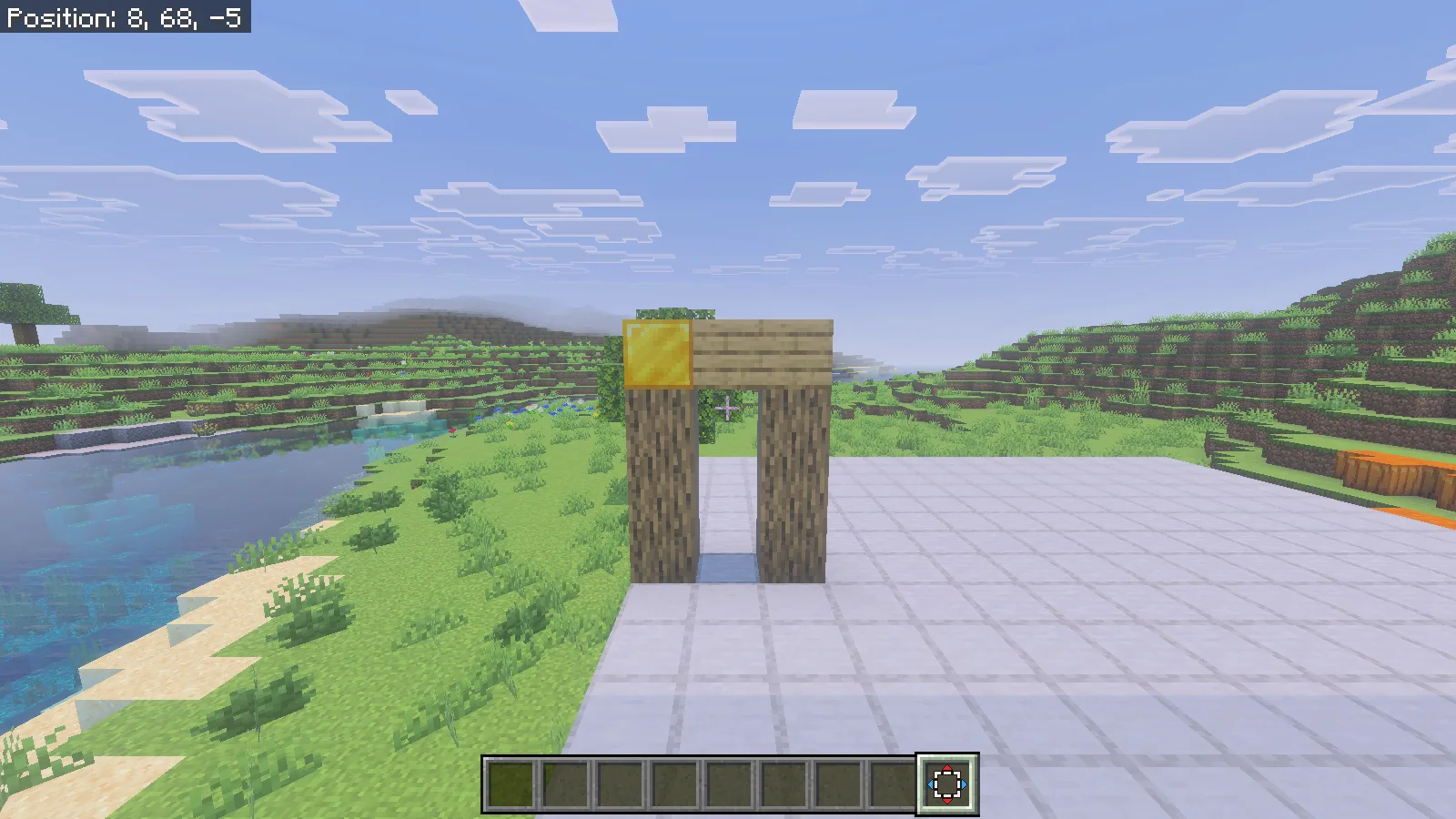
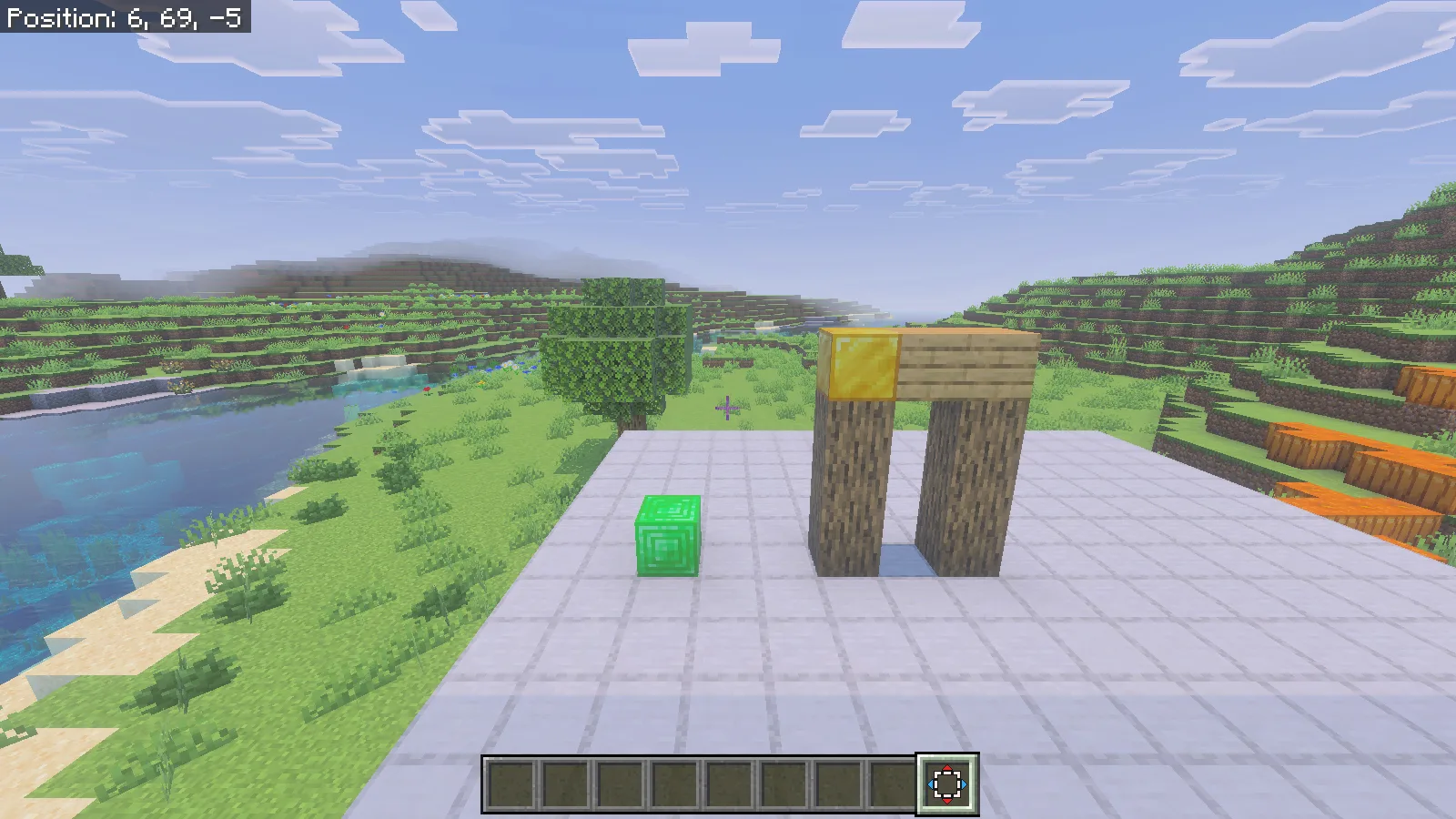
Run /nudge:undo 1 to reverse the latest edit. In this example, the arch returned to its original place and the overwritten emerald block also returned. That second detail matters when moving a section onto an occupied spot. The frame below shows both restored objects.
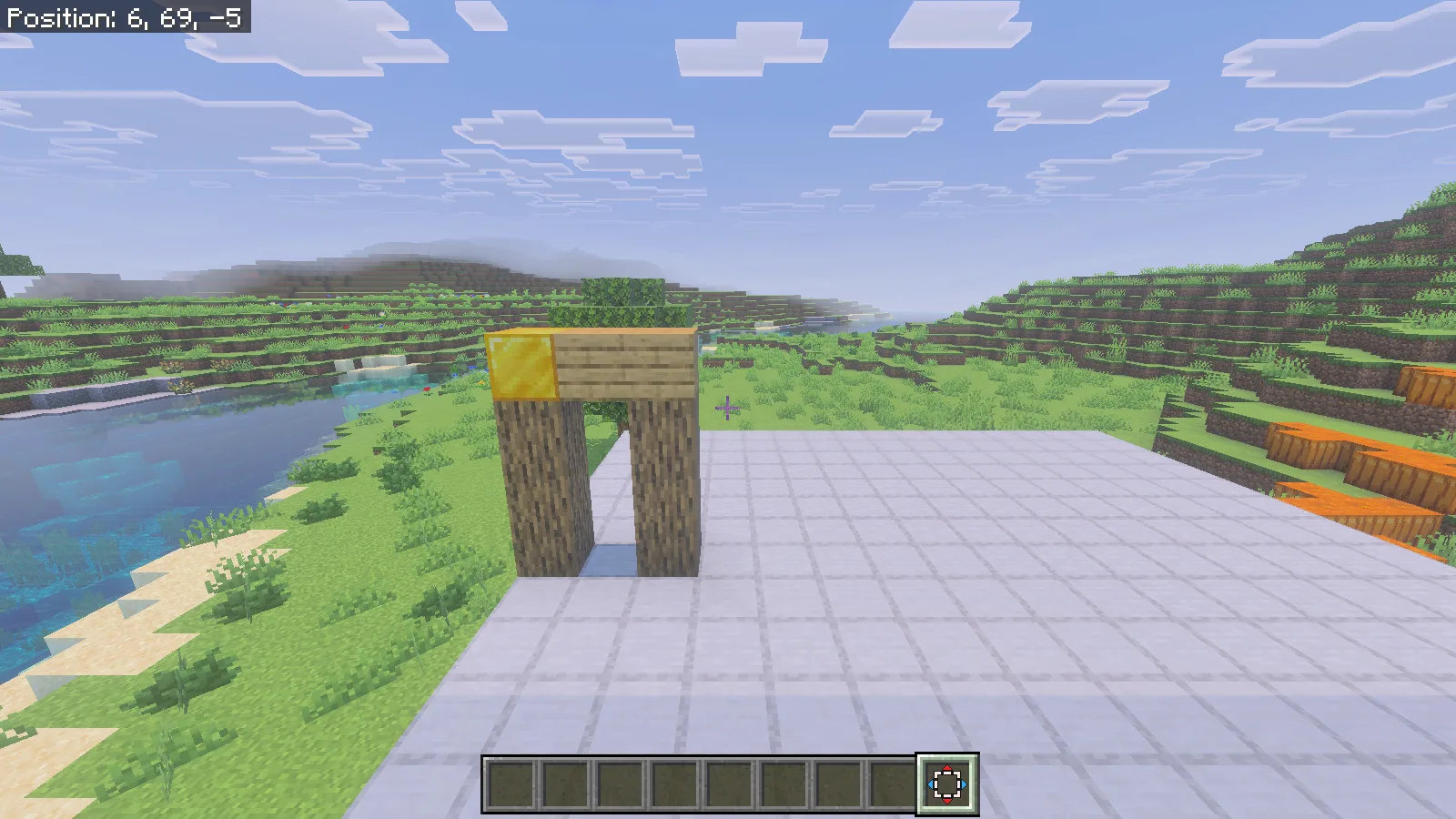
Run /nudge:redo 1 to apply that edit again. From the same camera position, the arch moves back onto the destination and the emerald disappears beneath its foot. Comparing these views makes it easier to judge how much clear space you gained beside a build.
Start with a gate-sized section whose boundaries are easy to inspect. When adjusting a frontage, choose the complete window, trim and support together, and leave room at the destination for its full depth. Save a world copy before working on a build you value. Make one deliberate move, inspect it and decide whether to keep it before continuing with the next section.
Comments & questions
Share what worked, ask for help or reply to another player.
No comments yet. Share what worked for you.