A tiny arcade machine is an amusing outfit for a minigame lobby. DrgnFireYellow’s Parkour, Spleef and Village Defense skins put a bright little screen and red controls on a dark cabinet. The files are three alternative designs, so download the look you want rather than installing them in order.
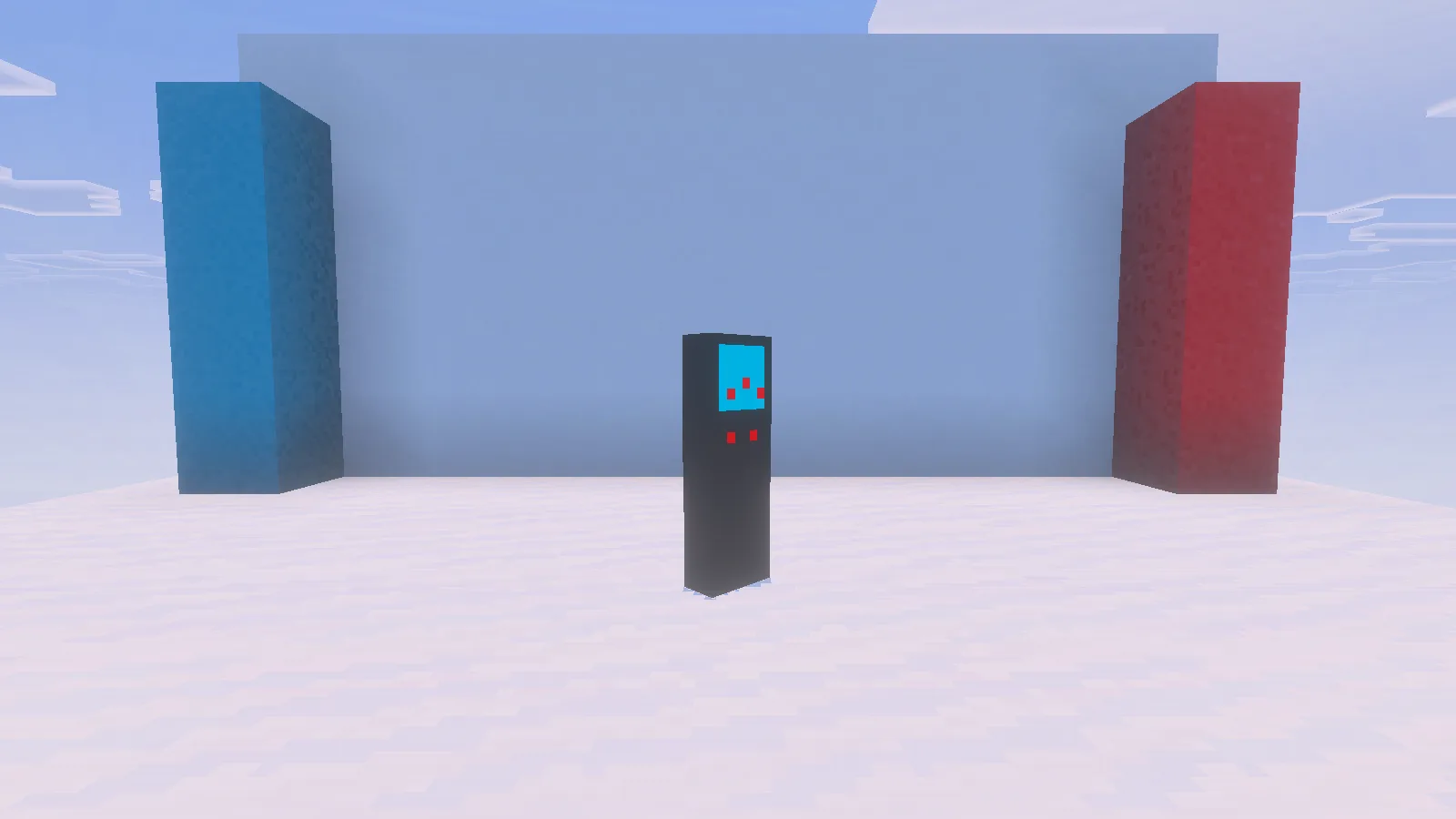
Parkour in Bedrock for Windows 26.52 after native PNG import. The display stage is our own.
What the PNG actually looks like in Bedrock
We imported the original images in Bedrock for Windows 26.52, then took Parkour and Village Defense into a separate Creative world. In this edition the transparent parts leave a narrow cabinet silhouette. It is a different result from the more complete player outline in our Java skin pictures.
The small cyan screen is the part to compare. Parkour has red stepping platforms. Spleef has pale horizontal layers with an orange strip below. Village Defense uses its own little scene. From behind or a long way away, much of the dark outline looks the same.
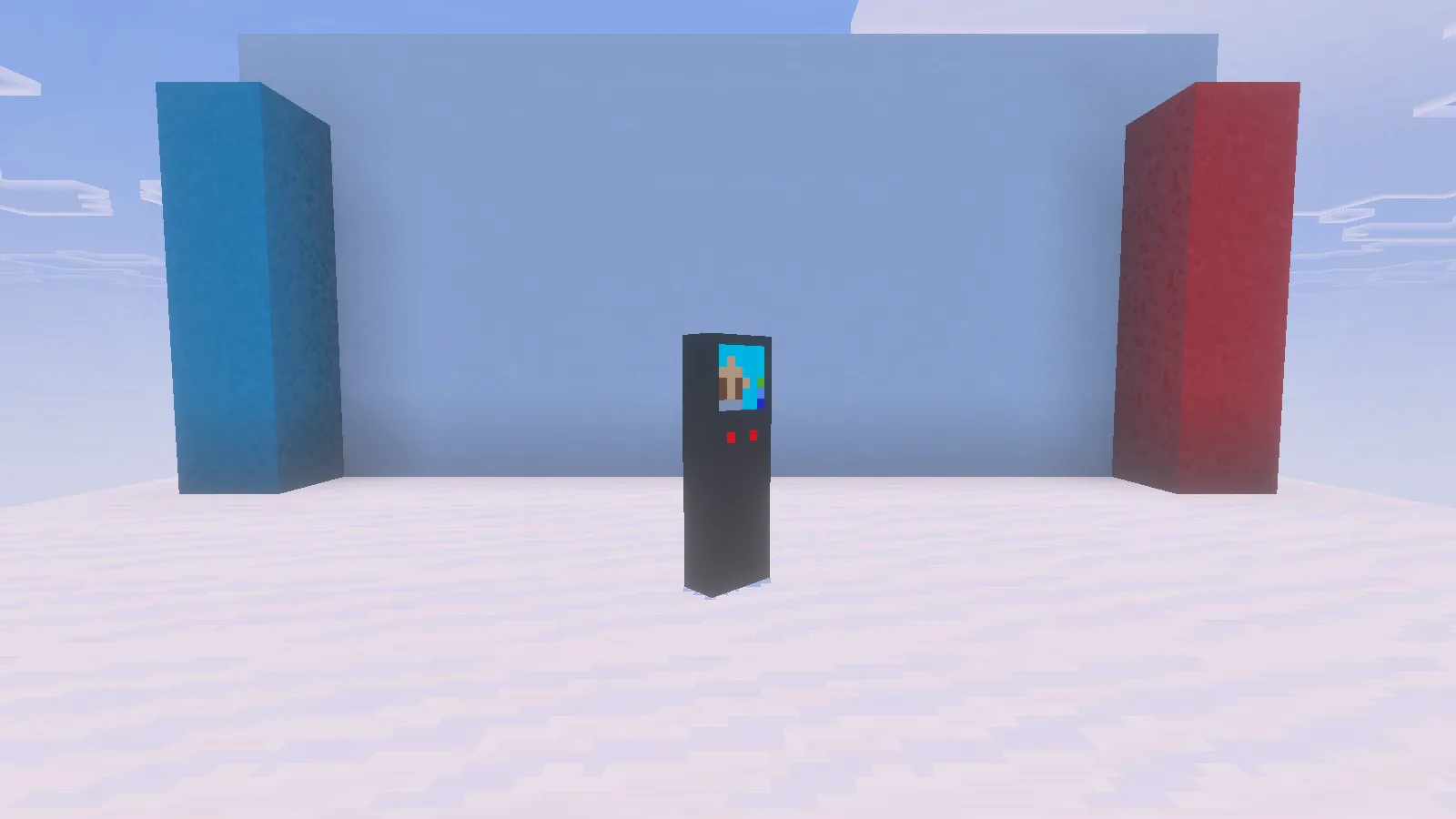
Village Defense in the same Bedrock scene. The small picture on its front distinguishes the design.
These are cosmetic images. The outfit does not add a minigame, change your abilities or make your character’s collision smaller. Our pale display stage is a scene we built to make the dark artwork easy to see; it is not included in the downloads.
Import one without losing your usual character
- In Files, download the original PNG for your preferred design. Keep it as an image; it is not an MCPACK or an add-on.
- Open Dressing Room. Choose a spare character slot so your normal character stays available. If the slot is empty, choose Classic Skin when creating its character.
- Open Classic Skins, select the blank import tile under Owned Skins, then choose Choose New Skin.
- Use the device’s file picker to select the downloaded PNG. Choose the wide Classic model and inspect the preview.
- Return to your own world and check the result in third-person view before heading into multiplayer.
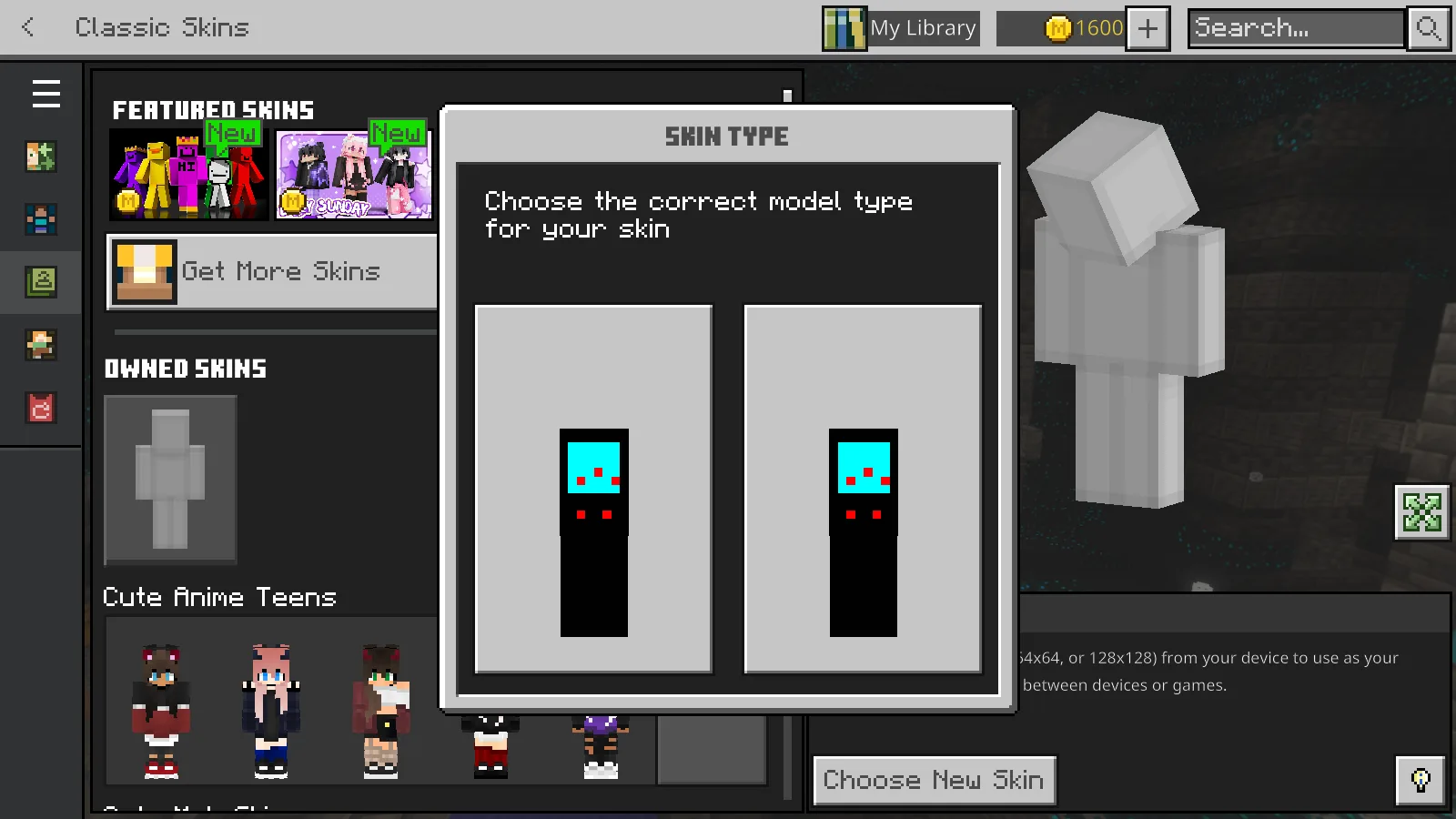
Choose the Classic model and inspect the preview before returning to your world.
Those menu steps and the screenshots come from Windows. Other Bedrock devices can arrange their menus differently, and not every device offers custom PNG import. If there is no file-import option, changing the filename will not turn the image into a Marketplace skin.
Keep the picture readable
For a screenshot, stand against a bright wall or a daytime courtyard. Face the camera so the little screen is visible, and keep armor out of the way when you want to show the artwork. A dark cave can hide most of the cabinet even though the skin imported correctly.
Friends can choose different designs for a small walking arcade. Check how each player appears in the actual server before planning a group picture; multiplayer skin rules and other players’ settings can affect custom skins.
When something seems wrong
- The file picker cannot find the download: look in Downloads and check that you saved the actual PNG, not a webpage or a screenshot of the preview.
- The outline differs from the Java picture: use the Bedrock photographs above as your comparison. These editions do not render every transparent skin detail the same way.
- The skin disappeared on another device: the import screen says custom imports do not sync between devices or games. Keep your original PNG and import it on the device you intend to use.
- You want your usual character back: return to Dressing Room and select the character slot you kept.
All three original designs are by DrgnFireYellow. Modonix imported and photographed the artwork; the downloadable PNGs retain the creator’s original pixels.
Comments & questions
Share what worked, ask for help or reply to another player.
No comments yet. Share what worked for you.