
Give a familiar path a landmark you can recognize on the way home. Waymarker is an original Modonix Bedrock block: a wooden post, a stone foot and a two-sided turquoise arrow panel. Put one beside a fork, at a boat landing or where your village path disappears into trees.
It is a sign you position yourself. It does not remember a destination, turn toward your base or draw a route across the world. An ordinary sign beside it can supply the place name while the arrow gives the path a quick visual cue.
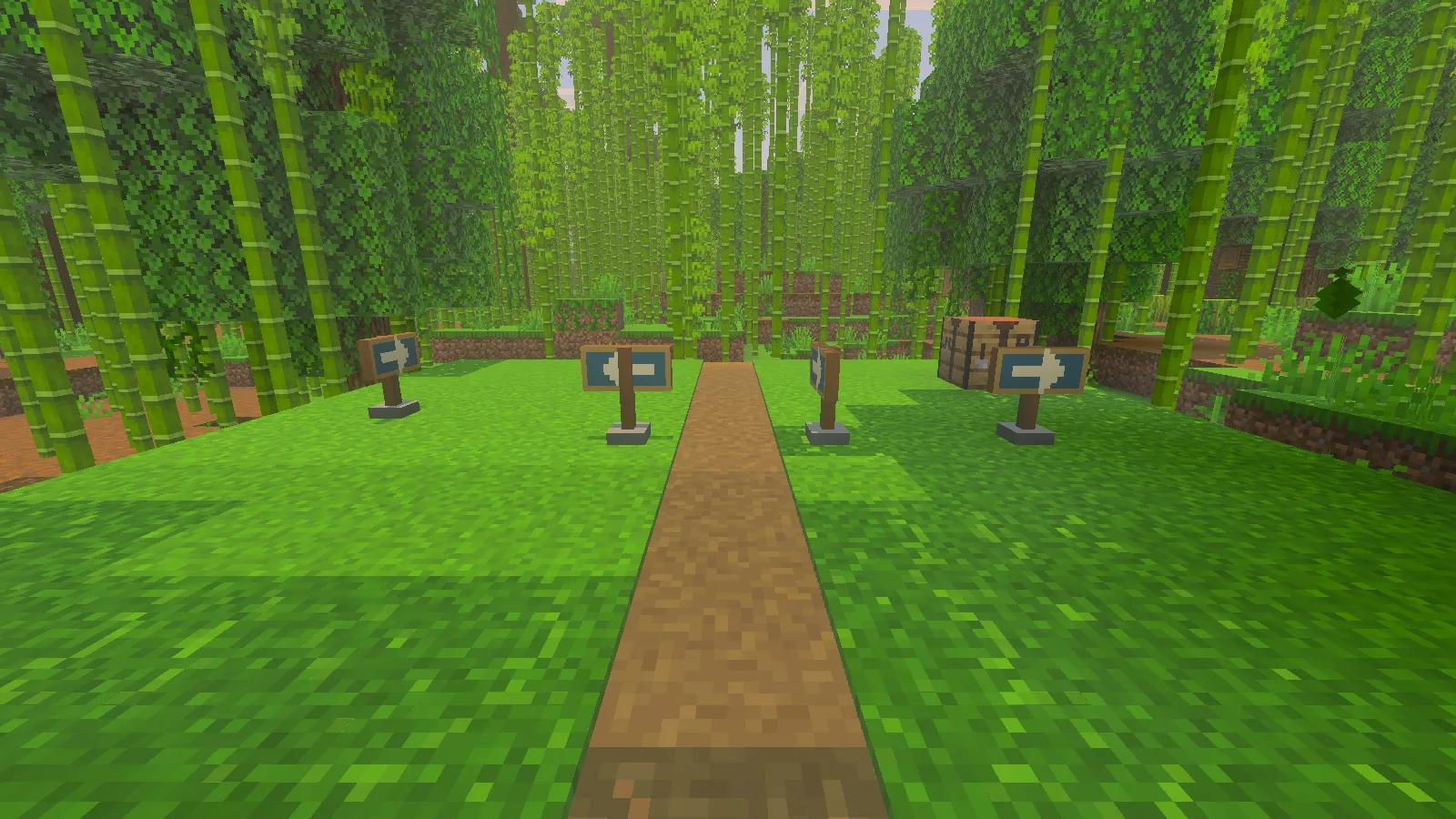
Four orientations of Waymarker beside a bamboo-jungle path in Bedrock 26.52.
Install the matching pair
Download create-bedrock-waymarker-block-0.1.1.mcaddon and open it with Minecraft for Windows. This file contains both the behavior and resource packs. In the world you want to use, activate Modonix Waymarker — Behavior and Modonix Waymarker — Resources, both version 0.1.1. Return to the Worlds list before opening the world. This example uses no scripts. We crafted, placed and recovered the block in Windows Bedrock 26.52 with Beta APIs off.
Use a spare world for your first installation. A world download can contain its own older embedded packs, so importing a newer add-on is not proof that an older world has switched versions. Check the active pair in that world's settings before crafting.
Craft four markers
Bring two oak planks, one stick and one cyan dye to a crafting table. Arrange them as a compact square in the table's grid; leave the other slots empty:
| Oak plank | Oak plank |
|---|---|
| Stick | Cyan dye |
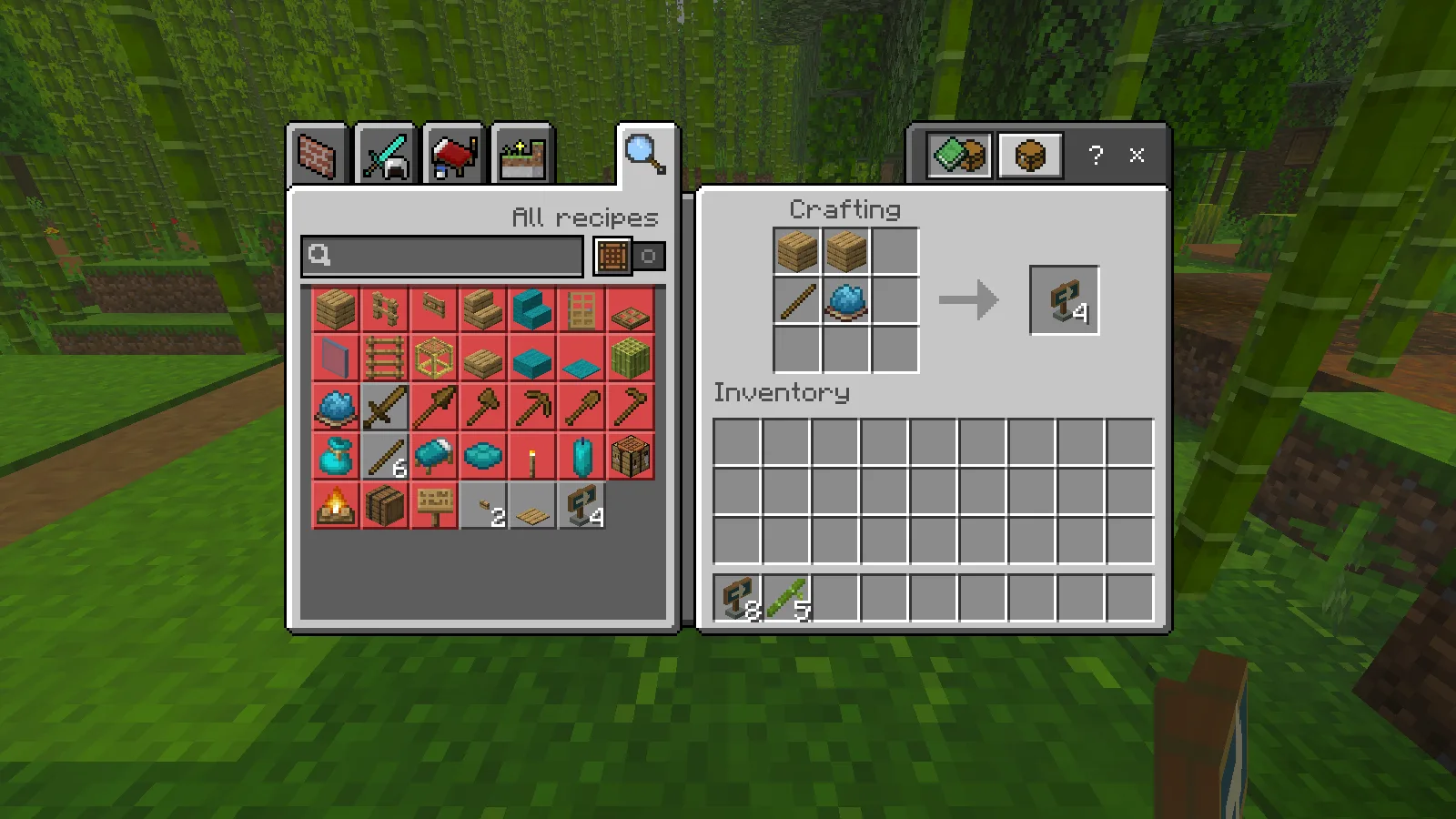
Two oak planks, one stick and one cyan dye produce four Waymarkers at the crafting table.
The result is four Waymarkers. Move the output to your inventory and put the markers on your hotbar. In Creative, search for Waymarker in the construction inventory. A commands-enabled setup can also use /give @s modonix:waymarker 4.
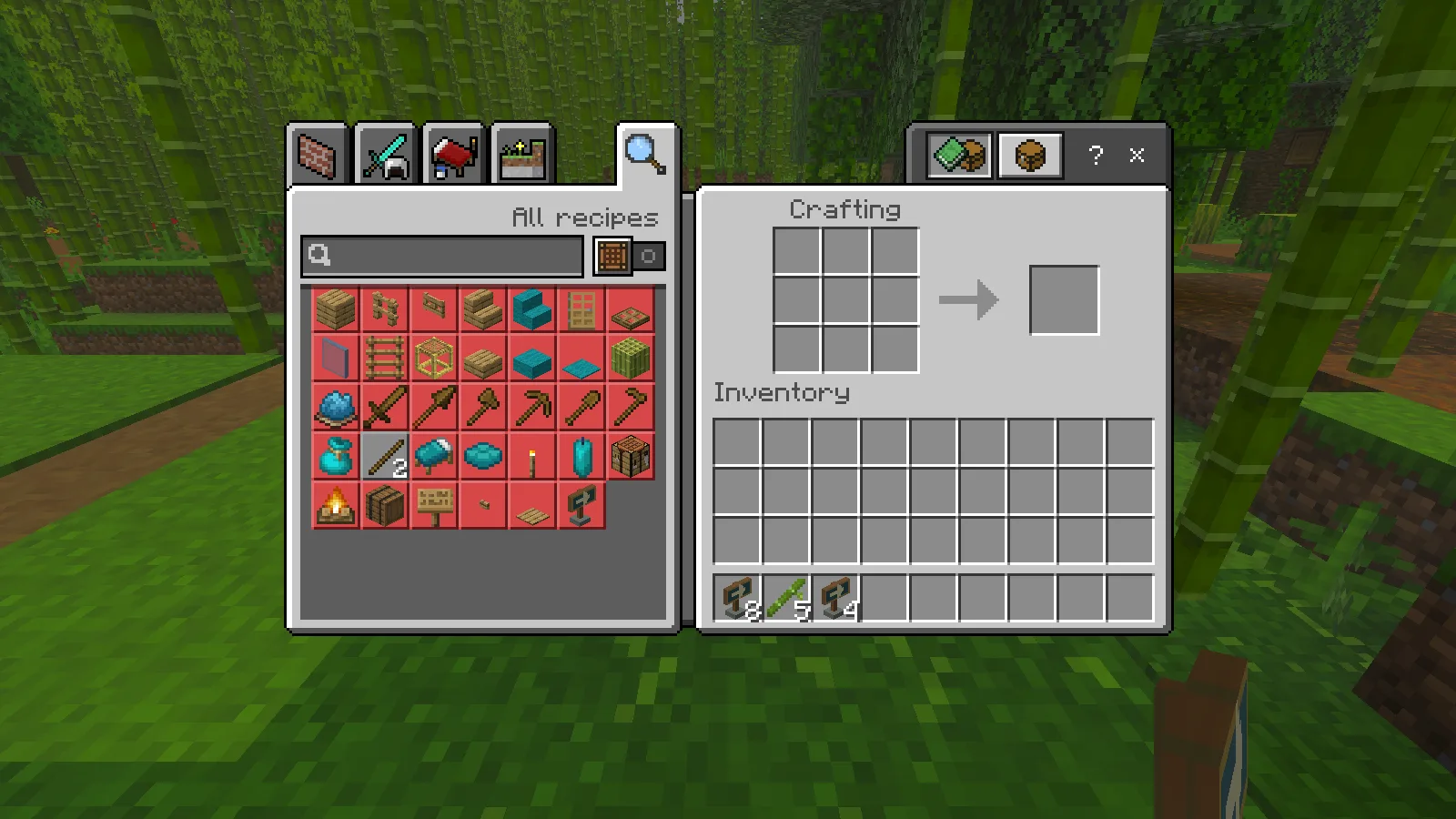
The completed batch: the ingredients are consumed and four new markers sit beside an existing stack of eight.
Place it from the approach you care about
Stand on the path, look at the ground beside it and place the marker. Your horizontal facing selects one of four orientations. To turn a marker, pick it up and place it while facing another side. Walk around it before continuing down the route: the panel has an arrow on both sides, so check what a traveler sees from each approach.
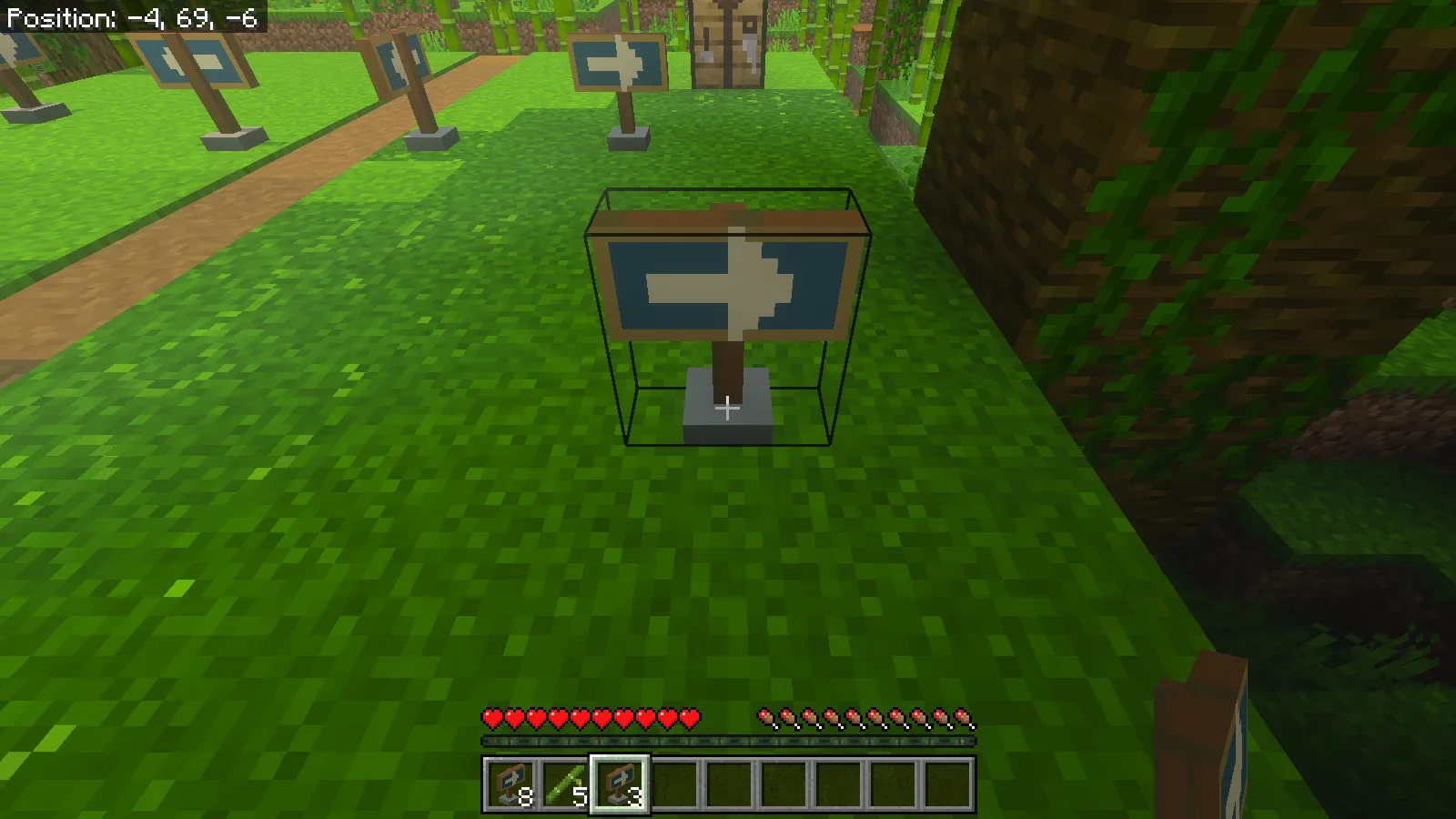
One marker from the new batch placed beside the path; three remain in the selected stack.
Use the first marker where the decision happens, not several blocks beyond the fork. A second marker after a bend can reassure someone that they chose the right path. Keep both visible above nearby grass and leave enough room to walk past the post. For a river route, a marker at the landing and another at the path entrance is more useful than a row of identical signs along a straight stretch.
Mining a placed marker in Survival returns one marker. After placing one from the new batch, we mined it and picked it back up; the marker joined the existing stack. That makes it easy to adjust a route as your settlement grows. The panel is wider than the solid post, so judge both the appearance and the space around it when placing markers close to doors.
Make the example your own
The source ZIP includes the complete example, not just a model preview:
packs/BP/
  manifest.json
  blocks/waymarker.json
  recipes/waymarker.json
  loot_tables/blocks/waymarker.json
packs/RP/
  manifest.json
  models/blocks/waymarker.geo.json
  textures/blocks/modonix_waymarker.png
  textures/terrain_texture.json
  texts/en_US.lang
For a first edit, repaint the original 32×32 PNG in a pixel editor. Use a one-pixel pencil with smoothing off. Keep the arrow light against a dark panel and save at the same dimensions. The two panel faces occupy the two 16×8 regions across the top of the texture; the wood and stone use regions below them. Change the accent color before changing the model's shape.
The block file connects player facing to its four model rotations:
"minecraft:placement_direction": {
  "enabled_states": ["minecraft:cardinal_direction"],
  "y_rotation_offset": 180
}
Keep the existing permutations when repainting. In the recipe, "pattern": ["PP", "SC"] defines the square above, and "unlock": {"context": "AlwaysUnlocked"} makes the example's recipe available without a separate discovery condition.
For an update of this same pack, keep its UUIDs, increase both packs' header and module versions, and update the behavior pack's resource dependency to the matching version. Set version in project.json to that same version. From the extracted example folder, run python package.py with Python 3 to rebuild the archives. Import the new .mcaddon and check it in a spare world before replacing a working setup. The source, geometry and texture are original Modonix work under MIT; preserve the license when sharing your version.
Comments & questions
Share what worked, ask for help or reply to another player.
No comments yet. Share what worked for you.