
These three small houses are useful little building exercises. You can import one, walk around it, change the palette and try a different roof without starting from an empty plot. They are individual Bedrock structures, not a village map or a complete survival world.
We placed all three files in Bedrock for Windows 26.52. The grass display plot and icy surroundings in our pictures belong to our world; the downloads contain the houses.
House1: a compact oak starting point
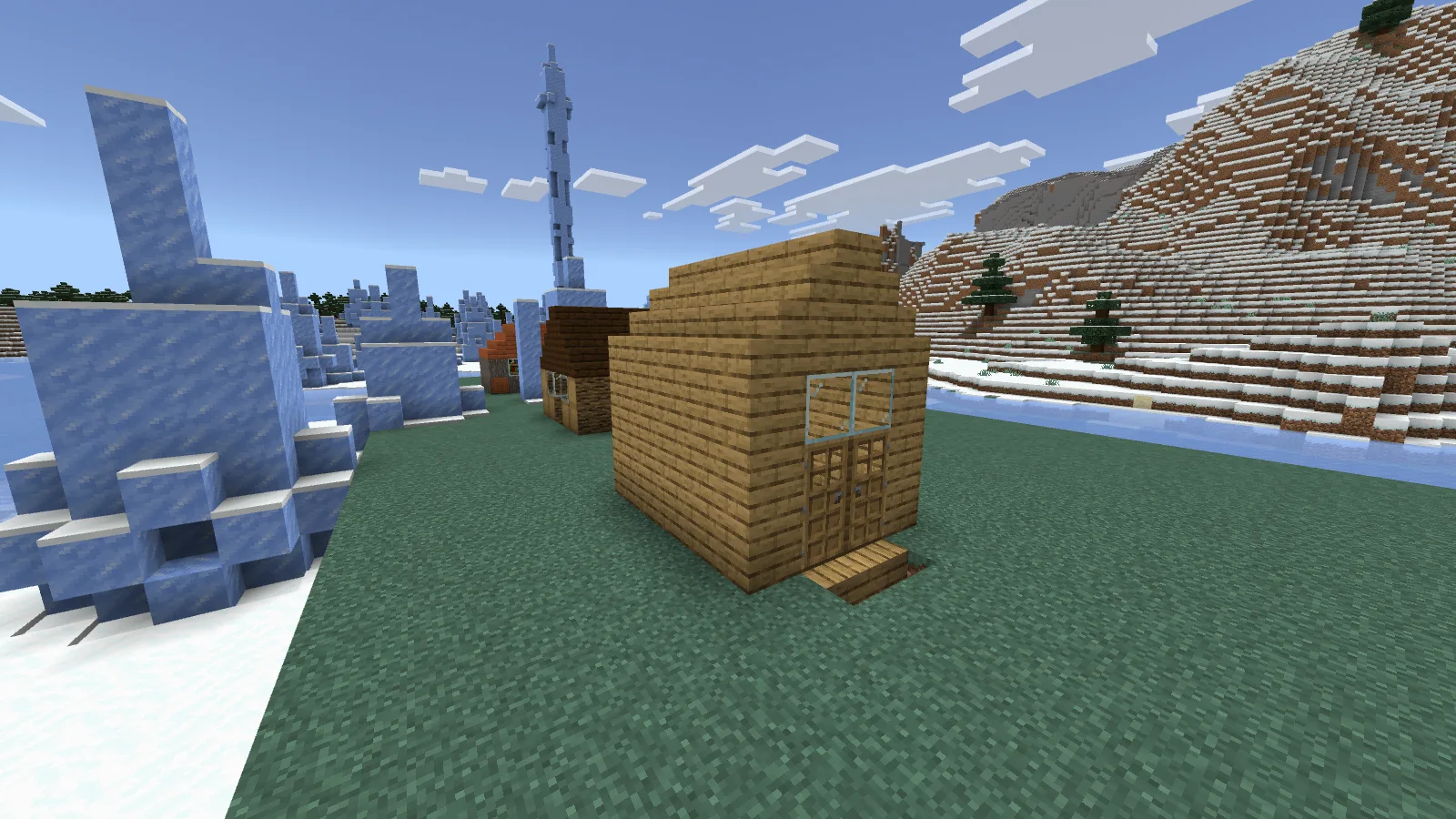
House1 on our practice plot. We removed the sample’s helper structure block for display.
The first house has a warm oak palette, a stepped roof and double doors. Inside the file are a bed and a chest. It is the easiest of the three to imagine beside a small garden: extend the path first, then decide whether it needs a porch or a second room.
Leave space at the entrance. A little house can feel cramped much faster than a large one when the path, fence and storage all compete for the same few blocks.
House2: a darker roof and stronger outline
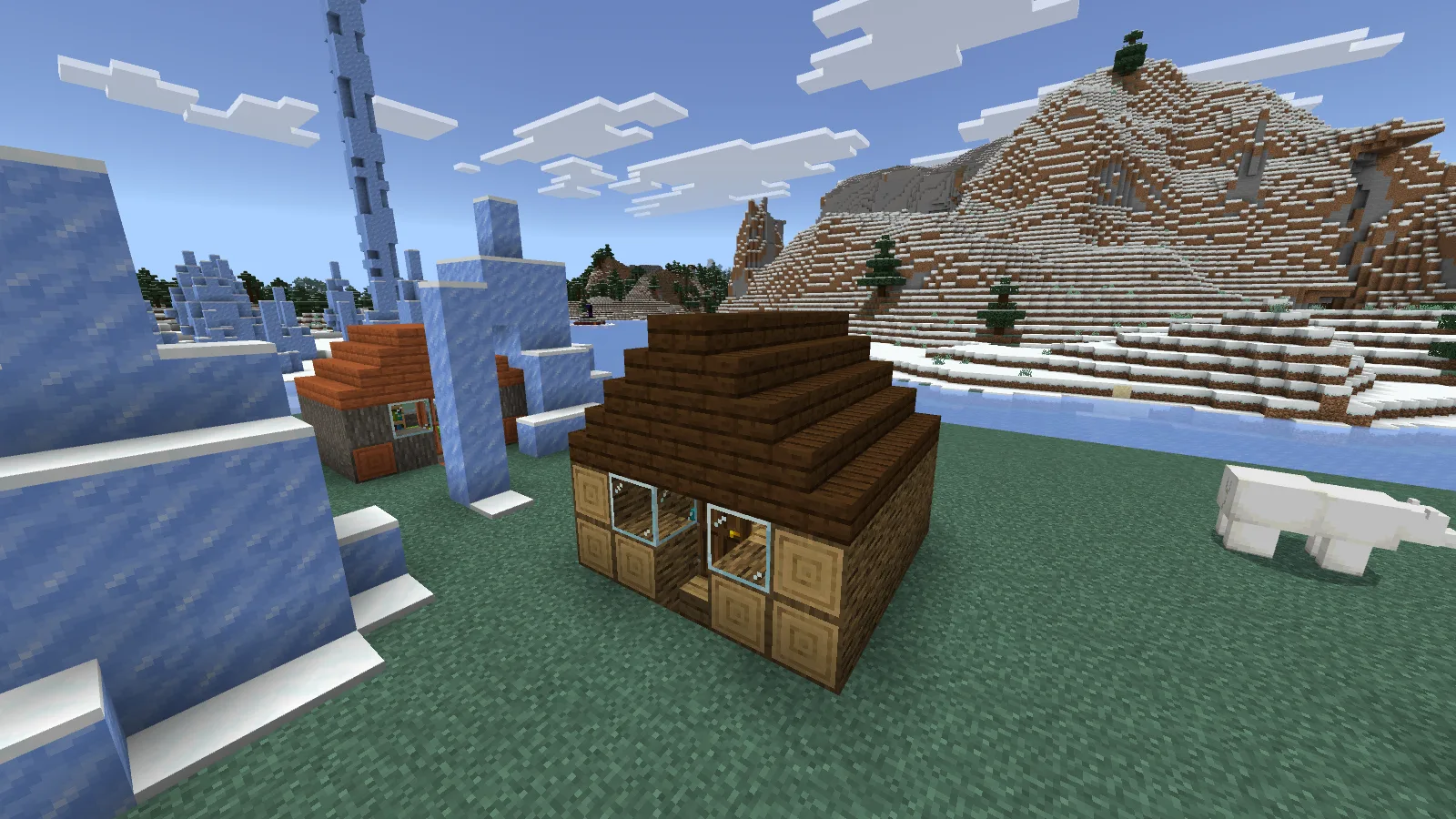
House2 gives you a different wood palette and roof shape in a small footprint.
The second house uses exposed log ends and a dark roof. Its shape reads differently even though it is still a tiny building. Try it as a woodland stop, a gardener's hut or a small outbuilding beside a larger base.
Start by changing one material family rather than replacing everything at once. Keeping the roof and corner details visible helps the small silhouette stay readable.
House3: an acacia cabin with a bright roof
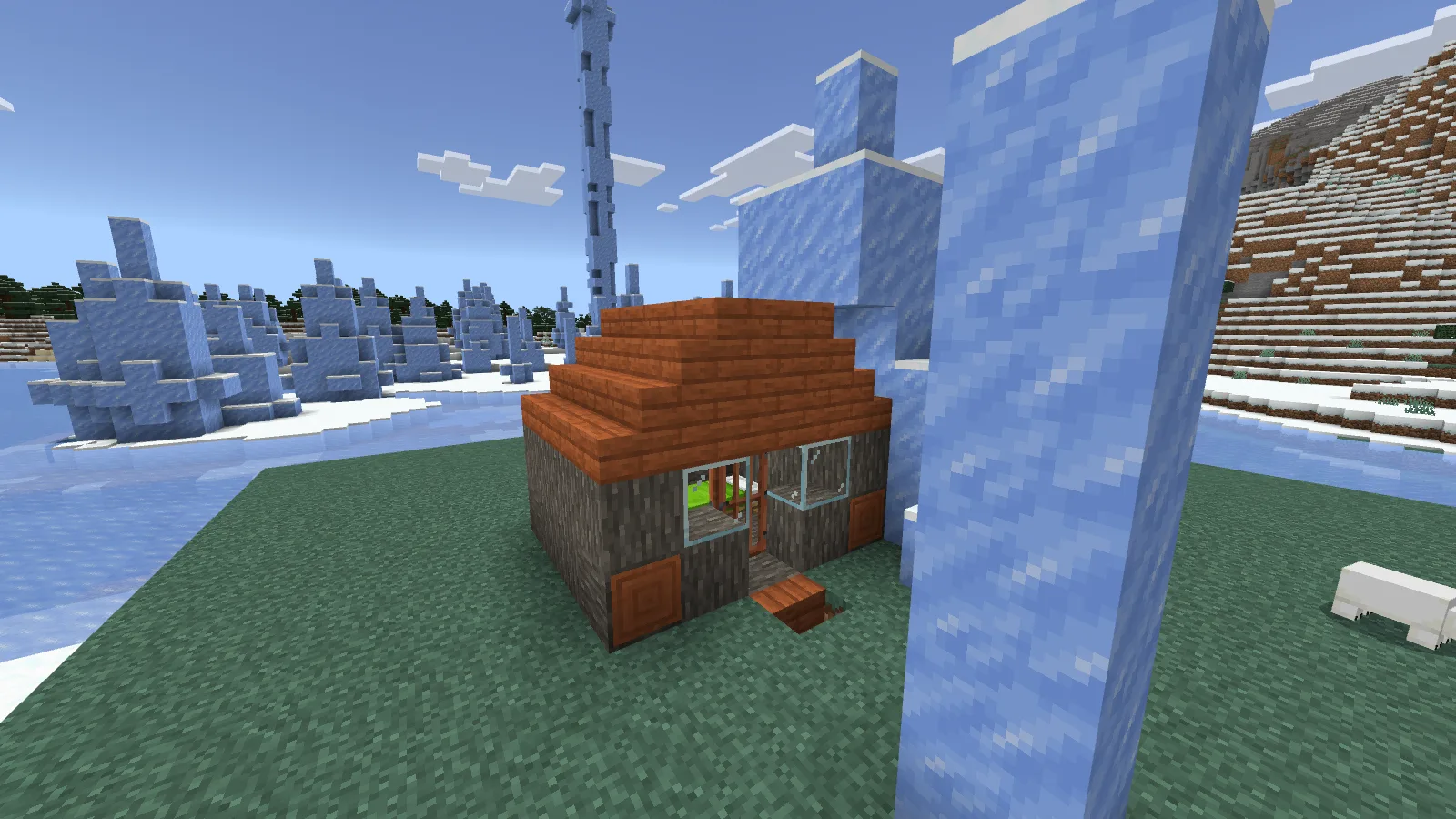
House3 provides a brighter palette. The icy landscape and display plot are not included.
The orange roof and gray logs give the third house the clearest color contrast. There is a bed and a strip of bookshelves inside. It suggests a compact reading hut or a little home at the edge of a settlement.
For our separate Structure Porter example, we also exported this house and moved it into another world. A build can travel without moving the entire save around it.
Choose one file, not all three at once
| File | Main look | Space inside the saved structure |
|---|---|---|
| house1.mcstructure | Oak, double doors | 6 wide × 4 deep × 6 high |
| house2.mcstructure | Log ends and a dark roof | 5 wide × 6 deep × 7 high |
| house3.mcstructure | Acacia roof and gray logs | 5 wide × 5 deep × 5 high |
The dimensions include the saved area, not just usable floor space. These are three different buildings from the same sample collection; house3 is not an update that replaces house1.
Each original file also includes a structure block at a bottom corner. We removed those helper blocks for the clean exterior photos. After placing a house in a practice world, you can remove that block and finish the ground around it yourself.
Import a house on Bedrock for Windows
Use a Creative practice world with cheats enabled. Enter /give @s structure_block, place the block near a clear plot and open it. Switch to Load, click Import and choose the downloaded MCSTRUCTURE file.
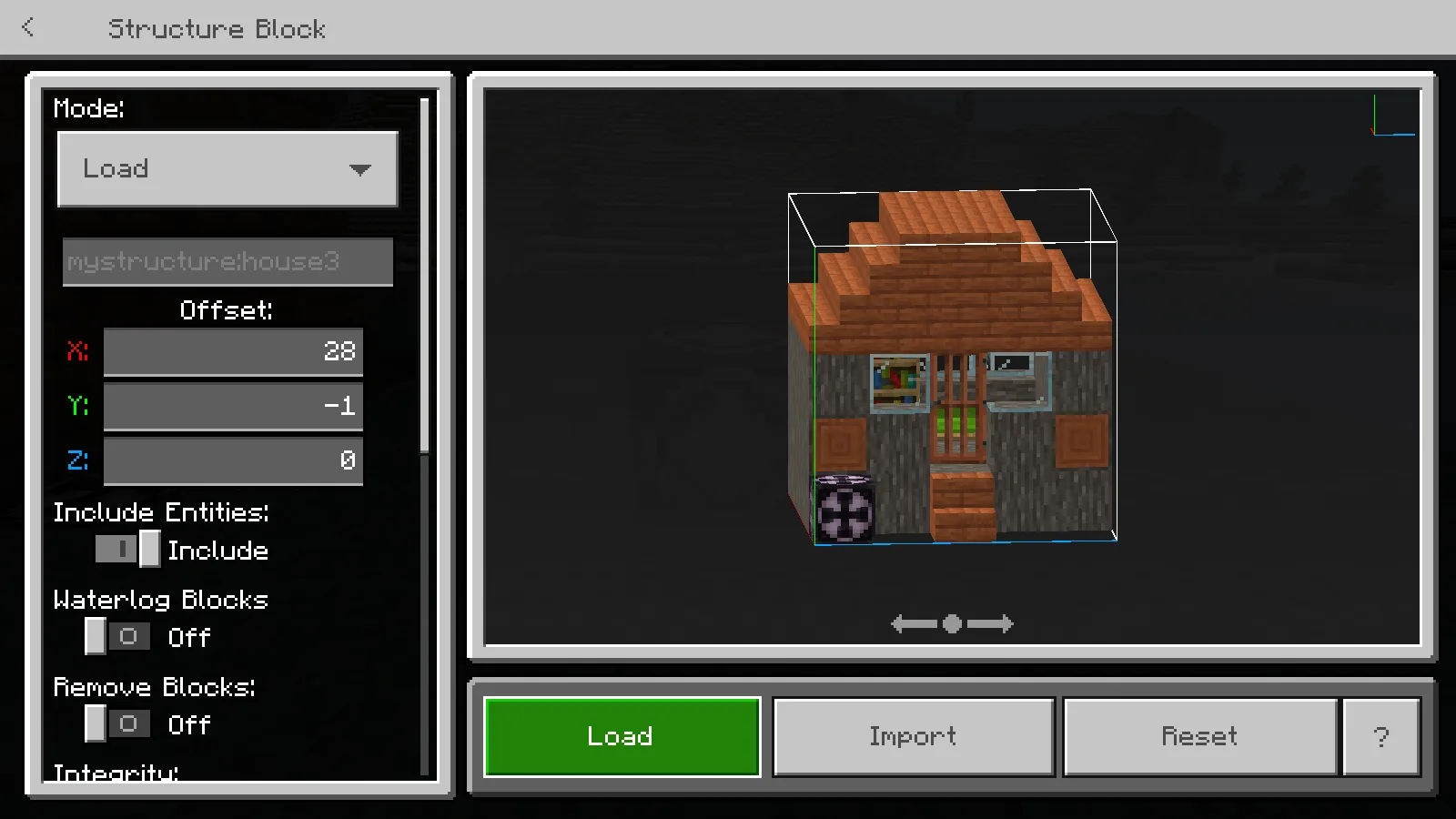
The structure name comes from the imported file; offsets choose where it is placed.
Set the offsets so the building lands beside the controller rather than through it. In our house1 example, X 4, Y -1, Z 0 places the file four blocks to the side, with its lowest layer one block below the controller. Check your own ground level before pressing Load.
The full Bedrock structure guide walks through the same controls. A loose MCSTRUCTURE file does not appear as a new world when you double-click it, and it does not belong in a Java mods folder.
Make a small house feel finished
Give it a short path, a place to put a light and one useful outdoor feature: a garden bed, a bench or a storage corner. Then walk through the doorway before adding more decoration. The point of these compact samples is that you can see the effect of each change quickly.
The buildings come from Microsoft's minecraft-samples collection. Modonix imported and photographed them and wrote the guide; the original files and their credits remain intact.
Comments & questions
Share what worked, ask for help or reply to another player.
No comments yet. Share what worked for you.