
Copperwood Atelier is a small set for turning a storage corner into a welcoming workshop. Its eight textures bring together warm spruce, rough cobblestone, red brick, pale stone bricks, polished andesite and dark framed iron. You can build around a useful counter and a timber rack without changing every room in your base.
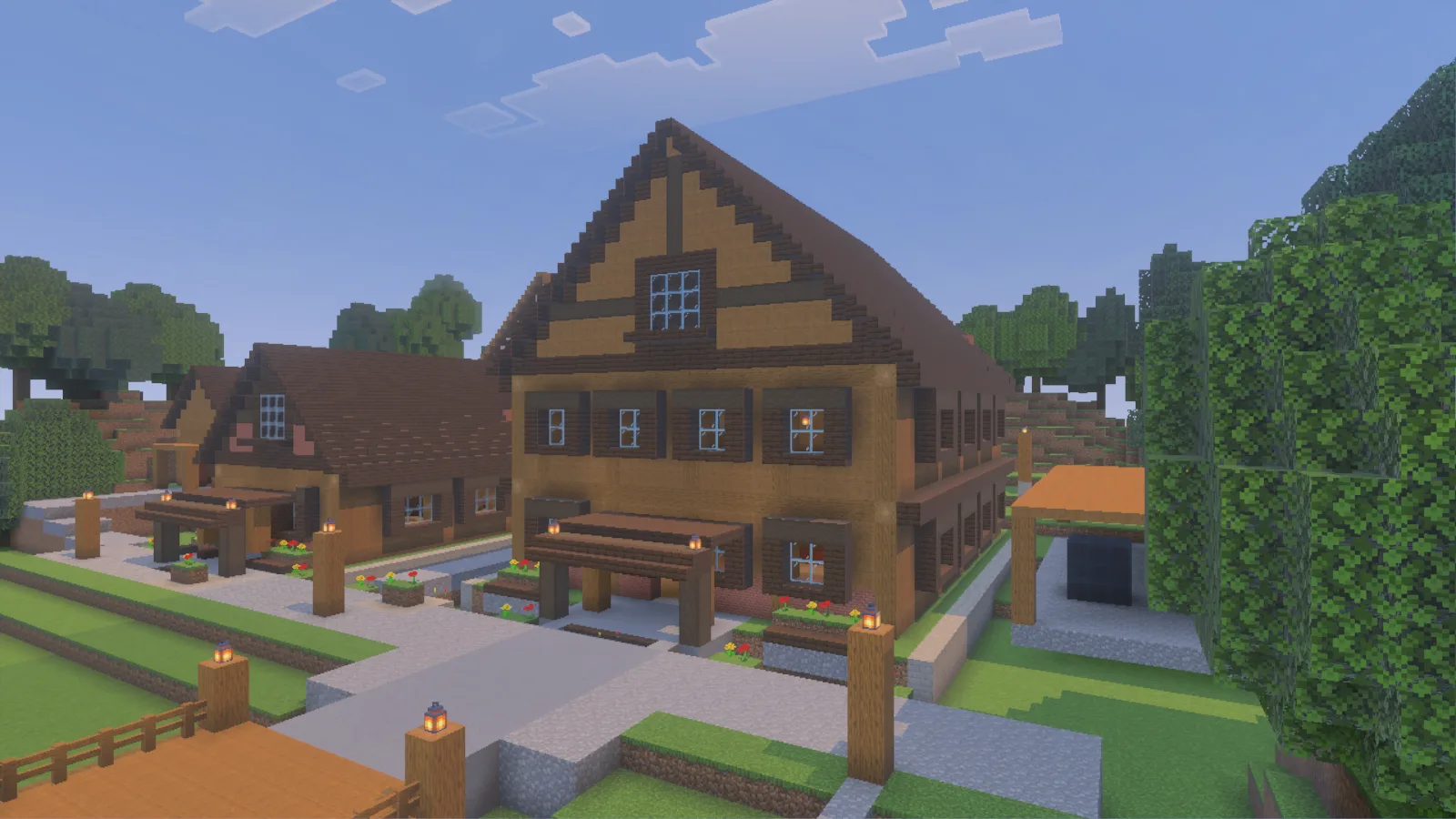
Build the workshop around warm spruce posts and boards, with stone where you need a work surface.
Start with spruce boards underfoot and stripped spruce posts at the corners. Give the timber its own storage spot: lay a few stripped logs horizontally with their ends facing the aisle. The round end grain and longer side grain make a simple stack look like lumber waiting for your next project. Keep the stack beside your storage, with enough space to reach the barrels underneath.
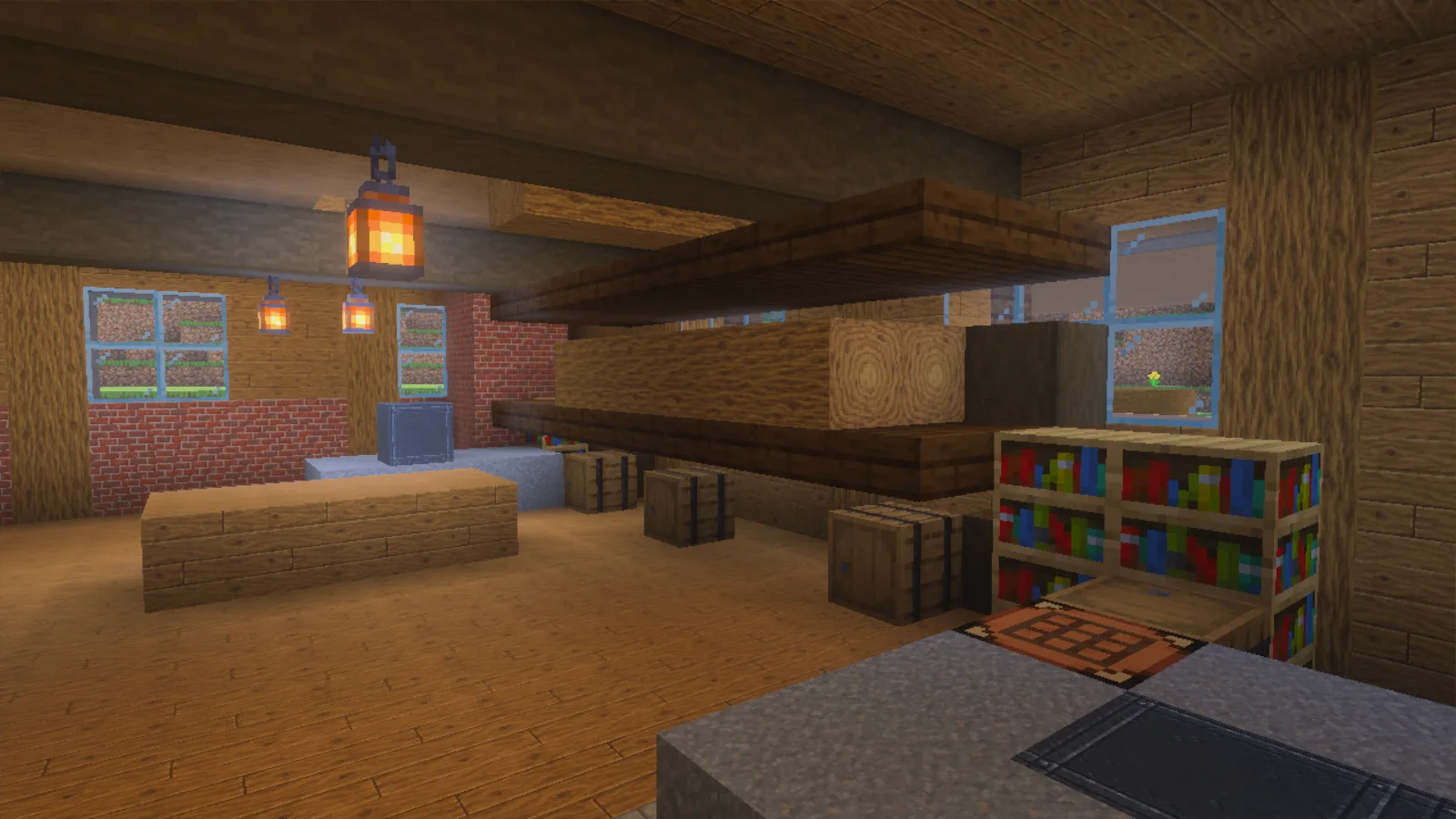
Face the stripped-log ends toward the aisle and keep storage within reach below the timber rack.
For the work surface, pair a polished-andesite counter with a red-brick back wall. One framed iron block near the counter's end adds a dark insert without hiding the stone. A pale stone-brick band breaks up the taller brickwork, while a strip of rough cobblestone in front separates the work area from the spruce floor. Put a crafting table at the end of the counter so you can work beside your supplies.
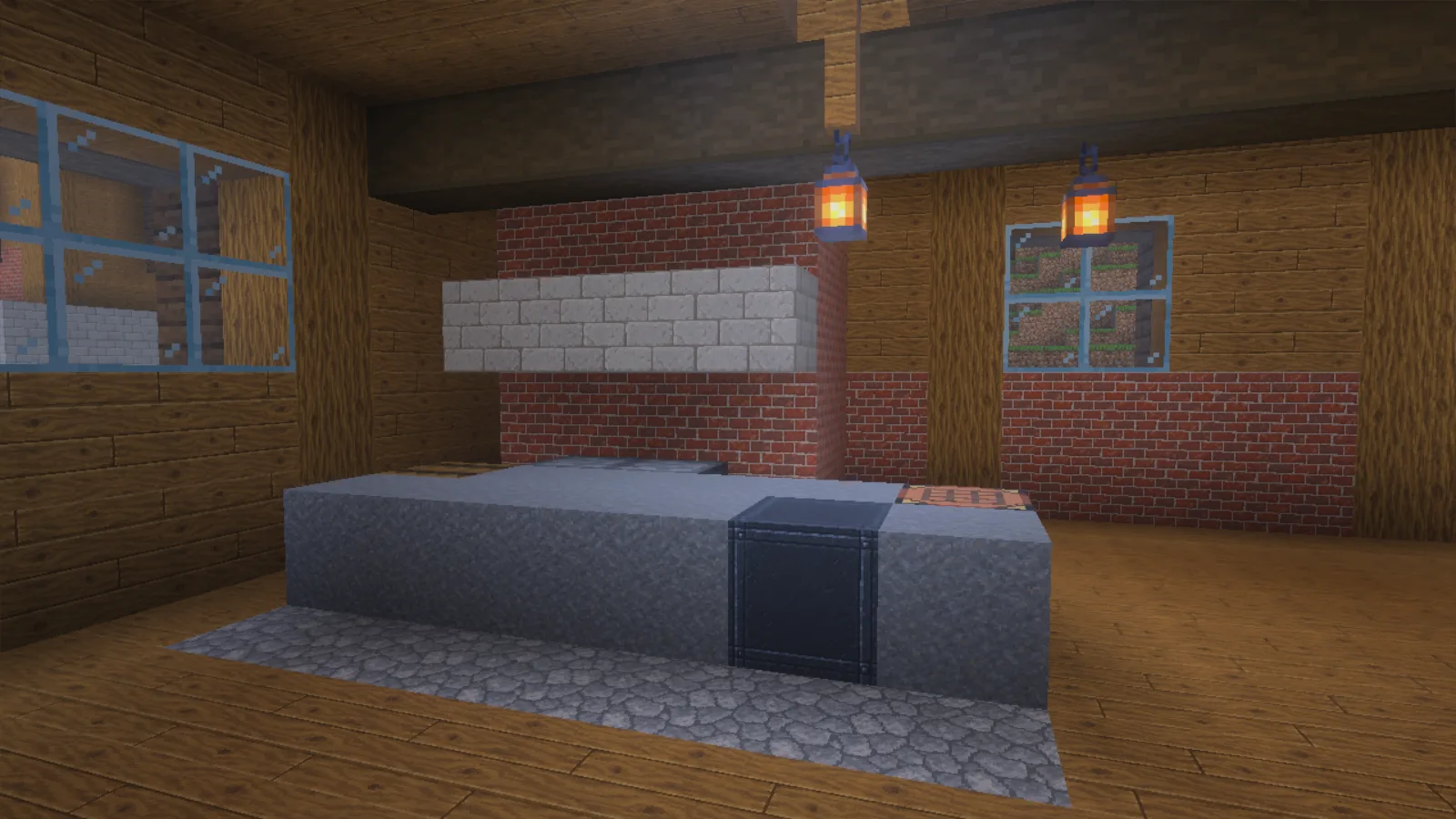
Polished andesite, a framed iron insert, red brick and rough cobblestone distinguish the working corner.
For a smaller survival workshop, shorten that counter to a few blocks and keep one clear aisle between it and the timber stack. A window beside the workspace and a lantern above it help the room feel useful rather than just decorated. The buildings in the images are examples, not part of the download.
Open the downloaded .mcpack file with Minecraft. If Minecraft opens but the pack does not appear, return to the main menu and open a copy of the file as a ZIP archive. Extract it into its own Copperwood Atelier folder inside %appdata%\Minecraft Bedrock\users\shared\games\com.mojang\development_resource_packs. Keep manifest.json and textures directly inside that pack folder, without an extra nested folder. Then edit your world, open Resource Packs, find Copperwood Atelier among the available packs and activate or add it. Place it above packs that replace the same materials, then reload the world.
Comments 0
Share what worked, ask for help or reply to another player.
Use your Modonix account to join the discussion and manage your comments.
Sign in to commentNo comments yet. Share what worked for you.