A separate flat world gives your building team a place to compare wall patterns, rehearse a lobby or keep an event build away from the main spawn. MultiWorld manages those worlds inside one PocketMine server. Start with a clearly named workshop and learn its load/unload cycle before adding more destinations.
Compatibility: MultiWorld 2.1.2 · PocketMine-MP 5.44.3 · plugin API 5.36.0 · Bedrock client target 26.30. A 26.52 client does not match this server release. This PHAR belongs on a PocketMine server, not in a local Bedrock world's packs or Microsoft's Bedrock Dedicated Server.
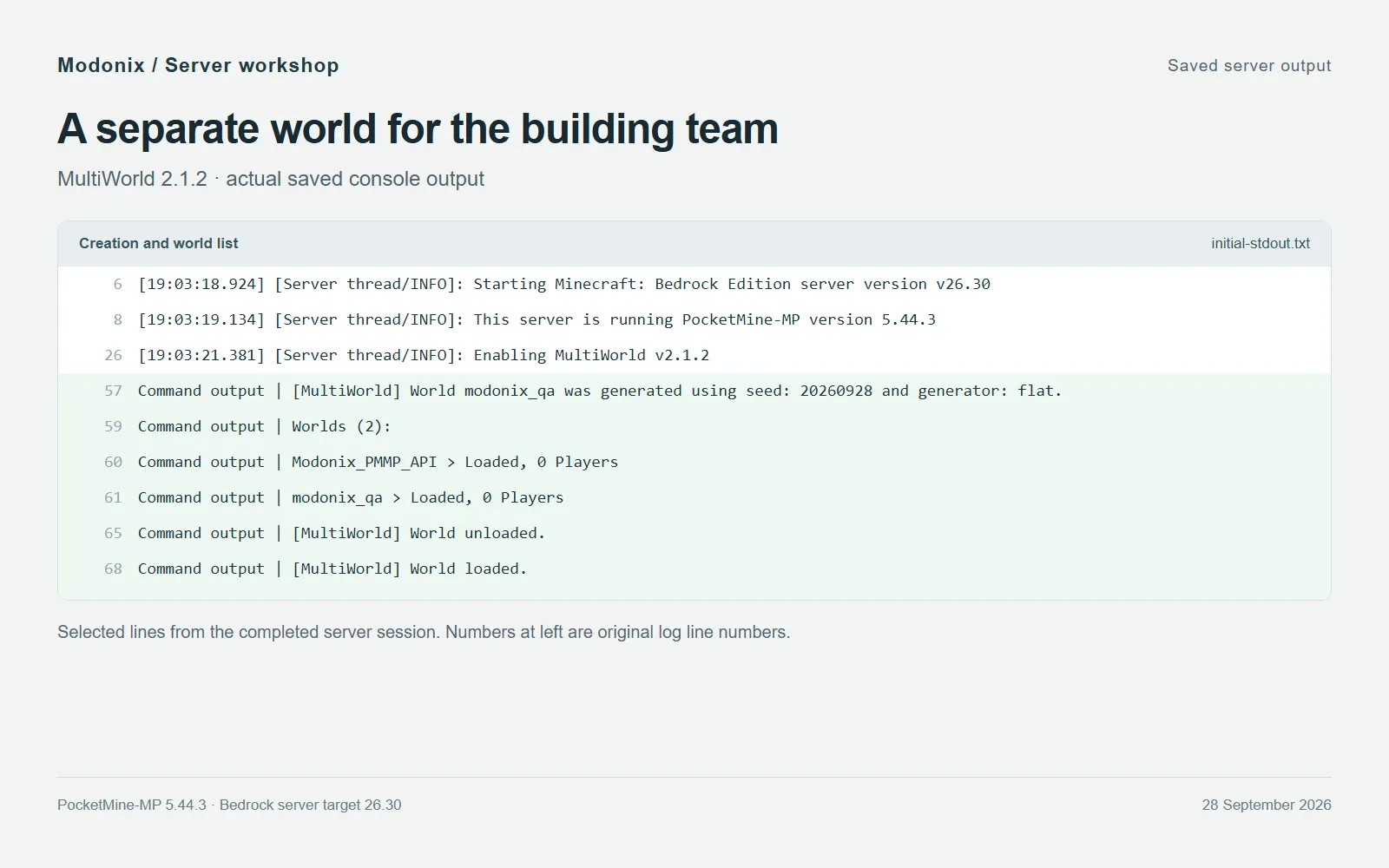
Saved server output: MultiWorld creates modonix_qa with the flat generator, lists the two loaded worlds and completes an unload/load cycle.
Put the plugin in the server
Stop PocketMine cleanly with stop in its console and wait for shutdown. Keep a backup of the server's worlds and plugin data. Find the server data folder: a normal layout contains server.properties, worlds, plugins and plugin_data. If your host specifies a custom plugins directory, use that location.
Place the downloaded MultiWorld.phar in plugins. Keep one version of the plugin there; move the previous PHAR into your backup folder before updating. Leave the PHAR intact. Start PocketMine with your usual launcher and look for Enabling MultiWorld v2.1.2. A source-code ZIP is not the same download.
Create a small workshop
Use the server console for these commands, without a leading slash:
mw create modonix_qa 20260928 flat
mw list
modonix_qa is the new world's name, 20260928 is its seed and flat selects the flat generator. Replace the name with a short purpose such as build_lab, but choose one that does not already exist. Keep spelling consistent in later commands. The seed here identifies our example; it is not a promise of a particular vanilla biome or landmark.
The saved output above shows the actual example world alongside the server's original world. Use the list to distinguish a loaded world from a name you have merely written in your planning notes. Give each new world a job: lobby prototypes in one, event construction in another. A handful of recognizable names is easier to maintain than a series of test2 and test_final folders.
Know which command is a pause
For an unused workshop, the ordinary management cycle is:
mw unload modonix_qa
mw list
mw load modonix_qa
Unload releases the loaded world; it is not the delete command. Choose a non-default world and arrange for players to leave before doing maintenance. MultiWorld refuses to unload the default world. After loading again, inspect the list and return to a recognizable part of the build.
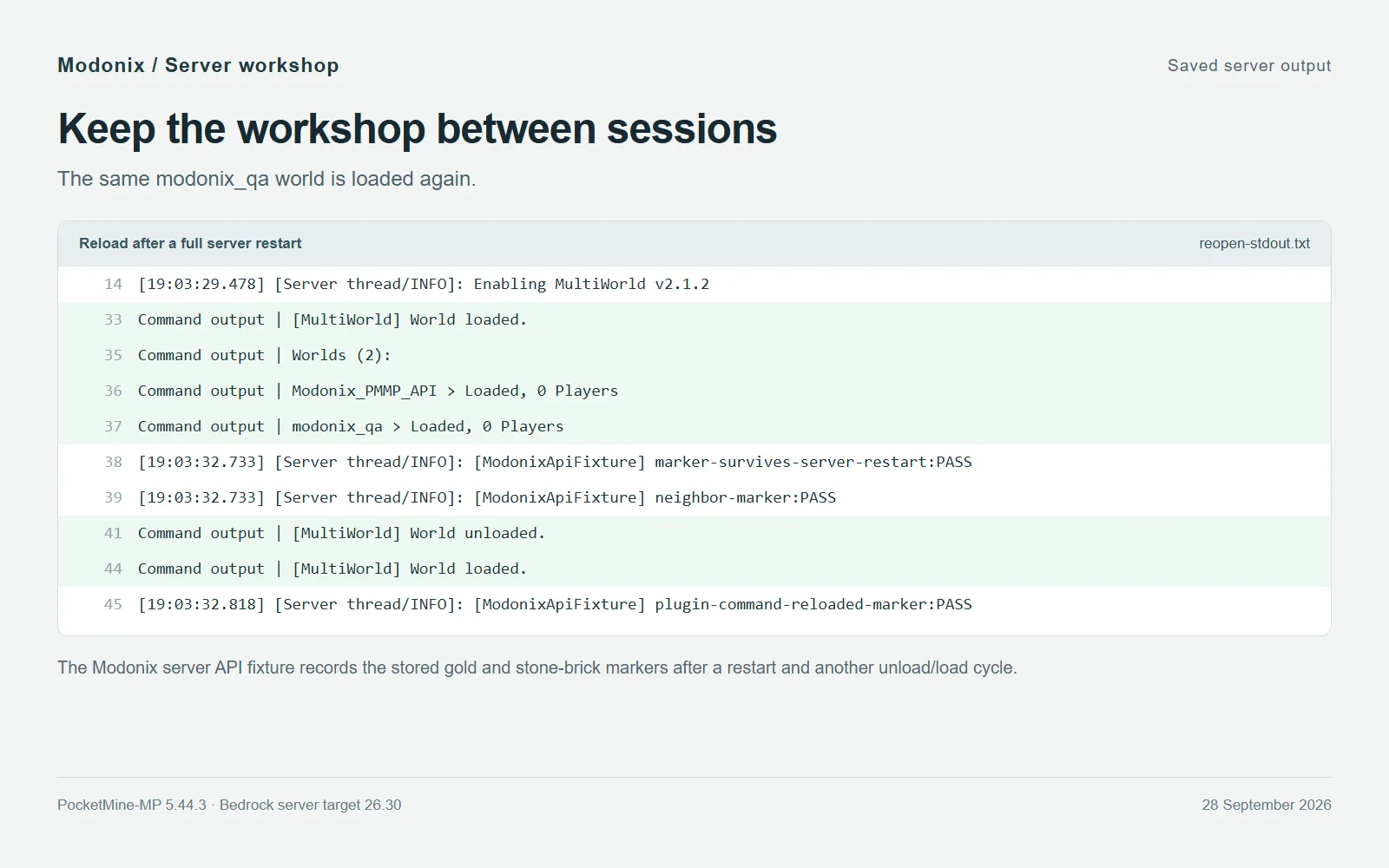
Saved server output after restart: the workshop reloads and the original fixture confirms that its two stored block markers remain.
In our server example, a gold block and a stone-brick marker written through the server API remained after unload/load and a full server restart. The saved output records that small persistence check. For your own workshop, keep a recognizable sign or corner as a quick orientation point, and keep dated backups before substantial changes. World management is not an automatic backup system.
Give builders the access they need
In game, commands begin with /. An authorized player uses /mw tp modonix_qa to request travel to the loaded world's spawn; from the console, include the player: mw tp modonix_qa PlayerName. Use the full intended player name rather than an ambiguous prefix. These are the plugin's travel commands, separate from the console management cycle above.
MultiWorld's command permissions default to operators. A permission manager can grant multiworld.command plus specific nodes such as multiworld.command.list or multiworld.command.teleport. Keep create, unload and delete permissions with the people who maintain the server. Access to a destination and authority to remove that destination are different jobs.
If a command is missing after installation, check the startup log for the plugin name, version and API errors first. If a world name is rejected, check mw list before creating another copy. Finish with a clean stop and preserve the whole relevant server data when moving the project to another machine.
Comments & questions
Share what worked, ask for help or reply to another player.
No comments yet. Share what worked for you.