

WorldEdit is most useful when a build starts repeating itself. A wall section, a line of arches or a floor should not need the same block-by-block work every time. You select a small area, change it together and reuse the part you like.
Keep a separate building copy while learning; an editing command can replace a large area much faster than placing blocks by hand. The wall exercise below uses the Beta download.
Begin with a small, visible selection
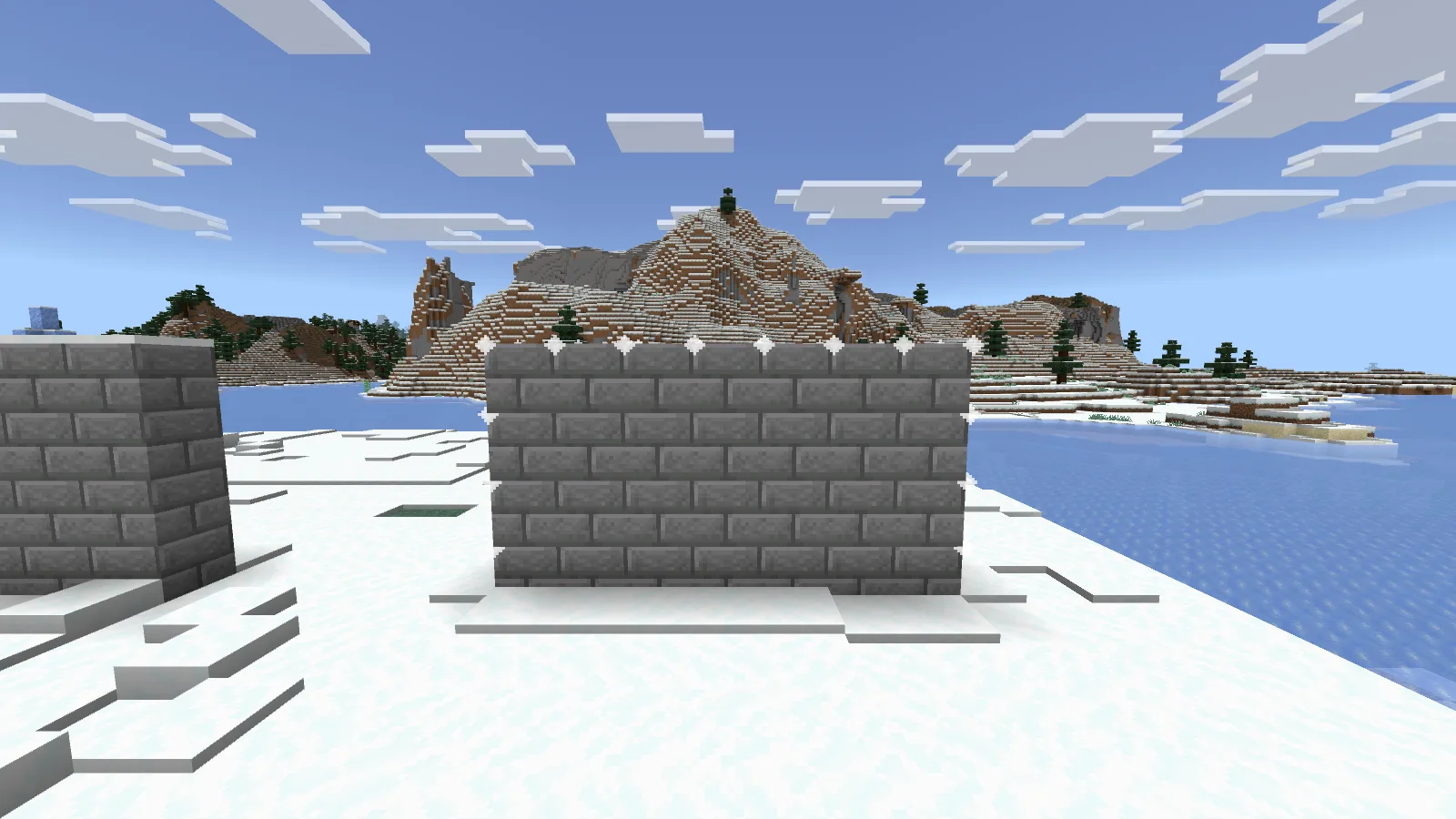
A small wall makes the selection and its result easy to compare.
We made a wall seven blocks wide, four blocks high and one block thick. Its outline is visible in the game, making it easy to compare the selected area with the result.
For a new practice world, give yourself WorldEdit access with /tag @s add worldedit. The commands in this release then use a semicolon, not Java WorldEdit's double slash.
These are the exact coordinates from our example; use a clear area before copying them:
;pos1 4 65 10
;pos2 10 68 10
;set stone_bricks
The two positions are opposite corners. Both corners count, so X 4 through X 10 gives seven blocks. You can also use ;wand to get the selection tool and mark corners in the world instead of typing coordinates.
Undo is part of the workflow
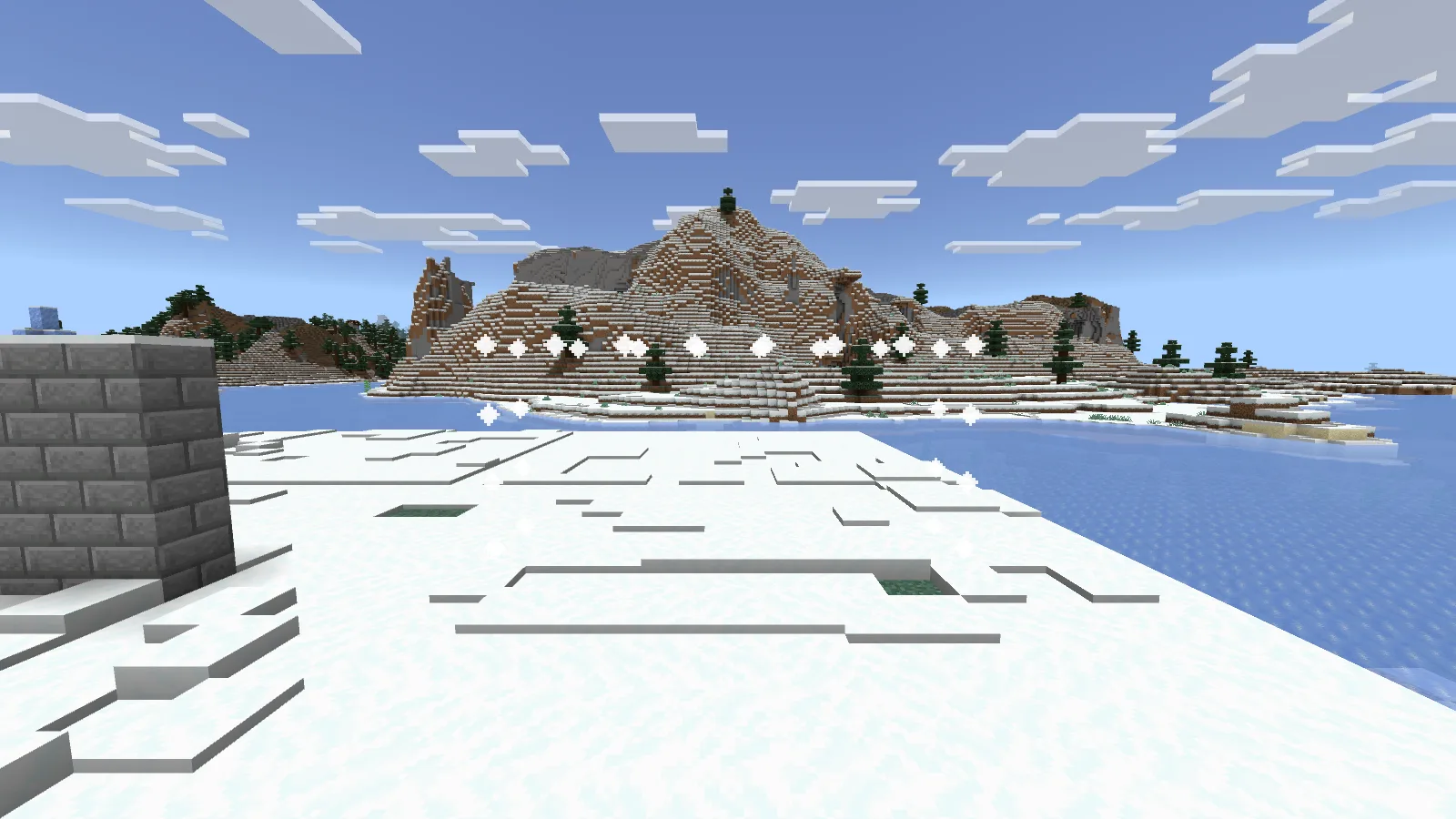
Undo removes the selected wall; the outline remains visible.
After ;undo, the wall disappeared and the selection outline stayed visible. ;redo brought the wall back. That gives you room to compare a change before keeping it, rather than treating the first material choice as final.
Use undo promptly and watch what operation it reverses. It is a building convenience, not a replacement for an untouched world copy before a major edit.
Cut a doorway, then copy the useful part
We selected the two blocks at the center of the wall and replaced them with air:
;pos1 7 65 10
;pos2 7 66 10
;set air
Then we selected the complete wall again, used ;copy, moved twelve blocks sideways and used ;paste. The copied section kept its doorway.
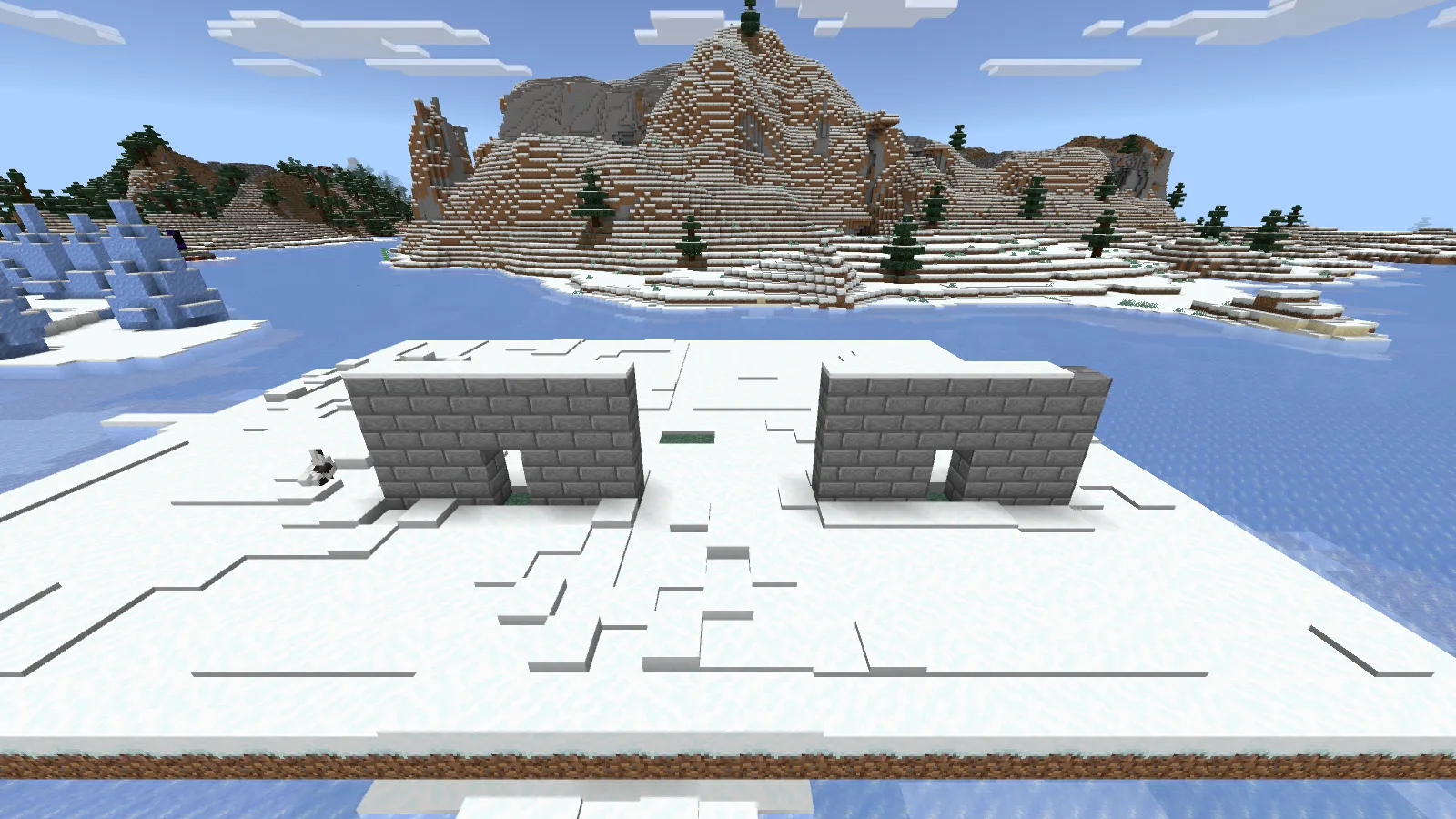
We cut the doorway once, copied the section and pasted it twelve blocks to the side.
Your standing position matters when copying: the clipboard remembers the selection relative to you, so the pasted building is offset from your new position. Keep a recognizable reference point beside the original, move to the equivalent point at the destination and try the paste there. If it is wrong, undo the paste and adjust your position.
This is a practical starting point for a courtyard, a row of shop fronts or a repeated bridge support. Finish one section first. Repeating a design that still needs changes only multiplies the cleanup.
Install the Bedrock add-on
- Download the WorldEdit Beta MCADDON used for this exercise. Check the selected file’s requirements before importing.
- Open the MCADDON with Minecraft and wait for both the behavior and resource packs to import.
- Create or copy a Creative practice world. Activate the WorldEdit behavior pack and its matching resource pack in that world's settings.
- Enable cheats. For this Beta file, enable Beta APIs as required by this release; accept the experimental-world notice only for the copy you intend to use.
- Enter the world and use /tag @s add worldedit. Try a small selection before editing a finished build.
Use the two packs from the same release. This is the Bedrock add-on; a Java WorldEdit JAR does not belong in these world settings.
When a command does not behave as expected
- The command appears as ordinary chat: check the release's command prefix, active behavior pack and WorldEdit tag. The example above uses semicolons.
- Nothing is selected: set both corners and inspect the outline before filling or copying.
- Too much changed: undo, then choose a smaller selection. Height is easy to overlook when the corners are far apart.
- The pasted section is displaced: use the same reference position when copying and pasting; the clipboard is relative to the player.
- The add-on stopped after a game update: compare the exact game version, pack release and required experiments. Preserve the working world copy before changing versions.
Comments 0
Share what worked, ask for help or reply to another player.
Use your Modonix account to join the discussion and manage your comments.
Sign in to commentNo comments yet. Share what worked for you.